Think your wallet holds your most valuable items? Your smartphone likely contains ten times more sensitive information.
This little device in your pocket is a treasure trove. It has your photos, messages, bank details, and work emails. It’s a prime target for hackers and thieves.
Proactive security isn’t just for tech experts. It’s essential for everyone who uses a phone. You don’t need to be a genius to build a strong defense.
This guide gives you straightforward, actionable tips. They will be your first line of defense in the digital world. Let’s turn your device into a fortress.
Key Takeaways
- Your smartphone stores a massive amount of personal and financial information.
- These devices are constant targets for digital thieves and scams.
- Taking simple, proactive steps is key for everyone.
- Basic security habits can prevent most common threats.
- You can significantly improve your phone’s safety starting today.
- This article provides clear, easy-to-follow advice to get you started.
- Protecting your digital life is an ongoing process, not a one-time task.
Start by Understanding What You’re Protecting
Many people rush to set passwords without thinking. True data security for mobile devices begins with awareness. You can’t protect what you don’t value. So, take a moment to think about what your phone actually holds.
It’s more than a communication tool. It’s a pocket-sized archive of your life.
Recognize the Value of the Data on Your Phone
Think about all the information stored deep within your phone. Your photo library holds years of memories. Your messages contain private conversations with family and friends.
Then there’s the sensitive stuff. Banking apps have your account details. Your email is a gateway to other accounts. University or work documents might be saved there, too.
Smartphone security steps ensure that you’re the only one who can use these two sources of information: your personal life and your digital identity. That’s what you’re defending.
Identify Common Mobile Threats: Malware, Phishing, and Theft
Knowing your enemy is half the battle. Mobile threats often come from three main directions.
Malicious Applications: Fake or compromised apps from third-party stores can hide malware. This software might steal your banking info or lock your device.
Phishing Scams: These are deceptive messages or websites pretending to be legitimate. They trick you into giving up passwords or credit card numbers.
Physical Theft: A lost or stolen phone gives a stranger direct access to everything. Without proper locks, your data is wide open.
These threats work through applications, networks, and even simple theft. Staying alert is your first layer of defense.
Know the Real-World Impact of a Data Breach
What happens if your defenses fail? The consequences are very real and personal.
Identity theft can ruin your credit score for years. Fraudulent charges can drain your bank account. Scammers might impersonate you to friends and family.
The impact isn’t just financial. It’s emotional. Losing private photos or messages can feel like a violation. The stress of fixing these problems is immense.
Understanding this risk makes security feel urgent. It’s not a theoretical concept. It’s about protecting your money, your reputation, and your peace of mind.
This foundational knowledge powers every other step in securing your device. When you know what you’re protecting and why, the actions you take next make much more sense.
Lock Down Your Physical Device Immediately
Did you know less than 30% of smartphone owners use a lock screen? This leaves their data open to thieves or curious strangers. Securing your mobile data is easy and takes just minutes.
Set a Strong Lock Screen Passcode (Not Just a PIN)
A simple 4-digit PIN is not enough anymore. It’s like a weak lock on a treasure chest. You need a stronger key for real security.
Upgrade to Biometrics: Use Face ID or Fingerprint Scanning
Biometrics like Face ID or fingerprint scanning are great. They’re unique to you and easy to use. Switching to biometrics is a big security boost. It makes it hard for others to get in.
Create a Long, Alphanumeric Password for Maximum Security
For top security, use a long passcode with letters, numbers, and symbols. It’s hard to crack. While it takes a bit longer, it’s worth it for keeping your device safe.
Turn On Automatic OS Updates for iOS and Android
Your phone’s operating system is its brain, and updates are its security patches. Hackers target old software. Enable automatic updates to keep your phone safe. This is a must for anyone serious about security. Go to your Settings and turn on automatic updates.
Activate Find My iPhone or Find My Device
What if your phone is lost or stolen? Services like Find My iPhone (iOS) and Find My Device (Android) are lifesavers. They do more than show your phone’s location.
You can remotely play a sound, lock the screen, or wipe all data clean. This is a last resort. Make sure this feature is active and you know how to use it from a computer.
These steps physically secure your device. They lay the foundation for all other mobile data protection efforts.
Strengthen Your Logins and Account Access
Your email, social media, and banking apps are like digital vaults. They need more than just a key to stay safe. True mobile privacy protection means making your accounts stronger. This means using more than just passwords.
A stolen password can open your whole digital world. Let’s make our accounts more secure.
Enable Two-Factor Authentication (2FA) on All Critical Accounts
Two-factor authentication adds a second step to log in. Even if someone gets your password, they can’t get in without the second code. It’s a strong defense.
But, about 90% of active Gmail accounts don’t use 2FA. You don’t want to be in that group. Turn on 2FA for your email, bank, and social media today.
Choose an Authenticator App Over SMS When Possible
While SMS codes are better than nothing, authenticator apps are safer. Apps like Google Authenticator or Authy make codes on your device. Hackers can’t get them like a text message.
This small change makes your account much safer. It’s a key part of mobile privacy protection today.
| Method | How It Works | Security Level | Best For |
|---|---|---|---|
| SMS/Text Message | A code is sent to your phone number. | Medium | Basic accounts where an app isn’t supported. |
| Authenticator App | App generates a time-based code on your device. | High | Email, banking, and other critical accounts. |
| Security Key | A physical device you plug in or tap. | Very High | Maximum security for high-value accounts. |
Use a Password Manager Like Bitwarden or 1Password
Reusing passwords is risky. If one site gets hacked, all your accounts with that password are at risk. A password manager solves this.
Tools like Bitwarden (free) or 1Password create and store strong, unique passwords for every site. You only need to remember one master password.
- Generate passwords with 12+ characters, mixing letters, numbers, and symbols.
- Let the manager auto-fill logins on your phone and computer.
- Sync your vault securely across all your devices.
This is a must-have for good mobile privacy protection.
Learn to Spot and Avoid Phishing Scams
Phishing scams trick you into giving up your login details. They often come via email, text, or even social media messages that look real.
Always check messages before clicking. Here are red flags:
- Urgent language: Messages claiming your account will be closed unless you act now.
- Suspicious links: Hover over links (on a computer) to see the real URL. On mobile, be extra cautious.
- Bad grammar and spelling: Legitimate companies rarely send sloppy messages.
- Requests for credentials: No real company will ask for your password via email or text.
Never share your login details. If you think a breach has happened, change your password right away and report it. Staying alert is your best defense.
Be Ruthlessly Selective with Your Apps
Protecting your mobile data starts with a simple rule: be strict about which apps you let on your device. Every new app is a risk. Always be cautious and verify before trusting.
Think of your phone as a fortress. Apps are like the gates. You must decide who gets in.
Download Apps Only from Official Stores (App Store, Google Play)
Always download from trusted places like Google Play and the Apple App Store. They have security checks to help protect you.
But, they’re not perfect. Sometimes, bad apps can sneak in. Always do your research before installing.
Look at the developer’s name and read recent reviews. Avoid apps with few downloads or bad feedback. This simple step helps keep your data safe.
Audit App Permissions Regularly on Android and iOS
Even good apps can ask for too much. Check their permissions every few months. Old permissions can be a security risk.
Why does a simple flashlight app need your contacts or location? It usually doesn’t. This is a common privacy issue.
How to Review and Revoke Unnecessary Permissions
Here’s how to check and change permissions on both platforms:
- On iPhone: Go to Settings > Privacy & Security. Look at categories like Location Services and Contacts. Tap each to see which apps have access and change it as needed.
- On Android: Go to Settings > Apps. Pick any app, then tap Permissions. You can turn off access to things like your camera or call logs.
Be brave. If an app doesn’t need a permission, take it away. A weather app needs your location, not your contacts.
Enable Automatic App Updates or Update Manually Weekly
Those update notifications are important. They bring security patches. Hackers target old versions with known flaws.
Turn on automatic updates in your app store settings. Or, update apps yourself every week. Keeping apps current helps close security gaps.
Uninstall Apps You No longer Use or That Seem Suspicious
A cluttered phone is a security risk. Clean out your home screen and app drawer. Delete apps you haven’t used in six months.
Also, listen to your instincts. If an app uses too much battery or shows weird ads, it might be bad. Delete it right away.
A clean app library is easier to manage and safer. It reduces the chances of data leaks. This final step helps keep your mobile data safe.
Secure Your Connection on Any Network
Where you connect your phone is as important as how you lock it. Public networks are convenient but risky. Your data can be intercepted as it travels through the air.
Think of your internet connection as a highway. On a secure network, your data travels in armored trucks. But on public Wi-Fi, it’s like sending postcards for anyone to read.
Avoid Using Public Wi-Fi for Sensitive Tasks
Free coffee shop Wi-Fi seems harmless. But it’s one of the riskiest places for mobile banking or shopping. Hackers often lurk on these unsecured networks.
They set up fake hotspots with names like “Free Airport WiFi.” Your phone might connect automatically. Then all your traffic flows through their computer.
What Information is Exposed on an Unsecured Network
On open Wi-Fi, hackers can see everything you send and receive. This includes login credentials for email and social media. Credit card numbers during purchases are visible.
Personal messages and photos can be intercepted. Even your browsing history becomes public knowledge. This makes you vulnerable to identity theft.

Install and Use a Trusted VPN on Your Smartphone
A Virtual Private Network (VPN) is your best defense on public networks. It creates an encrypted tunnel between your phone and the internet. Popular mobile security solutions include ExpressVPN and NordVPN.
These apps are easy to install from official app stores. Once activated, they run quietly in the background. You can browse normally with complete protection.
How a VPN Like ExpressVPN or NordVPN Encrypts Your Traffic
VPN encryption scrambles your data before it leaves your device. It travels as unreadable code through the public network. The VPN server decrypts it and sends it to the website.
The website’s response follows the same secure path back. This process happens instantly with modern VPN services. Not even your internet provider can see what you’re doing.
| Connection Type | Security Level | Best For | Key Consideration |
|---|---|---|---|
| Public Wi-Fi (No VPN) | Very Low | Casual browsing only | Avoid login pages & payments |
| Public Wi-Fi (With VPN) | High | All sensitive activities | Choose reputable VPN provider |
| Cellular Data (4G/5G) | Medium-High | Most daily tasks | More secure than open Wi-Fi |
| Home/Private Wi-Fi | High | Everything | Ensure router has strong password |
Use Your Cellular Data as a Safer Alternative
Your mobile data plan provides built-in protection. Cellular networks use encryption between your phone and the tower. This makes them significantly safer than public Wi-Fi.
When checking bank accounts or work email, switch to 4G or 5G. The small amount of data used is worth the security boost. This simple habit dramatically reduces your risk.
Turn Off Your Phone’s Auto-Connect to Open Wi-Fi
Both iOS and Android try to be helpful. They automatically connect to networks you’ve used before. They also seek out open networks when signal is weak.
This convenience creates danger. Go to your Wi-Fi settings and disable “Auto-join” for public networks. Your phone won’t connect without your explicit permission.
Taking control of your network connections completes your mobile security solutions. Combine VPN use with smart network choices. Your data remains protected whether you’re at home or traveling.
Embrace Mobile Data Protection with Encryption
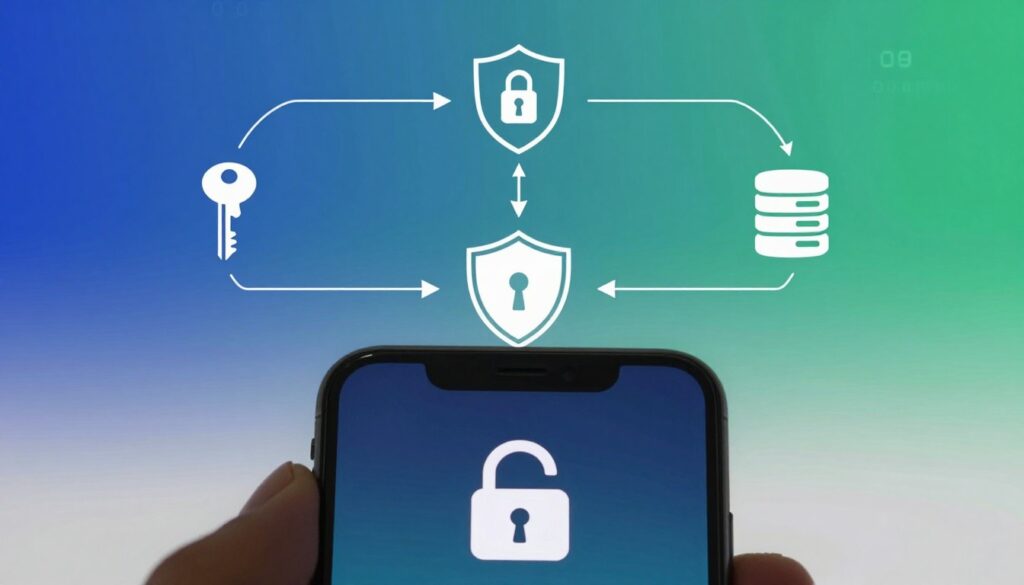
Encryption is like a secret language that only you and your intended recipient can understand. It scrambles your data into a code, making it unreadable to anyone without the right key. This means your messages, photos, and files stay private, even if your device is lost or a network is compromised.
This layer of security is very important. As one security guideline notes,
Don’t send sensitive information as attachments from your phone. Encrypt it first…
By embracingmobile device encryption, your phone becomes a digital vault.
Ensure Your Device’s Built-In Encryption is Active
Modern iPhones and Android phones have powerful built-in encryption. This feature automatically scrambles all data stored on your device. If someone tries to access your phone’s storage without unlocking it, they’ll see gibberish.
For most users, it’s already on by default. But it’s smart to verify this setting is active. You want that digital vault to be locked.
How to Check Encryption Status on iPhone and Android
Checking is a quick process. Here’s how to do it on both major platforms:
- On iPhone: Go to Settings > Touch ID & Passcode (or Face ID & Passcode). If you have a passcode set, data protection is enabled. This is Apple’s term for its robust encryption.
- On Android: Go to Settings > Security. Look for an “Encryption” or “Encrypt phone” section. Most newer devices are encrypted by default. If you see an option to encrypt, follow the prompts to enable it.
Once confirmed, your device’s core storage is secured. This is your first and most fundamental encryption step.
Use End-to-End Encrypted Messaging Apps Like Signal
Standard text messages (SMS) are not encrypted. They travel through your carrier’s network in plain text. For truly private conversations, switch to an app that uses end-to-end encryption.
Apps like Signal are excellent choices. With end-to-end encryption, your messages are scrambled on your phone and only unscrambled on your friend’s phone. Not even the app company can read them. This protects your chats from eavesdroppers and data collectors.
Opt for Encrypted Cloud Services (iCloud, Google Drive)
When you back up photos or documents to the cloud, they’re safe. Reputable services like iCloud and Google Drive use encryption to protect your data.
They encrypt your files both while they’re being uploaded (in transit) and while they’re sitting on their servers (at rest). This means your data is coded during its entire journey. Always use these trusted, official services over unknown alternatives for your important backups.
Understand How Encryption Protects Your Messages and Files
How does this all work? Imagine writing a note and then putting it through a complex cipher. The output looks like random characters. Only someone with the exact cipher key can translate it back.
Mobile device encryption does this digitally. When you send an encrypted message, it’s scrambled using a key only the recipient has. When you store an encrypted file, it’s scrambled using a key from your device passcode. Even if intercepted, the data is useless without that specific key.
This protection extends to every sensitive piece of information. It turns your personal digital life into a fortress, one secret code at a time.
Implement a Fail-Safe with Regular Data Backups
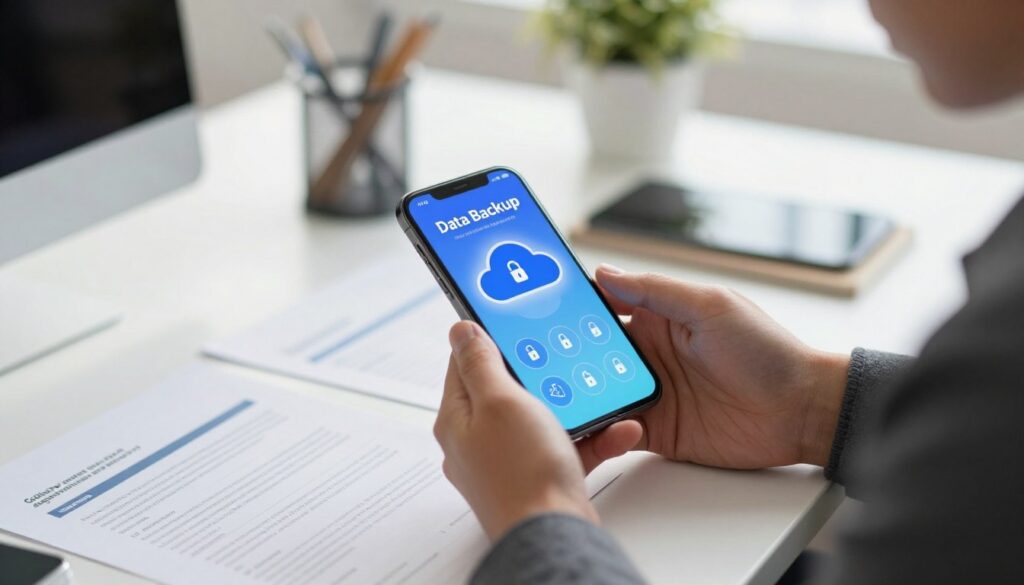
Having a solid plan to get your data back if something goes wrong is key. Think of backups as your digital safety net. If your phone is lost, stolen, or fails, a recent mobile data backup lets you restore everything to a new device in minutes. This peace of mind is priceless.
Schedule Automatic Backups to iCloud or Google One
Your first line of defense is to automate the process. Both iOS and Android make this easy with their native services.
On an iPhone, go to Settings > [Your Name] > iCloud > iCloud Backup and toggle it on. Your phone will back up when connected to Wi-Fi, plugged in, and locked.
For Android, open Settings > Google > Backup and activate “Back up to Google One.” This secures your app data, device settings, and more.
Automation is the enemy of human error. Setting your backups to run on autopilot is the single most effective step you can take.
Determine the Optimal Backup Frequency for Your Needs
How often should your phone back up? It depends on how much new data you create daily. The table below offers a simple guide:
| User Type | Recommended Frequency | Key Data Created |
|---|---|---|
| Casual User | Weekly | New photos, occasional messages |
| Active Professional | Daily | Work documents, emails, contacts |
| Content Creator | Continuous (if available) | High-volume photos, videos, project files |
Most people are fine with daily automatic backups. This balance ensures you rarely lose more than a day’s worth of information.
Create Periodic Local Backups to Your Mac or PC
While cloud backups are convenient, adding a local copy to your computer provides an extra layer of security. It’s your data, physically in your control.
Connect your phone via USB and use iTunes (for Windows or older macOS) or Finder (on newer Macs) for iPhones. For Android, use the built-in file transfer to copy important folders to your desktop. Do this monthly or before a major trip.
Decide Which Data is Essential to Backup
Not everything needs to be saved. Focus on what’s irreplaceable. Your priority list should include:
- Photos and Videos: Your personal memories.
- Contacts and Calendars: Your professional and personal network.
- Notes and Documents: Critical information stored in apps.
- Message History: Important conversations (ensure your messaging app backs this up).
Apps can usually be re-downloaded, so their data is often less critical unless it contains unique information.
Practice Restoring from a Backup to Ensure It Works
The final, critical step is to test your system. You don’t want to discover a corrupted backup when you’re in a panic.
Once a year, or when you get a new phone, perform a practice restore. Use a spare device or your current one after a full wipe (ensure you have a second recent backup first). Go through the setup process and select “Restore from iCloud/Google Backup.”
This dry run confirms your mobile data backup process is functional and familiarizes you with the recovery steps. It transforms a theoretical safety net into a proven recovery plan.
Take Charge of Your Privacy in Settings
Strong passwords and updates are just the start. True mobile privacy comes from the settings you use every day. Your phone’s settings offer tools to control data collection and access. A few minutes of setup can protect your personal info.
Limit Ad Tracking on Your iPhone or Android Device
Advertisers track your interests through apps and websites. You can stop sharing this info. On an iPhone, go to Settings > Privacy & Security > Tracking and turn off “Allow Apps to Request to Track.”
For Android, open Settings > Google > Ads and tap “Delete advertising ID.” This resets your identifier and stops personalized ads. It’s a simple way to reduce your online trace.
Manage Location Services with Precision
Many apps ask for your location, but not all need it all the time. Checking these permissions regularly is key. Go to your phone’s location services menu and review each app.
Choose the most restrictive setting that lets the app work right.
Setting Location Access to “While Using the App” vs. “Always”
Knowing the difference between these options is important. Here’s a quick guide:
| Setting | What It Means | Best For |
|---|---|---|
| While Using the App | The app can only access your location when it is open and active on your screen. | Maps, ride-sharing, food delivery—any app where location is needed for a specific task. |
| Always | The app can access your location at any time, even when it’s running in the background. | Very few apps, like fitness trackers that monitor your route throughout a workout. |
Always choose “While Using the App” when you can. Only give “Always” access to apps you really trust and need your location for.
Regularly Clear Your Browsing History and Cookies
Your browser stores data for logins and preferences. Over time, it can track your web activity. Clearing it often helps.
- On Safari (iPhone): Go to Settings > Safari > Clear History and Website Data.
- On Chrome (Android/iPhone): Open Chrome, tap the three dots > History > Clear browsing data.
Clearing your browser every month or so removes old tracking cookies. It also makes your browser run better.
Control Which Apps Can Access Your Contacts, Photos, and Microphone
Grant app permissions only if they’re necessary. A calculator doesn’t need your microphone, and a flashlight app shouldn’t see your contacts.
On iOS, check permissions under Settings > Privacy & Security. You’ll see categories like Photos, Camera, and Microphone. Tap each one to see which apps have access and revoke any that seem excessive.
On Android, go to Settings > Privacy > Permission manager. Review each permission category and adjust access app-by-app. Be ruthless—if an app’s request doesn’t make sense, deny it.
Controlling these settings puts you back in charge. It reduces data sharing and boosts your mobile privacy without slowing you down.
Conclusion
Securing your phone is not hard. You’ve learned how to protect your mobile data. This is your daily defense.
You started by locking your device and setting strong passwords. You also learned to choose apps wisely and be careful on public networks. Adding encryption and backing up your data regularly made it even safer. Managing your privacy settings gave you control over your information.
Remember, keeping your mobile data safe is a continuous effort. It’s not just one thing you do. Your habits are your strongest defense. In the digital world, you are your first line of defense. By following these steps, you take full control of your digital privacy and security.