Did you know the average cost of a company’s data breach was $4.44 million last year? IBM’s latest report highlights the huge impact of data loss on businesses.
Your company’s digital assets face many risks. These include hardware failures and cyber attacks, both of which can be costly.
A modern cloud backup and recovery strategy is your best defense. It’s like a safety net that you hope never to use but will be thankful for if you do.
Cloud backup keeps your important data safe in a secure, off-site location. If disaster hits, cloud recovery helps you quickly get your data back. This way, you can get back to work without a hitch.
This isn’t just tech talk—it’s a real way to secure your information and feel at ease. The good news is, setting up this data protection is easier than you think.
Key Takeaways
- The average cost of a data breach for a business is measured in millions of dollars.
- Cloud backup securely stores copies of your data in an off-site, remote environment.
- Cloud recovery provides the tools to rapidly restore lost information after a system failure.
- This approach acts as a critical financial and operational safety net for your company.
- It protects your valuable data from a wide range of modern threats.
- Quick recovery ensures business continuity and minimizes costly downtime.
- Getting started with this level of protection is an achievable goal for most organizations.
Why Your Data Is More Vulnerable Than You Think
Data vulnerability isn’t just about cyberattacks. It’s also about accidents like spilling coffee on your laptop or a storm flooding your office. You likely have important files on your computer, server, or in a local network drive. These are all physical items sitting in one place. That makes them a single point of failure.
Think about how many ways you interact with your data every day. A simple misclick can send a critical project file to the recycle bin. A power surge can fry a hard drive in seconds. Even trusted software can sometimes corrupt a database. If your only copy is on that one device, it’s gone. This is why relying solely on a local backup is a huge gamble. A true offsite data backup plan creates a separate, geographical safety net.
Let’s break down the common culprits. Human error is the leading cause of data loss. Everyone has accidentally deleted an email or overwritten a document. Without a recent backup, recovering that work is painful or impossible. Hardware fails, too. Hard drives have moving parts that wear out. Servers can overheat. These failures are not a matter of “if” but “when.”
Then there are malicious threats. Ransomware is a nightmare scenario. This malware encrypts your files and demands payment for the key. If your backup is connected to the same network, the ransomware can often encrypt that too. Your data is held hostage. Natural disasters are the ultimate test. A fire, flood, or severe storm can destroy everything in your building—computers, local servers, and any external drives sitting on a desk.
This table illustrates why keeping all your eggs in one basket is so risky:
| Threat Scenario | Common Cause | Why a Local Backup Alone Fails |
|---|---|---|
| Accidental Deletion | Human error, software glitch | You might not discover the loss before the local backup overwrites the good copy. |
| Hardware Failure | Drive crash, server malfunction | The backup drive is in the same physical machine or room, exposed to the same environmental risks. |
| Malware & Ransomware | Phishing email, infected download | Malware can spread across your network and infect connected backup drives. |
| Natural Disaster | Fire, flood, tornado | Destroys everything on-site, including your local backup hardware. |
| Theft or Loss | Stolen laptop, lost phone | The device and its local backup (like a USB drive in the same bag) are gone together. A secure offsite data backup remains safe. |
The pattern is clear. Any backup stored in the same location as your original data shares its fate. If your office is compromised, your backup is compromised too. This defeats the entire purpose of having a backup in the first place.
Proactive protection is non-negotiable. Waiting for a disaster to strike is a recipe for downtime, lost revenue, and immense stress. The solution is to physically separate your backup copy from your primary data. This is the core principle behind a robust offsite data backup strategy.
By moving a copy of your data to a secure remote location, you build resilience. You gain peace of mind knowing that no single event—whether it’s a spilled coffee or a city-wide blackout—can wipe out your digital assets. Taking this step isn’t just about technology; it’s about safeguarding your work, your business, and your continuity.
What Is Cloud Backup and Recovery? A Simple Explanation
Imagine having a safety net for all your digital information—that’s the core promise of cloud backup and recovery. It’s like creating copies of your data and storing them on remote servers you access over the internet. Think of it as building a digital clone of your files, applications, and system settings. This clone lives in a highly secure, off-site data center. If anything happens to your original data, you can use this clone to recover everything exactly as it was.
Recovery is the other half of the equation. It’s the planned process of getting your data back from that remote vault when you need it. A true cloud backup and recovery solution doesn’t just save files. It gives you a clear path to restore your entire digital workspace after a mishap.
Breaking Down the Key Components
To understand how it works, you need to know about the different types of backups. Each one serves a specific purpose in balancing speed, storage space, and protection.

Full Backup is your starting point. This is a complete copy of all the data you choose to protect. It’s the most thorough but also takes the longest to create and uses the most storage space. You perform a full backup first to seed your secure vault.
Differential Backup captures all the changes made after the last full backup. It’s faster than doing another full backup, but over time, as changes accumulate, these backups can grow large.
Incremental Backup is the most efficient method for daily use. It only saves the data that has changed. This makes backups very fast and uses minimal storage. Modern backup software typically uses incremental backups after the initial full one.
Here’s a quick comparison to show how they stack up:
| Backup Type | What It Backs Up | Speed | Storage Used | Best For |
|---|---|---|---|---|
| Full | All selected data | Slowest | Highest | Initial setup, periodic baselines |
| Differential | Changes from last full backup | Medium | Grows over time | Mid-point between full and incremental |
| Incremental | Changes from last backup | Fastest | Lowest | Daily, automated backups |
Cloud Backup vs. Cloud Storage: Knowing the Difference
This is a common point of confusion. While both involve the cloud, they solve very different problems. Cloud storage solutions like Google Drive, Dropbox, or OneDrive are mainly for file synchronization and sharing services.
You put files in a folder, and they sync across your devices. If you delete a file from one device, it often deletes everywhere. These services are great for collaboration and accessing files on the go, but they aren’t designed for full system recovery.
True cloud backup, managed by dedicated backup software, is designed for disaster recovery. It can back up operating systems, applications, settings, and every file automatically. Most importantly, it maintains version history. You can roll back to a point before a virus attack or a accidental deletion.
The table below highlights the key distinctions:
| Feature | Cloud Backup | Cloud Storage (Sync) |
|---|---|---|
| Primary Purpose | Disaster recovery & full system restoration | File access & synchronization across devices |
| What Gets Saved | Entire system image, applications, settings, & files | Individual files & folders placed in sync folder |
| Version History | Extensive, configurable retention policies | Often limited (e.g., 30-day trash) |
| Deletion Behavior | Deleting local files does not delete backups | Deleting a file locally deletes it from cloud |
| Automation | Fully automated, runs in background | Manual drag-and-drop or folder placement |
Using a sync service for your important documents is better than nothing. But for protecting your entire digital life, a dedicated cloud backup is the right tool for the job. It’s the difference between saving a few prized possessions and having a blueprint to rebuild your entire house.
How Cloud Backup and Recovery Works: A Step-by-Step Look
Let’s take a closer look at how cloud backup keeps your data safe. It’s not a mystery; it’s a series of steps designed to protect your information. This understanding makes cloud backup a reliable ally for your business.
The Initial Backup and Seeding Process
The first step is the initial full backup, or “seeding.” This is when your software takes a complete snapshot of your data.
Think of it as moving your entire library to a safe place. This might take hours or days, depending on your data and internet speed. Once done, your data is safely stored in the cloud.
| Backup Phase | Data Volume | Typical Duration | Primary Purpose |
|---|---|---|---|
| Initial Seed (Full Backup) | All selected data | Hours to Days | Establish a complete recovery baseline |
| Subsequent Backups | Only new/changed data | Minutes to Hours | Maintain an up-to-date protection layer efficiently |
Ongoing Incremental Backups: The Magic of Efficiency
After the initial seed, the real magic starts. The system switches to incremental backups. It saves only the data that has changed.
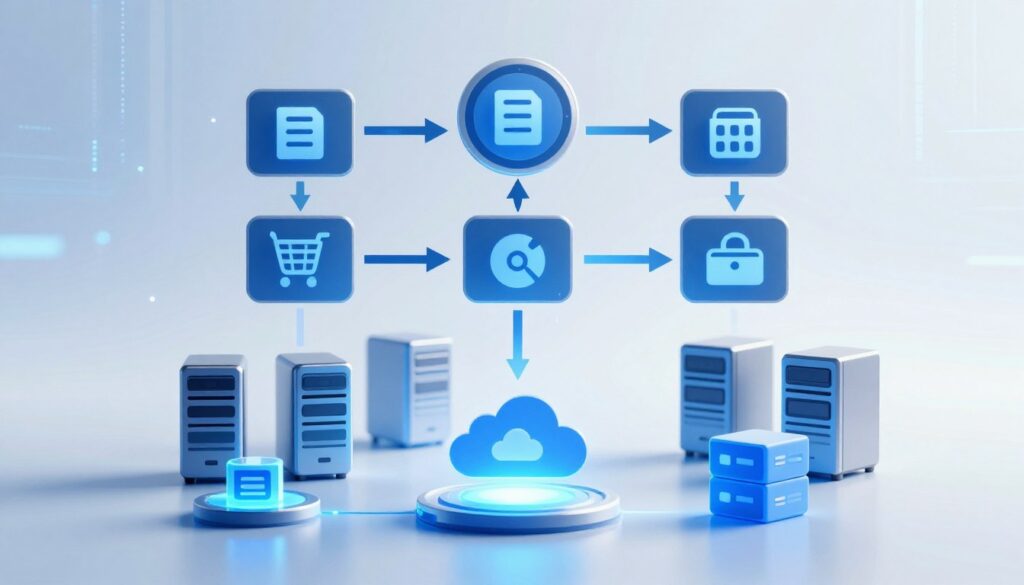
This method is very efficient. It saves space and bandwidth, which means lower costs. It also allows backups to happen often and quickly, without slowing you down. This is where automated backup services really shine, working quietly in the background.
“The power of modern data protection lies not in the grand, one-time act, but in the quiet, relentless consistency of automated, incremental updates. It’s the difference between having a historical archive and a living safety net.”
The Recovery Process: Getting Your Data Back
When you need your data back, the recovery process is your lifeline. It’s designed to be easy, often managed through a simple web portal or dashboard.
You select what to restore and from which point in time. The system then retrieves the data from the cloud and rebuilds it on your device or a new server. This turns a crisis into a routine operation.
Here’s what a typical recovery looks like:
- Initiation: You log into your backup dashboard and select the “Recover” or “Restore” option.
- Selection: You browse your backup history and pinpoint the exact files or system state you need.
- Retrieval: The service pulls the required data from secure, offsite cloud storage.
- Restoration: Your data is reconstructed and made available for use, resuming normal operations.
The beauty of a well-designed cloud system is that this recovery can often be initiated from anywhere. This gives you true operational resilience. By using automated backup services, you ensure a clear and reliable path back to normal when trouble strikes.
The Core Benefits: Why Cloud Backup Is a Game-Changer for Data Protection
Cloud backup offers many advantages that protect your data and help your business grow. It turns backup into a strategic asset for cloud resilience.

Geographic Redundancy and Offsite Security
Your office server is at risk. A disaster like a flood or theft can destroy years of work. Cloud backup fixes this with geographic redundancy.
Your data is copied to secure data centers far from your location. So, a disaster in your area won’t harm your backups. This offsite protection is key for business continuity solutions.
You can relax knowing your data is safe outside your office. This is why cloud backup beats old-school local backups.
Automation: Setting It and (Mostly) Forgetting It
Forgetting to back up is a big problem. Cloud backup solves this with smart automation.
Just set up your backup schedule once. The system then runs backups in the background. It saves only what’s changed, keeping your backups up-to-date.
This approach lets your IT team focus on important tasks. It also means you never have to worry about human error.
Scalability That Grows With Your Needs
Old backup methods require guessing your future needs. Cloud backup is flexible, growing with your business.
As your business grows, so does your backup storage. You don’t need to worry about buying too much or too little. This flexibility offers several benefits:
- Cost-Efficiency: You only pay for what you use, avoiding big upfront costs.
- Effortless Growth: Adding new servers or apps is easy with cloud backup.
- Future-Proofing: Your storage grows with your data, never becoming outdated.
This flexibility is essential for modern business continuity solutions. It ensures your data protection keeps up with your business.
These benefits—offsite security, automation, and scalability—form a strong defense. They move you from just saving data to actively protecting it. This is the heart of cloud resilience, keeping your business safe no matter what.
Cloud Resilience: Bouncing Back from Disasters Fast
True data protection is more than just making copies. It’s about how quickly you can get back online. This quick recovery is called resilience. It’s like your data’s immune system.
When disaster strikes, a resilient system doesn’t just survive. It quickly bounces back.
Your cloud backup is key to this resilience. It turns your recovery plan into an active, automated process. The goal is to reduce downtime and data loss.
Defining Your Recovery Time and Point Objectives (RTO & RPO)
To build resilience, you need clear goals. RTO and RPO are your most important recovery metrics.
Recovery Time Objective (RTO) is your speed limit. It answers: “How fast must my systems be restored after an outage?” If your RTO is 4 hours, you have 240 minutes to get everything running again.
Recovery Point Objective (RPO) is your data loss tolerance. It answers: “How much recent data can I afford to lose?” An RPO of 1 hour means you can only lose up to 60 minutes of work. Your last backup must be no older than that.
Different data and applications need different goals. A customer database might need a very short RTO and RPO. Archived documents can have much longer targets.
| Business Scenario | Typical RTO Goal | Typical RPO Goal | Impact of Missing the Goal |
|---|---|---|---|
| E-commerce checkout system | 15 minutes | 5 minutes | Lost sales, angry customers, reputational damage |
| Internal file server | 4 hours | 24 hours | Reduced employee productivity, project delays |
| Financial reporting database | 1 hour | 15 minutes | Compliance violations, audit failures |

How Cloud Solutions Drastically Improve These Metrics
Traditional backup methods often struggle to meet tight RTO and RPO goals. Restoring from physical tapes can take days. Cloud solutions are built for speed.
Cloud-based disaster recovery (DR) uses offsite infrastructure that’s always on standby. If your main office has a problem, you can failover to the cloud in minutes. Your operations can continue from a virtual environment with almost no interruption.
This is where disaster recovery as a service (DRaaS) shines. A DRaaS provider manages the entire recovery platform for you. They handle the complex replication and failover technology. You get a simple dashboard to control it.
The result? What used to mean days of downtime can now be minutes or hours. Your RPO shrinks because cloud backups can run continuously or every few minutes. You lose very little data.
Your RTO collapses because recovery is automated. You click a button to initiate a failover. The system does the rest. This level of resilience was once only for large corporations. Now, thanks to the cloud, it’s available to any business.
By leveraging these cloud capabilities, you turn your backup from a simple safety net into a powerful resilience engine. You’re not just protected. You’re prepared to recover at the speed your business demands.
Security in the Cloud: Is Your Backup Data Actually Safe?
Storing backup data off-site raises security concerns. It’s a valid worry. Handing over sensitive data to a service you don’t control feels risky.
But, modern secure cloud storage solutions focus on security. Often, your data is safer in the cloud than on your own server.

Encryption: Your First and Strongest Line of Defense
Encryption is like a safe for your digital info. It turns your data into a secret code. This code is useless without the right key.
Encryption in transit keeps your data safe while it’s moving. It’s like sending your valuables in a secure truck.
Encryption at rest keeps your data safe on the provider’s disks. Even if someone gets physical access, they’ll only see random data.
The standard encryption is AES-256. This makes it impossible to crack with today’s tech. A good provider lets you control your encryption keys, adding extra security.
Compliance and Regulations (Like HIPAA and GDPR)
For businesses in regulated fields, following the law is essential. A reliable cloud backup provider meets these standards, saving you time and stress.
Compliance means the provider’s systems and data centers are checked regularly. They follow strict rules for data protection.
Look for compliance with these frameworks:
- HIPAA: Protects patient health info in the US.
- GDPR: Ensures data privacy in the European Union.
- SOC 2: Reports on a service’s security controls.
- PCI DSS: Protects credit card data.
Choosing a provider that follows these standards means they’re serious about security. Their measures, like multi-factor authentication, protect your data.
A professional secure cloud storage service offers unmatched security. Your backup is not just stored; it’s heavily protected.
Cost Considerations: Understanding the Pricing Models
When planning for data protection, it’s key to grasp the pricing models of cloud backup. This way, you can avoid unexpected costs. Cloud backup uses a pay-as-you-go model, unlike traditional methods that require big upfront payments. This makes your costs more predictable and manageable.
Let’s dive into how this affects your budget. You only pay for the storage you use. Your costs can grow or decrease based on your needs. This flexibility is a big plus of modern cloud storage solutions.
Total Cost of Ownership vs. Traditional Backup
When comparing costs, look beyond the initial price. The total cost of ownership (TCO) includes all expenses over a system’s lifetime.
Traditional backup means buying servers, tape drives, and software licenses. You also need IT staff for upkeep and manual tasks. When hardware fails or needs an update, that’s another big expense.
Cloud backup changes the game. You don’t have a huge upfront cost. Instead, you pay a recurring fee. This fee covers storage, software, security, and maintenance, all handled by the provider.
Consider these often-overlooked costs in a traditional TCO:
- Buying and replacing physical hardware
- Space, power, and cooling in a datacenter
- IT labor for backups and troubleshooting
- Potential business costs during downtime
The cloud model simplifies these into one predictable cost. This makes planning your data protection strategy easier.
What to Look For in a Pricing Plan
Not all pricing plans are the same. To find a cloud storage solutions plan that fits your budget, look closely at the details. Here’s a checklist to help you:
- Storage Tiering: Are there different prices for hot, cool, or archival storage? Choose the tier that fits your data’s needs.
- Data Retrieval Fees: Some providers charge extra for data restoration. Know these egress costs before you sign up.
- Overage Charges: What if you go over your storage limit? Look for clear policies to avoid surprises.
- Contract Length and Flexibility: Monthly plans offer flexibility, while annual contracts may offer discounts. Pick based on your needs.
- Included Support: Does the base price include technical support, or is it extra? A good SLA is invaluable.
By asking these questions, you can choose a provider with clear pricing. This way, you get the benefits of the cloud without financial surprises. Careful planning ensures your cloud storage solutions provide value and peace of mind for years.
Choosing the Right Cloud Backup Provider for You
Finding the right backup software can be tough. It’s not just about installing a new tool. It’s about picking a reliable partner for your data.
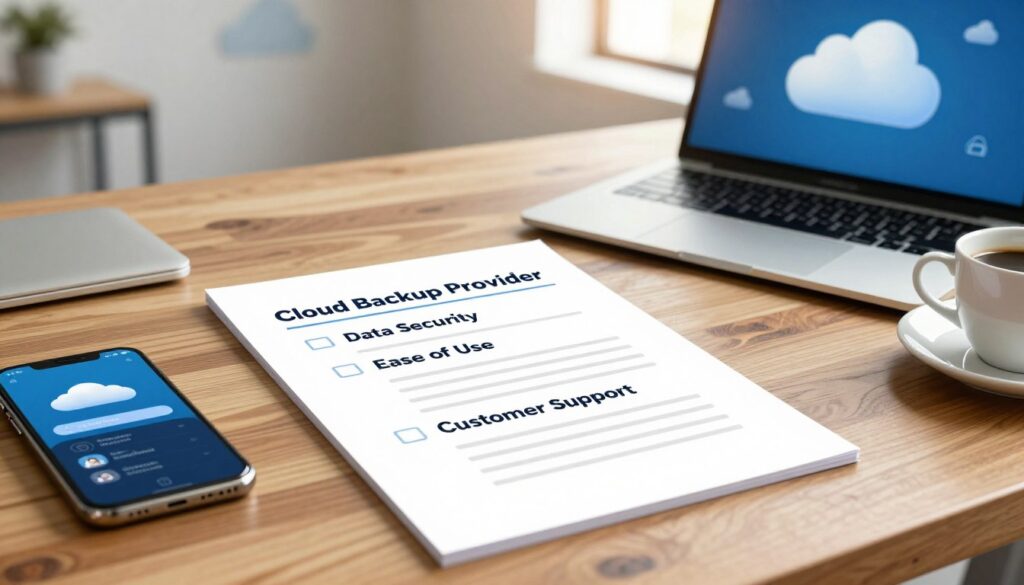
Let’s look at what you need to check. This will help you find a service that really fits your needs.
Key Features Checklist
Good automated backup services have some key features. Don’t settle for less. Here are the must-haves your provider should offer.
Versioning and Retention Policies
Versioning is like a time machine for your files. It saves different versions of a file over time. This lets you go back to a previous version if needed.
Retention policies decide how long these versions are kept. A good policy is flexible. You might keep daily backups for a month, weekly for a year, and monthly for seven years.
Why does this matter? Without versioning, you only have the latest file. If corruption happens slowly, you need to go back several versions. Your provider should offer clear, customizable settings for both.
Cross-Platform Support and Ease of Use
Your data is on many devices. Your backup software must support them all. True cross-platform support ensures every piece of your digital puzzle is covered.
Ease of use is also key. A complicated interface means mistakes and neglected backups. Look for a clean dashboard, straightforward setup, and clear reporting. The best tools make powerful protection simple for everyone.
To help you compare, here’s a look at how key features stack up across different types of providers:
| Feature | Enterprise-Grade Provider | Prosumer / SMB Focus | Basic Consumer Service |
|---|---|---|---|
| Versioning Depth | Unlimited or 100+ versions per file | 30-100 versions per file | 10-30 versions per file |
| Retention Flexibility | Fully customizable (GFS schemes) | Pre-set tiers (e.g., 30 days, 1 year, 7 years) | Fixed period (e.g., 30 days only) |
| Platform Support | Windows, Mac, Linux, VMware, Hyper-V, NAS | Windows, Mac, Linux, Mobile | Windows, Mac, Mobile |
| Interface Complexity | Advanced, for IT admins | Balanced: simple dashboard with advanced options | Very simple, minimal settings |
Evaluating Support and Service Level Agreements (SLAs)
When something goes wrong, the quality of your provider’s support is priceless. A robust SLA is their formal promise to you. It outlines guaranteed performance levels and your remedies if they fail.
“An SLA is not a courtesy document; it’s a binding commitment to availability and performance. The most critical metrics to scrutinize are Recovery Time Objective (RTO) and uptime percentage.”
First, examine the SLA for uptime guarantees, often 99.9% or higher. More importantly, look for specific promises about recovery speeds. Some premium automated backup services guarantee initial response times for recovery requests.
Next, test their support before you commit. Send a pre-sales question via chat or email. Note the response time and the helpfulness of the answer. Are they available 24/7? Do they offer phone support, or only tickets?
Remember, you’re not just buying software. You’re buying peace of mind. A provider with a strong SLA and responsive, knowledgeable support is a true partner in your data protection strategy.
Implementing Your Cloud Backup Strategy: A Practical Guide
Are you ready to set up your cloud backup? This guide will help you do it. It’s like a blueprint for making cloud backup a reliable part of your work. Doing it right saves time and keeps your data safe.

Follow these four steps to create a strong backup system. It will support your business continuity solutions.
Step 1: Conduct a Data Audit and Prioritize
First, find out what data you have. Look at where it’s stored, like on laptops or servers. Knowing this is key.
Not all data is the same. Find out what’s most important for your business. These are the files and systems you can’t do without. For each, decide how quickly you need it back and how much data loss you can handle.
How quickly you need your data back is your Recovery Time Objective (RTO). How much data loss you can tolerate is your Recovery Point Objective (RPO). These help you know what to back up first and how often.
Step 2: Configure Your Backup Policies and Schedules
Now, make rules for your backup software. This is where you set your backup policies. A policy tells your software what data to back up, where, how often, and for how long.
For critical data, you might back up hourly. For less urgent files, daily or weekly might be enough. Automation is your best friend here.
Once set up, the system takes care of everything. You avoid mistakes and ensure consistent protection. Don’t forget to set how many past versions of a file to keep.
Step 3: Perform Your First Full Backup
This is the big step. Your first full backup sends all selected data to the cloud. It might take hours or days, depending on your internet speed and data volume.
Don’t worry if it takes a while. Schedule it for a quiet time, like at night or on a weekend. Many providers let you send an initial backup on a physical drive.
This step creates your cloud baseline. All future backups will only save changes, making them quick and efficient.
Step 4: Regularly Test Your Recovery Process
Testing your recovery is essential. A backup that can’t be restored is useless. You must test it often.
Do recovery drills every quarter. Choose a file, folder, or system snapshot to restore. Check that the data is complete and correct.
This practice proves your backups work and your team knows how to restore them. It turns your backup plan into a real business continuity solution. Knowing you can recover when needed gives you peace of mind.
By following these steps—audit, configure, seed, and test—you make cloud backup a key part of your business’s resilience.
The Future of Cloud Backup: AI, Automation, and Beyond
Imagine if your backup could predict a hardware failure before it happens. This future is closer than you think. The next step in data protection is moving beyond just storing data. It’s becoming an intelligent, proactive partner in your cloud resilience strategy.
Artificial intelligence and machine learning are leading the way. These technologies are making backup systems think for themselves. They analyze data and infrastructure patterns, catching anomalies humans might miss.
Picture a system that learns your data flow. It flags unusual activity, like a ransomware attack. Before the attack finishes, your AI backup can isolate the threat. It can even start an automatic recovery from a clean snapshot.
Predictive analytics take it further. By watching server health, systems will forecast drive failures. You’ll get a warning to replace a part days or weeks before it fails. This prevents data loss and keeps your recovery point objective near zero.
Automation is getting smarter too. It’s not just about scheduling backups anymore. Intelligent data management will automatically sort data by importance and change rate. Critical files will be backed up more often. Static archives will go to cheaper storage.
This smart tiering saves money and boosts performance. Advanced data deduplication will get even better. AI will find and eliminate redundant data across your digital estate. This cuts storage needs and speeds up recovery.
These advancements turn data protection into a strategic asset. Your cloud resilience gets stronger and more cost-effective. You’ll spend less time on backups and more time confident in your safety net.
The most secure backup is the one that anticipates the problem.
The journey doesn’t end here. The mix of AI and automation is just starting. Staying up-to-date with these trends helps you pick providers that innovate. Your data’s future safety depends on embracing these smart, evolving technologies.
Conclusion
Getting to know cloud backup and recovery is key. But, it’s taking action that really strengthens your business. In today’s world, this tech is essential for keeping things running smoothly.
Strong data protection comes from using cloud tech wisely. It offers scalability, redundancy across different locations, and expert management. This means your business can handle any problem, big or small.
The main advantages are clear. Your data is safe with top-notch encryption. The costs from providers like AWS Backup, Google Cloud, and Microsoft Azure are fair and grow with your needs. Most importantly, you become more resilient, recovering quickly and getting back to work fast.
What should you do next? First, check what data is most important to your business. Then, work with a trusted provider to create a solid plan. Investing in data protection means you can stop worrying about losing data. You can then focus on growing your business with confidence.