Did you know many people confuse cloud backup and cloud storage? This mistake can put your files at risk. It’s a common reason for data loss.
At first, cloud storage and cloud backup seem the same. They both store your files on the internet. But, they serve different main purposes.
Cloud storage is like a shared workspace for your daily files. Cloud backup is a safe, automatic way to recover your data. Using one for the other can leave your digital world unsafe.
It’s important to know the difference. This knowledge helps keep your photos, documents, and work safe. Let’s dive into what makes these tools unique.
Key Takeaways
- Cloud storage and cloud backup are different services with different primary goals.
- Storage solutions are designed for easy file access and team collaboration from anywhere.
- Backup services focus on automatic data protection and recovery from loss.
- Mistaking one for the other can create vulnerabilities in your data safety plan.
- Sync is not a substitute for a dedicated backup strategy.
- Knowing the difference helps you choose the right tool for your specific needs.
Navigating the Cloud: Two Services, One Big Confusion
The term “cloud” makes two different services sound alike. You might save files “to the cloud” or access photos “from the cloud.” This mix-up is common and can be risky.

Many people use Google Drive or Dropbox daily, thinking their synced folders keep data safe. But, the truth is more complex. A lot of folks get confused about the difference between backup and sync. This confusion can lead to serious problems.
Imagine a small business using a cloud storage drive for teamwork. If a ransomware attack hits or a team member deletes something important, the damage is quick. The business might think those synced files are backed up. But cloud storage isn’t for keeping old versions safe. It’s for working together.
The main issue is that cloud storage doesn’t offer the same safety as a cloud backup service. One is for sharing and working; the other is for keeping data safe. Mixing them up can put your data at risk.
Knowing the difference between cloud backup and cloud storage is key to a strong digital plan. It helps you go from hoping your data is safe to knowing it is.
Cloud Storage Defined: Your Active Digital Workspace
Think of cloud storage as your always-available digital desk. It’s where your files live and sync across every device you own. This service keeps copies of your documents, photos, and videos in an offsite location you can reach from any screen.
Its primary goal is to make your digital life smoother. You get easy access, simple sharing, and effortless collaboration. This is your go-to space for the files you use every single day.

The Core Idea: File Syncing and Accessibility
The magic word here is syncing. When you save a file to your cloud folder on your laptop, an identical copy appears on your phone and tablet. This happens automatically.
You are no longer tied to one machine. Your work moves with you. This setup is perfect for team projects where multiple people need to edit the same document in real time.
As one source puts it, cloud storage “allows easy syncing” and lets you “access your files from any device.” It turns a collection of devices into one cohesive workspace.
Everyday Use Cases You Already Know
You probably use cloud storage more than you realize. Here are a few common scenarios:
- Freeing up phone space: Automatically backing up your camera roll to the cloud so you can delete local copies.
- Co-authoring a presentation: Working on the same slide deck with colleagues, seeing each other’s changes live.
- Sharing large files: Sending a video via a shareable link instead of a clogged email attachment.
These are all about active, daily use. Cloud storage is for the files you are touching right now.
Popular Providers: Google Drive, Dropbox, and More
The market for these services is crowded, but a few top cloud storage providers stand out for specific strengths.
Google Drive is deeply woven into the Google ecosystem. It’s the natural choice if you live in Gmail, Docs, and Sheets. Files created there save instantly.
Dropbox built its reputation on reliable, straightforward file transfer and syncing. It often works seamlessly across different operating systems.
Microsoft OneDrive is the default choice for Windows users. It integrates perfectly with Office apps, making it feel like a native part of your PC.
Each provider turns the cloud into an extension of your computer. They power your active digital workspace.
Cloud Backup Defined: Your Automated Data Insurance
Cloud backup solutions do more than just sync files. They ensure your data can be restored after any loss. It’s like an automated insurance for your digital life. It works quietly in the background, making copies of your files on a separate, safe server.

“Cloud backup – also known as online backup — is designed to make copies of your files. It ensures continuous backup and offers an easy way to restore your files.”
This “set-and-forget” nature is what makes it different from manual storage.
The Core Idea: Set-and-Forget Recovery Copies
The magic of cloud backup is its automation. You set it up once, and it runs without your help. It saves more than your latest document. It keeps a history of file versions.
This versioning is a lifesaver. It lets you go back to a previous version of a document. Or recover a photo you edited and saved over. The service handles all the complexity, creating your safety net on autopilot.
Critical Recovery Scenarios
You might not think about backup until you need it. When disaster strikes, it becomes the most important tool you have. Here are the key situations where a reliable backup proves its worth:
- Ransomware Attack: Malware encrypts your files and demands payment. With a clean backup, you can wipe the infected machine and restore everything.
- Hardware Failure: Your laptop’s hard drive dies suddenly. Your backup allows you to get a new machine running with all your data in hours.
- Accidental Deletion: You permanently delete an important folder. Version history in your backup lets you retrieve it from a point in time before the error.
- Theft or Loss: Your phone or tablet is gone. Your backed-up photos, contacts, and documents are safe and waiting for you.
To understand the value, consider what happens in each scenario without a backup. The table below highlights the stark difference.
| Scenario | Without Cloud Backup | With Cloud Backup |
|---|---|---|
| Ransomware Infection | Data is held hostage. Paying the ransom is risky and doesn’t guarantee recovery. Permanent data loss is likely. | Isolate the threat. Format the device. Restore all files from a clean backup snapshot taken before the attack. Business operations resume quickly. |
| Failed Hard Drive | All local data is lost. Recovery services are expensive and not guaranteed. You start from scratch. | Replace the hardware. Download your files from the cloud backup. You’re back to work with minimal downtime. |
| Major Accidental Deletion | Files are gone forever if not in another location. Recreating work is time-consuming and costly. | Log into your backup portal. Browse the file version history. Select and restore the deleted files from yesterday or last week. |
This protection is why finding the best cloud backup for businesses is a critical investment. It turns a disaster into a manageable issue.
Popular Providers: Backblaze, Carbonite, Acronis
Several providers specialize in this automated protection. Each offers a slightly different angle on securing your data.
Backblaze is famous for its straightforward, unlimited personal backup. You install it, and it backs up your entire computer for one flat fee. It’s a “no-thrills” solution focused on simplicity and reliability.
Carbonite provides strong options for business continuity and disaster recovery. They offer plans that automatically back up servers and network-attached storage (NAS). Their tools help ensure a business can keep running after an incident.
Acronis Cyber Protect represents the modern evolution, integrating cybersecurity and backup into one platform. It doesn’t just back up your data; it can detect malware attempts and recover from them. This makes it a compelling choice for the best cloud backup for businesses concerned with active threats.
Choosing between them depends on your needs. Do you want simple, unlimited backup for a few computers? Or a system that protects an entire office network? The right service acts as your silent digital guardian, always ready for the “just in case” moment.
Cloud Backup vs Cloud Storage: The Fundamental Mindset Clash
The difference between cloud backup and cloud storage is more than just tech. It’s a change in how you think. One is for your everyday work, the other for when disaster strikes. Knowing this difference is key to using them right.
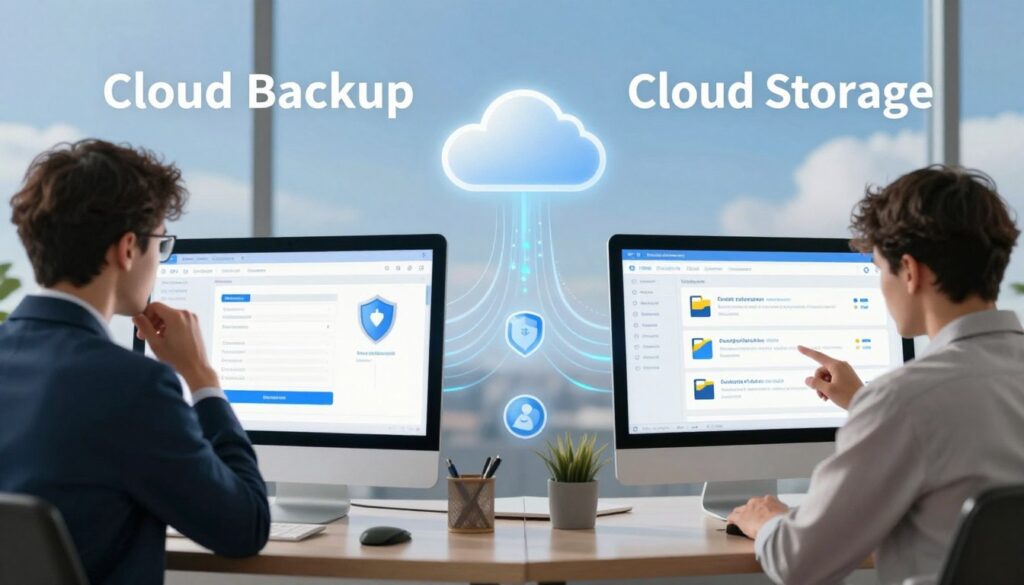
Let’s get to the heart of the matter. Cloud storage is like an extra drive on your computer. Cloud backup is a safe place for your files, separate from your daily work. This difference affects how you use them.
Cloud Storage: The “Here and Now” Collaboration Tool
Cloud storage is your digital workspace. It’s for the here and now. It gives you more space and lets you access files from anywhere.
Its main goal is to help you work better and share files with others. You can work on a document on your laptop and see the changes on your phone. It’s about active use for your current projects.
- Focus: Immediate file access and editing.
- Mindset: “Where is my file, and can I work on it with others right now?”
- Action: You choose which files to sync and share.
Cloud Backup: The “Just in Case” Safety Net
Cloud backup is for the future you. It’s your just in case safety net. It’s about automated protection, not daily use.
It runs quietly in the background. It makes copies of your data, often everything, and keeps them safe. Its main job is to get your files back if something goes wrong with your device. As one source says, backup solutions are “mainly for restoring lost or stolen data.”
- Focus: Automated recovery point creation.
- Mindset: “If my computer dies tomorrow, can I get everything back?”
- Action: It runs automatically on a schedule you set.
The Simple Analogy: Filing Cabinet vs. Fireproof Safe
To understand the difference, think of a simple analogy.
Cloud Storage is like a filing cabinet in your office. You use it every day for your work. It’s where you keep your active projects and share files.
Cloud Backup is like a fireproof safe in a separate location. You don’t use it every day. It’s for your most important documents, kept safe for emergencies. If disaster hits, it’s your only hope to get your files back.
You need both. The filing cabinet (cloud storage) for your daily work. The fireproof safe (cloud backup) for emergencies. This analogy shows why you can’t do without both.
Data Management: Live Sync vs. Historical Archive
At the heart of the cloud storage vs. backup debate lies a critical distinction. One manages your live, working data, while the other archives its history. This difference in philosophy dictates everything from how you access files to what happens when you make a mistake.
Your choice here shapes your data’s resilience. Understanding these two approaches is key to unlocking the true benefits of cloud backup over cloud storage for long-term safety.
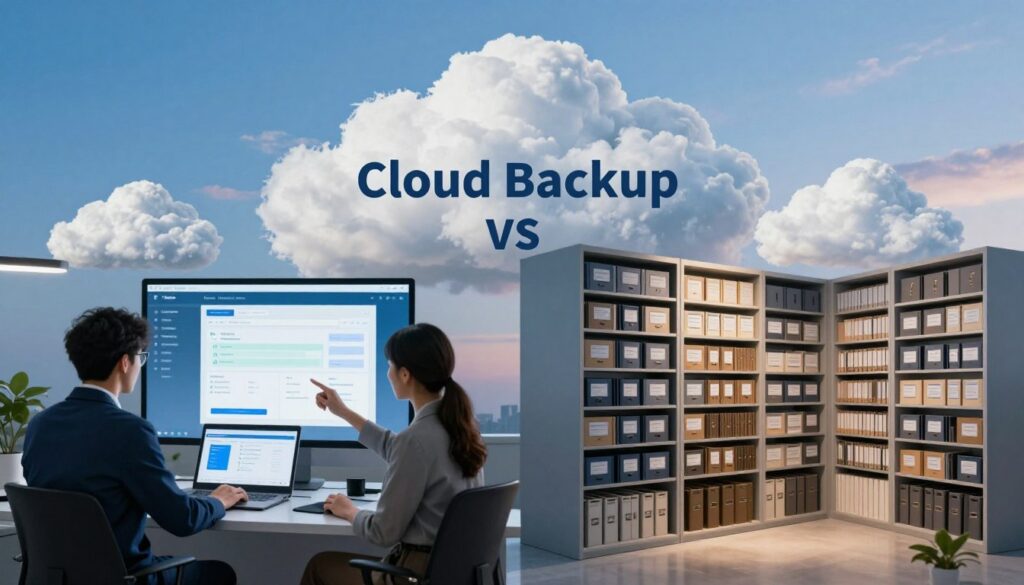
Cloud Storage: Selective Sync and Instant Updates
Cloud storage is built for the now. It uses a process called live synchronization. When you change a file in a synced folder on your laptop, that change is instantly reflected on your phone and in the web app.
This is fantastic for collaboration. Your team always sees the latest version. You can also use selective sync to choose which folders live on your device, saving space.
But this instant update is a double-edged sword. If a file becomes corrupted by malware or a software glitch, the corrupted version can sync everywhere, replacing the good one. As one source notes, with sync, “some of your files are safe some of the time.” Your safety net is only as good as your most recent edit.
Cloud Backup: Complete Versioning and Retention
Cloud backup operates on a completely different principle: historical archiving. Instead of mirroring live changes, it takes scheduled, automated snapshots of your entire system or selected drives.
The magic is in versioning. A good backup service doesn’t just save the latest file. It keeps multiple older versions. This lets you “travel back in time” to recover a document from before a bad edit or a photo from before it was accidentally cropped.
Retention policies allow you to control how long these historical versions are kept. This is the “set-and-forget” data insurance that provides 24/7 complete protection, creating a reliable archive you can count on.
The Critical Deletion Test
The most dramatic way to see the difference is with a simple test. What happens when you delete a file?
In a synced cloud storage folder, deleting a file on your computer usually deletes it from all your devices and the cloud server. It’s gone from the live workspace. You might recover it from a trash bin, but only for a limited time.
With a cloud backup service, the story is different. That deleted file is safely kept in your historical backup snapshots. You can simply browse to a backup point from before the deletion and restore the file. This is a core benefit of cloud backup over cloud storage—it protects you from your own human error.
This test highlights the fundamental data management clash. Cloud storage optimizes for current workflow and space. Cloud backup prioritizes historical recovery and safety, ensuring your data has a past you can return to.
Access and Sharing: Collaboration vs. Controlled Recovery
Cloud services differ in how you share and access files. One is for teamwork, the other for keeping data safe. Your daily use of these tools shows their purpose. Cloud storage services are for working together. Cloud backup solutions are for safekeeping, accessed when needed.
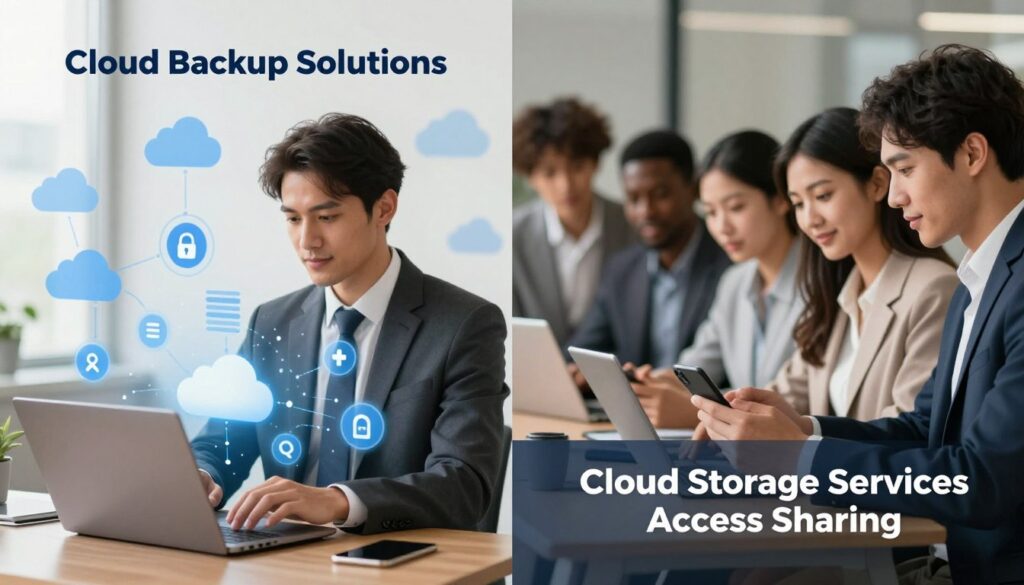
This difference is key. It affects your work and how you keep data safe. Using one for the other’s job can cause problems.
Cloud Storage: Built for Easy Sharing and Teamwork
Cloud storage is like a shared digital workspace. It’s for quick access and management. You can instantly view, edit, and download files from any device.
Sharing files is a big plus. You can share a file or folder easily. You can also control who can see or edit it.
- Share a single file or an entire folder with a few clicks.
- Set specific permissions: view-only, comment, or full edit rights.
- Generate shareable links with expiration dates for extra security.
This makes it great for team projects, client reviews, or family photos. It’s all about working together and having files ready when you need them.
Cloud Backup: Designed for Secure Admin Access
Cloud backup solutions focus on security and control, not sharing. You access it through an admin account. The goal is to keep your backups safe.
You manage backup schedules and storage here. You also initiate restores. Only a few people, like you or your IT team, can access it.
This setup is a good thing. It stops accidental deletions or bad changes. Restoring files or systems is a careful process. It keeps your backups safe and reliable.
Using a backup service for daily sharing is hard. It doesn’t have the quick-sharing tools of storage services. The cloud backup solutions vs cloud storage services debate is clear: one is for teamwork, the other for safekeeping.
Choose wisely. Use storage for teamwork. Use backup to keep your data safe and recoverable by you alone.
Security and Compliance Postures
Security is key in cloud services, but it varies between storage and backup. Knowing these differences helps you choose the best for your needs.
Both use encryption, but for different reasons. Storage protects your work as you do it. Backup creates a safe place for recovery.
Cloud Storage Security: Guarding the Active Pipeline
Cloud storage keeps your data safe as it moves around. This means protecting it at every step.
Providers use encryption for files at rest and SSL/TLS for in-transit data. You manage access with links and folder settings.
This setup is great for teamwork. But, if malware hits your synced folder, it can spread to the cloud.
Cloud Backup Security: Immutability and Threat Isolation
Cloud backup takes a strong stance on security. It aims to make copies that threats can’t change.
Top providers encrypt your data in transit and at rest. Many let you use your own encryption keys. This means no one, not even the provider, can see your backups.

Immutability is key against ransomware. Even if malware hits your files, backups stay safe and recoverable. This creates a solid safety net.
Meeting Business Regulations
For companies with sensitive data, following rules is essential. Backup services often have features storage lacks.
Backup solutions offer detailed logs and customizable retention policies. They meet standards like HIPAA and GDPR. Cloud storage might not have these specific tools.
While storage secures data, it might not meet strict business needs. It lacks the detailed controls needed for regulated data.
| Security Aspect | Cloud Storage | Cloud Backup |
|---|---|---|
| Primary Focus | Protecting active data flow | Creating immutable recovery points |
| Encryption Control | Typically server-managed | Often client-managed private keys |
| Ransomware Protection | Limited (synced files vulnerable) | Strong (isolated copies unaffected) |
| Compliance Features | Basic security certifications | Specialized audit logs & retention |
| Access Management | User-friendly sharing controls | Administrator-focused recovery access |
This comparison shows why looking at security separately is important. Your choice depends on whether you need easy access or guaranteed recovery.
Pricing Models: What You’re Really Paying For
Understanding how cloud services charge you is key to getting real value for your money. The pricing structures aren’t random. They directly mirror the core purpose of each service. When you look at your bill, you’re seeing a reflection of whether you’re funding an active workspace or a silent safety net.
This breakdown will help you decode the costs, so you can budget wisely and choose the service that delivers what you actually need.
Cloud Storage Costs: Pay for Active Capacity
Think of cloud storage costs like renting a flexible office space. You pay for the square footage you actively use. Providers like Google Drive and Dropbox typically charge monthly or yearly fees based on the amount of storage capacity you consume.
Plans are often tiered, with more gigabytes or terabytes as you pay more. For businesses, pricing usually scales per user. The focus is on your active, working data.
A key feature here is bandwidth. Cloud storage servers provide generous bandwidth to support frequent file syncing, sharing, and collaboration. This makes the service ideal for teams but is a factor in the pricing models.
You’re paying for an always-on, accessible digital workspace. The cost climbs as you fill up your active capacity with projects, videos, and shared documents.
Cloud Backup Costs: Pay for Protected Endpoints
Cloud backup costs work differently. Here, you’re not paying for storage space. You’re paying for the protection of devices, also known as endpoints. Services like Backblaze and Carbonite often charge a flat monthly or annual fee per computer, server, or user.
The huge advantage? This fee usually comes with an unlimited or very high cap on the amount of data you can back up from that device. The goal is to protect everything, not to manage files daily.
There’s a trade-off. To manage costs and system load, backup services might limit daily data transfer bandwidth or how much data you can restore at once. This makes sense for a “set-and-forget” system focused on recovery, not daily access.
Your fee covers the insurance policy for your entire digital life on that endpoint, regardless of how many files you have.
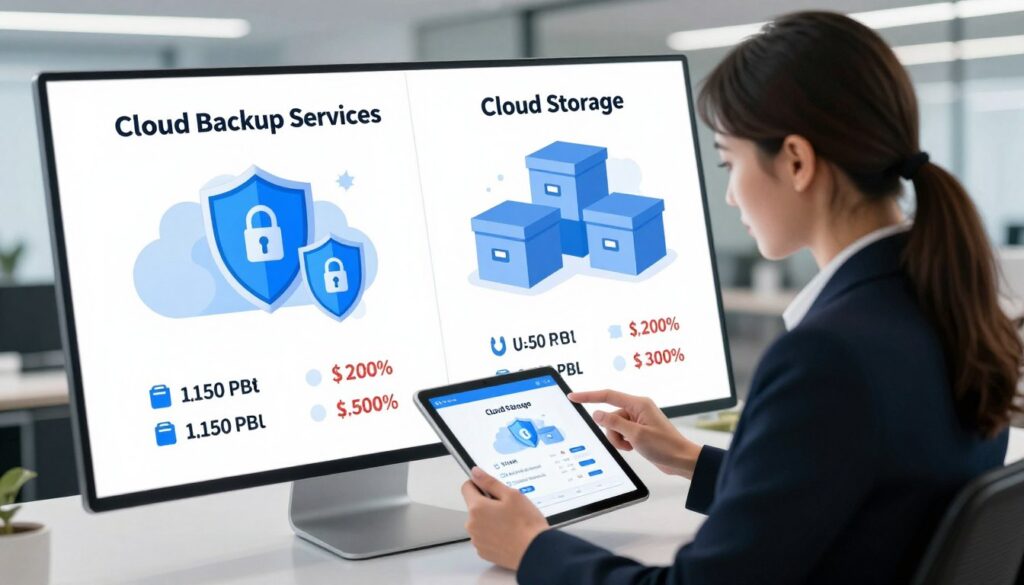
Evaluating the True Value
So, which pricing model offers better value? It completely depends on what you’re buying. Comparing them directly is like comparing the cost of a toolbox to the cost of a fire insurance policy.
Paying for cloud storage costs buys you immediate utility: collaboration, accessibility, and sync. Paying for cloud backup costs buys you future security: recovery, version history, and peace of mind.
The cheapest option isn’t always the most valuable. Losing critical data is far more expensive than a modest monthly backup fee. On the other hand, paying for huge backup-style storage when you just need to share files is inefficient.
| Feature | Cloud Storage | Cloud Backup |
|---|---|---|
| Primary Pricing Basis | Active storage capacity used (per GB/TB) | Number of protected devices or users |
| Typical Cost Driver | Amount of live, synced data | Count of computers/servers needing backup |
| Data Limits | Clear tiers (e.g., 100GB, 2TB) | Often unlimited per device |
| Bandwidth Focus | High for syncing & sharing | May be throttled for bulk recovery |
| Best For Value In… | Active collaboration & file access | Comprehensive data loss protection |
Ask yourself: Am I funding a workspace or an insurance policy? Your answer will point you to the right service and help you see the true value behind the price tag.
Side-by-Side: Examples of Leading Services
To make an informed choice, you need to see how the leading services stack up in real-world terms. This comparison puts popular names in each category under the spotlight. You will see their unique strengths and who they are designed to help.

Here is a quick snapshot of the major players we will explore in detail.
| Service | Type | Best For | Key Feature |
|---|---|---|---|
| Google Drive | Cloud Storage | Teams using Google Workspace | Real-time collaboration |
| Dropbox | Cloud Storage | Reliable file sharing across devices | Simple, robust sync |
| Microsoft OneDrive | Cloud Storage | Windows & Microsoft 365 users | Deep OS integration |
| Backblaze | Cloud Backup | Individuals seeking simplicity | Unlimited backup for one computer |
| Acronis Cyber Protect | Cloud Backup | Integrated security needs | Backup + anti-malware in one |
| Carbonite | Cloud Backup | Business data protection | Strong disaster recovery options |
In the Cloud Storage Corner
These platforms excel at keeping your active files accessible and synced. They are your day-to-day digital workspaces.
Google Drive: Deeply Integrated Collaboration
If you live in Gmail, Docs, and Sheets, Google Drive is your natural habitat. It is less about just storing files and more about creating them together.
Its standout feature is real-time co-editing. Multiple people can work on a document simultaneously. You see changes as they happen.
- Seamless Workspace Integration: Files created in Docs, Slides, or Sheets are instantly saved here.
- Generous Free Tier: You get 15GB of free space shared across Gmail and Photos.
- Powerful Search: It can even find text inside your images and scanned PDFs.
Choose Google Drive if your team’s workflow revolves around Google’s ecosystem.
Dropbox: Reliable File Sync and Transfer
Dropbox pioneered the simple file-sync model we now take for granted. It is known for its rock-solid reliability across Windows, Mac, and mobile.
While it offers collaboration tools, its core strength is moving files effortlessly between your devices and sharing them with others.
- File Requests: You can let anyone upload files to your Dropbox, even without an account.
- Smart Sync: Saves local disk space by keeping files online-only until you need them.
- Rewind Feature: Restore your entire account to a previous date if files are corrupted or deleted.
It is a fantastic choice for freelancers and teams who prioritize dependable, no-fuss file transfer.
Microsoft OneDrive: The Windows and Office Companion
For anyone using Windows 10 or 11 and Microsoft 365, OneDrive is baked right in. Your Desktop, Documents, and Pictures folders can sync to the cloud automatically.
This deep integration with the operating system and Office apps makes it incredibly convenient. Edits you make in Word on your laptop are ready on your phone moments later.
- Personal Vault: A protected area with two-factor authentication for your most sensitive files.
- Office Offline: You can access and edit your Office files even without an internet connection.
- Photos App Integration: Automatically backs up your camera roll and offers basic editing.
If Microsoft products are central to your work, OneDrive eliminates friction.
In the Cloud Backup Corner
These services operate in the background, creating secure copies of your entire system. They are your automated safety nets.
Backblaze: Simple, Unlimited Personal Backup
Backblaze lives by a straightforward promise: one computer, unlimited backup for a flat fee. You install it, set it, and largely forget it.
It is designed for individuals, not complex servers. It backs up everything—external drives included—with no storage caps to worry about.
- Hassle-Free Recovery: You can restore files via the web, get a USB drive mailed, or download a large ZIP.
- 30-Day Version History: Retrieve files as they were up to a month ago.
- Locate My Computer: If your laptop is lost, it can report its location when online.
For a complete, no-limits backup of your personal computer, Backblaze is a top contender.
Acronis Cyber Protect: The Integrated Defense Solution
Acronis goes beyond traditional backup. It merges data protection with cybersecurity tools like anti-malware and vulnerability assessment.
This is ideal for users who want a unified solution. It not only saves your data but also helps prevent the threats that could destroy it.
- Active Protection: Uses AI to stop ransomware from encrypting your backup files.
- Blockchain Notarization: Creates a verifiable fingerprint of your backup to prove it hasn’t been altered.
- Cloud-to-Cloud Backup: Can back up data from your Microsoft 365 or Google Workspace accounts.
Choose Acronis if you want robust, all-in-one protection for sensitive personal or business data.
Carbonite: Strong Options for Business Protection
Carbonite offers a range of plans that scale from personal use to full enterprise server backup. Its business plans are strong for disaster recovery.
Features like automatic video backup and priority support cater to professionals who cannot afford downtime.
- Courier Recovery Service: For major data loss, they can ship a physical drive with your data for faster restoration.
- Hybrid Backup: Combines local backup for speed with cloud backup for off-site safety.
- Advanced Reporting: Provides detailed logs and alerts for administrators to monitor backup health.
Carbonite is a trusted name for small to medium-sized businesses needing reliable, managed data protection.
Choosing Cloud Storage: Your Best-Use Scenarios
Cloud storage is perfect for when you need it right away and share it with others. It’s for your daily work, not just emergencies. If you want to improve your current projects, you’re in the right spot.

So, when should you pick a cloud storage service? It’s clear when you think about your daily habits. It’s the best choice if you recognize any of these situations.
- You’re part of a team working on the same files. Cloud storage is a must here. It lets you co-edit documents, update presentations, or manage project folders in real-time. Everyone gets the latest version, avoiding email attachments and version mix-ups.
- You use a laptop, a phone, and maybe a tablet. Cloud storage makes your desktop bigger. Start a document on your computer, check it on your phone at lunch, and finish it on your laptop. Your files are always there, ready to use on any device.
- You need to send large files that email can’t handle. Sharing big files is easy. Just create a shareable link from your cloud storage folder and send it. No more file size limits or upload failures.
- Your computer’s hard drive is constantly full. Cloud storage is like an extra hard drive online. Move old projects, photos, and archives to the cloud. This frees up space on your computer for what you’re working on now.
In short, choose cloud storage for a strong, always-on extension of your digital space. It’s made for the here and now of your work. It keeps your key files ready and in sync with your team.
Choosing Cloud Backup: Your Best-Use Scenarios
If losing your data would cause you real worry, then cloud backup is a must. It’s not just for everyday use. It’s for when you really need to get your data back.
Knowing when to use a backup service shows you care about your data. It’s the difference between hoping your files are safe and knowing they are.
Protecting your files, documents, and data with backup technology is the only way to keep them safe.
So, when should you choose cloud backup? Here are your best scenarios.
- You have data you cannot afford to lose. This is the main rule. If losing data would be a big problem, like family photos or business records, you need a backup. Cloud backup makes a safe copy away from your main devices.
- You need a shield against digital disasters. Bad things can happen. A cloud backup service is your main defense against accidental deletion, system crashes, or ransomware. It keeps old versions of your files, so you can go back to a safe state.
- You must comply with data retention policies. Some jobs or businesses must keep records for a long time. Cloud backup is great for long-term retention. It’s key for keeping sensitive data safe for years.
- You want true peace of mind. This is the biggest benefit. Relying only on cloud storage or one external drive is risky. A cloud backup service works quietly in the background. It means you can be sure your data is safe, no matter what happens to your devices.
Choosing cloud backup shows you value your digital stuff. It’s not just for business data or personal files. It’s the base of a solid data plan.
Conclusion: Building Your Complete Data Strategy
Your journey through cloud services has led to a clear plan. Cloud storage and cloud backup are not choices to be made. They work together in a complete data strategy.
Cloud storage is great for its strengths. Google Drive and Dropbox are top choices for productivity and teamwork. They keep your files in sync and ready for your team.
But, don’t forget a cloud backup service like Backblaze or Acronis. It offers automated security and recovery. It protects all your data, including what’s in your cloud storage.
The best approach is to use both. This way, you get the benefits of cloud storage for daily work. And you also have a safety net. You enjoy cloud convenience without losing protection.
Check your current tools. Find out which cloud storage you use. Then, pick a trustworthy cloud backup provider. This two-step plan will make you confident in your data.