Did you know that 70% of small businesses shut down within a year of a major data disaster? If your digital income depends on files stored on a computer, that statistic should grab your attention.
For you, the modern entrepreneur, protecting your information isn’t a boring tech chore. It’s the bedrock of your financial security. System crashes, simple mistakes, or malicious cyberattacks can wipe out your revenue streams in an instant.
Think of your daily work—the projects, client details, and sales records. Losing them isn’t just an inconvenience. It’s a direct threat to your livelihood. This isn’t about fear; it’s about smart preparation.
The good news is that with the right knowledge, you can build a simple, powerful shield. Let’s explore how to secure your work and keep your income flowing, no matter what happens.
Key Takeaways
- A stunning 70% of small companies fail after a significant loss of their digital information.
- Safeguarding your files is a critical part of protecting your income, not just an IT task.
- Common dangers include hardware failures, accidental deletions, and security breaches like hacking.
- Being proactive with your digital security is essential for any online venture.
- Implementing straightforward strategies can prevent catastrophic financial damage.
- Your entire financial future as an entrepreneur is tied to the safety of your work.
- Starting a protection plan today is a simple step with lifelong benefits for your business.
Safeguard Your Income: Why Backup is Non-Negotiable
Imagine waking up to find all your digital work gone. This includes projects, client files, and payment records. It’s a real risk for online entrepreneurs. Your data is your business, and protecting it is essential.
The Devastating Impact of Data Loss on Your Revenue
Data loss can happen in three ways: system failures, human errors, and cyberattacks. Each can stop you from earning money online right away. The financial loss is immediate.
You’ll lose time recovering files and miss deadlines. This can lead to penalties and lost commissions. Your affiliate marketing links will also stop working.
Reputational damage is another big risk. Clients need to trust you with their information. A data loss incident can destroy that trust. Rebuilding it can cost more than the lost data.
From Lost Clients to Broken Workflows
Think about your daily tasks. A corrupted file means redoing work. Lost client history causes confusion and frustration.
When your workflow breaks, your income stops. The hidden costs add up quickly.
Employee time is wasted on recovery instead of creation. Sales calls are missed. Customer trust erodes when services are interrupted. These are silent killers of an online business.

Consider the numbers. Downtime means lost sales and damaged brand reliability. The table below shows the often-overlooked consequences.
| Cost Type | Immediate Impact | Long-Term Consequence |
|---|---|---|
| Lost Sales & Commissions | Active sales funnels stop converting; affiliate links become inactive. | Recovery of marketing momentum takes weeks, hurting sustained revenue. |
| Wasted Productivity | Hours or days spent trying to recover or recreate lost files and data. | Delays on other projects damage client relationships and future income. |
| Damaged Customer Trust | Clients experience service interruption or data privacy concerns. | Loss of repeat business and negative word-of-mouth, shrinking your client base. |
| Recovery & Repair Fees | Potential costs for data recovery services or IT support. | Diverts funds from growth investments back into fixing foundational problems. |
| Reputational Harm | Public perception of unprofessionalism or insecurity. | Makes it significantly harder to attract new clients and earn money online reliably. |
Backup as Your Business Continuity Insurance
A robust backup strategy is the most affordable insurance. It protects your revenue stream and reputation. For a small monthly fee, you ensure no single event can destroy your digital livelihood.
Think of it like fire insurance for a physical store. Your online business faces digital threats daily. A verified backup is your fire extinguisher and insurance claim combined.
It turns a catastrophic event into a minor issue. Instead of days of downtime, you can restore files in hours. This continuity is priceless for building a stable online income.
Investing in backup isn’t just a tech expense. It’s a direct investment in your business’s resilience and your peace of mind. It secures the foundation of everything else.
Identifying Your Critical Data: What Needs Protection First
Before setting up a backup system, you must do a data triage. This means sorting out what’s important from what’s not. Your customer lists, financial records, and project files are your business’s most valuable assets. You can’t protect everything equally, so focus on the three main areas that keep your business running.

Financial and Legal Documents
This category is vital for your business. Losing these files can stop your income and lead to legal issues. So, protecting them is your top priority.
Invoices, Contracts, Tax Records, and Payment Logs
These documents are your financial memory. Unpaid invoices mean lost money. Missing contracts can weaken your legal position. Tax records are essential for compliance. A strong remote data storage system keeps these records safe from local disasters, always ready for audits or to collect what you’re owed.
Content and Intellectual Property
This is your product and your factory. Whether you sell courses, run a blog, or design websites, these files represent countless hours of work and your future earnings.
Blog Posts, Course Videos, Website Code, and Graphics
Your blog posts drive traffic. Your course videos are your flagship product. Your website code and graphics are your storefront. Recreating them from scratch is a massive, costly effort. A single hard drive failure could wipe out your entire product library. Securing these assets offsite guarantees your business can rebuild and continue selling.
Access Points: Passwords, API Keys, and Logins
These are the keys to your entire digital kingdom. Lose them, and you could be locked out of your email, banking, social media, and website admin panels—effectively shutting down your operations.
Your password manager database, API keys for payment processors, and admin logins control access to everything else. Losing this data is uniquely catastrophic because it can make your other backups inaccessible. Protecting these access points is as critical as protecting the data they guard.
Together, these three categories form your essential data set. They are often scattered across devices and platforms. This is why a centralized, secure remote data storage solution is the logical foundation for protecting your entire business puzzle.
| Data Category | Key Examples | Primary Risk if Lost | Protection Priority |
|---|---|---|---|
| Financial & Legal | Invoices, Tax Records, Contracts | Immediate revenue loss, legal liability | Critical |
| Content & IP | Course Videos, Blog Posts, Code | Loss of product, massive recreation cost | High |
| Access Points | Password Databases, API Keys | Locked out of all business systems | Critical |
Make Money Online Data Backup Solutions Explained
When you start your online business, knowing your data backup options is key. It’s like knowing which tools to use. Different backup methods serve different needs in your online data protection strategy. Let’s look at the main options available to you.
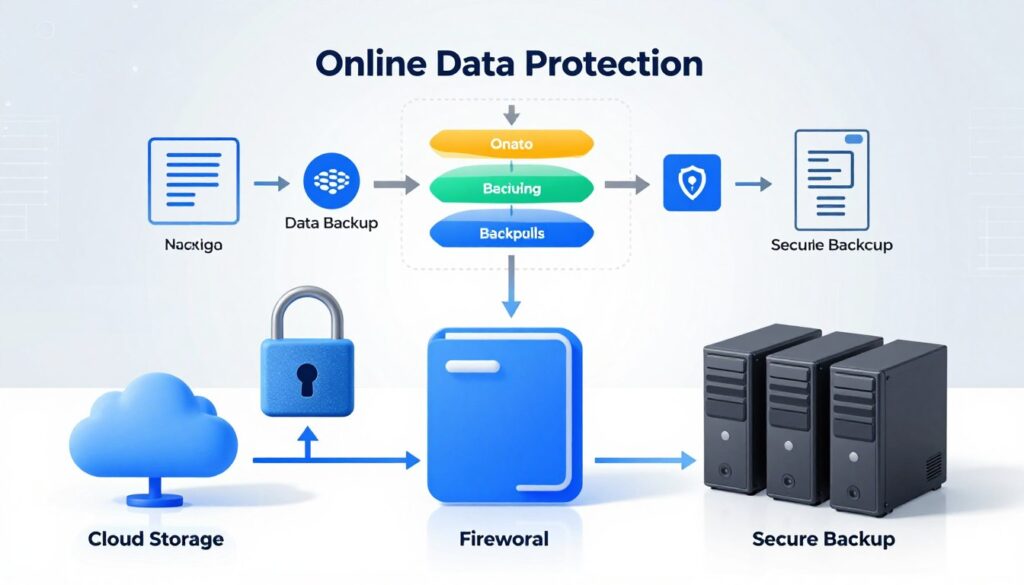
Backup strategies include full, incremental, and differential backups. A full backup copies everything each time. Incremental saves changes from the last backup. Differential saves changes from the last full backup. Most services use a mix to save time and space.
Local Backup: External Drives and Network Attached Storage (NAS)
Local backup means keeping your data close. Think external hard drives or a device on your network. The big plus is speed. Restoring a file from a USB is faster than downloading it online.
This method gives you control. You own the hardware. There are no monthly fees after buying it. It’s great for quick, frequent backups of active projects.
But, local backup has risks. Devices can be stolen, damaged, or fail. If your house floods, your computer and backup drive could be destroyed. So, local backup should not be your only method.
Using a WD My Passport or Synology DiskStation
Popular devices make local backup easy. A WD My Passport portable drive plugs into your computer. Software like WD Backup schedules automatic backups. It’s simple and affordable.
For more advanced needs, a Synology DiskStation is a NAS device. It connects to your Wi-Fi, creating personal cloud storage. Every device in your house can back up to it automatically. It’s like your own private server.
Cloud Backup Services: Automated Offsite Protection
Cloud backup solves the location problem. Your data is copied to secure servers far away. This is offsite protection. A disaster at home won’t affect your cloud copies.
The cloud offers scalability. Need more space? Just upgrade your plan. You can access files from any device with internet. This is key if you travel or work from different places.
Security is a major focus for cloud providers. They use top-grade encryption. Your data gets scrambled before it leaves your computer. Only you can unlock it.
How Backblaze, Carbonite, and IDrive Keep Your Data Safe
Top services automate everything. Backblaze is famous for its “set it and forget it” approach. After initial setup, it backs up files in the background. No manual effort is needed.
Carbonite offers strong versioning. It keeps multiple historical versions of your files. Accidentally save over an important document? You can roll back to yesterday’s version.
IDrive provides a hybrid approach from the start. It backs up to the cloud but also lets you create a local copy on an external drive. This gives you both speed and offsite safety in one package.
| Feature | Local Backup (External Drive/NAS) | Cloud Backup Service |
|---|---|---|
| Primary Benefit | Fast recovery, one-time cost | Disaster proof, accessible anywhere |
| Key Risk | Physical damage or theft | Service outage, subscription lapse |
| Best For | Large media files, frequent access | Critical documents, automatic protection |
| Cost Structure | Hardware purchase | Monthly/annual subscription |
| Setup Complexity | Moderate (NAS) to Simple (External Drive) | Very simple |
The Hybrid Model: Doubling Down on Safety
The smartest approach combines both worlds. This is the hybrid backup model. You keep a local copy for quick access and a cloud copy for ultimate safety. It’s the gold standard for online entrepreneurs.
Here’s how it works. Your computer backs up to an external drive every evening. That same backup software also sends an encrypted copy to the cloud. You get the speed of local recovery with the ironclad security of offsite storage.
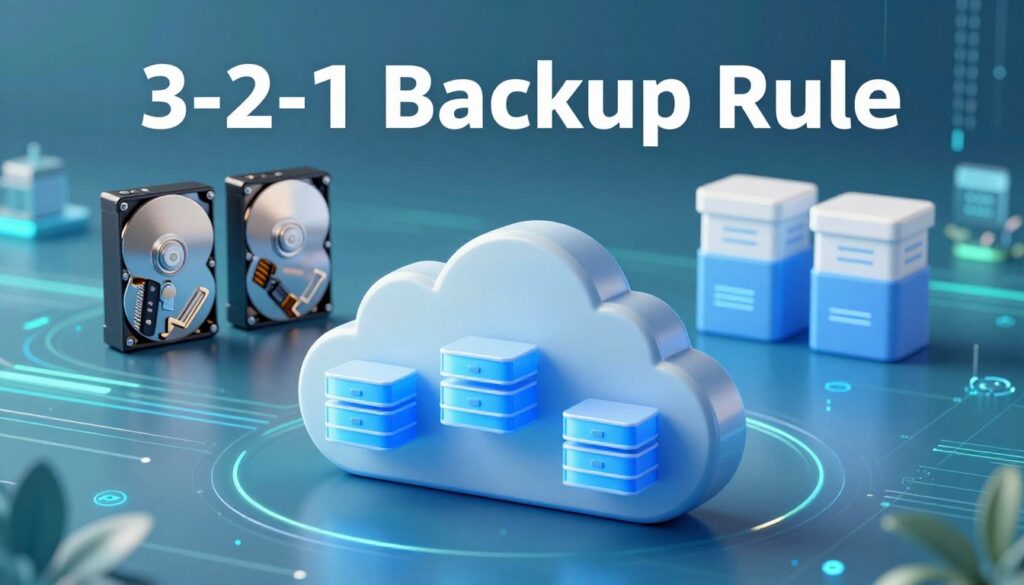
This method supports the 3-2-1 backup rule. You have three total copies of your data. Two are on different types of media (like a hard drive and cloud). One is offsite. This creates a nearly bulletproof system for your online data protection.
Your income depends on your digital assets. A hybrid approach ensures they survive any single point of failure. Whether it’s a hardware crash, a ransomware attack, or a natural disaster, your business can keep running.
Choosing Your Cloud Backup Partner: A Buyer’s Guide
Your choice of cloud backup provider is key to keeping your passive income online safe. The Backup as a Service (BaaS) market is growing fast. This growth is thanks to predictable costs and strong security. But, with more options, it can be hard to choose.
This guide helps you cut through the confusion. We focus on what matters most for solo entrepreneurs and small teams. You need a partner that keeps your revenue safe without being too complicated.

Think of it as getting insurance for your digital business. The right service gives you peace of mind and a solid recovery plan. Let’s find the right one for you.
Must-Have Features: Unlimited Storage, Versioning, and Speed
Not all features are created equal. When your livelihood is online, these three are essential.
Unlimited Storage is key. Your content library, courses, and client files will grow. A plan with limits will eventually fail you. You need space that grows with your success.
File Versioning is your undo button for disasters. It saves multiple copies of a file over time. If you accidentally save over a key document or get hit by ransomware, you can go back to a clean version.
Speed affects both backup and recovery. A slow backup can lag behind your work. More importantly, a provider’s recovery time guarantee is critical. After data loss, every minute of downtime costs you money.
Why File Version History is a Lifesaver
Imagine editing a key sales page and saving a broken version. Without version history, that mistake is permanent. With it, you can restore the file from yesterday in seconds.
This feature protects against human error, software glitches, and malware. It ensures your passive income online assets are always recoverable. Look for services that keep versions for at least 30 days, if not years.
The adoption of Backup as a Service is fueled by its operational simplicity and transparent, subscription-based pricing, which allows businesses to predict costs accurately while benefiting from enterprise-grade encryption offsite.
Comparing Top Services for Online Entrepreneurs
Let’s look at three leaders tailored for online business needs. Each has a different strength.
| Service | Best For | Key Feature | Pricing Model |
|---|---|---|---|
| Backblaze | The hands-off operator | Truly unlimited, set-and-forget backup | Simple monthly/annual fee |
| IDrive | The cost-conscious power user | Backs up multiple devices into one account | Low-cost annual plans |
| pCloud | The long-term planner | Lifetime purchase option with crypto folder | One-time lifetime payment |
Backblaze: The Set-and-Forget Standard
Backblaze is famous for its simplicity. You install it, and it continuously backs up everything on your computer. There are no folders to select or limits to worry about.
This is ideal if you want zero maintenance. It’s a solid foundation for any passive income online system. Their focus is on reliable, automated protection without complex settings.
IDrive: Feature-Rich and Cost-Effective
IDrive offers incredible value. One account backs up multiple computers, phones, and even network drives. It includes features like disk cloning and social media backup.
If you manage several devices or want more control, IDrive delivers. Its annual plans are very affordable, making it a budget-friendly powerhouse for growing entrepreneurs.
pCloud: Lifetime Plans with Integrated Security
pCloud takes a unique approach with its lifetime plans. Pay once, and you have backup (and cloud storage) for life. This can be a huge long-term savings.
It also includes pCloud Crypto, a client-side encrypted folder for your most sensitive files. If total control and a one-time cost appeal to you, pCloud is a compelling choice.
Choosing your partner is a strategic decision. Align it with your workflow, budget, and how you build your passive income online. The best choice is the one you’ll actually use consistently.
Implementing the 3-2-1 Backup Rule: A Step-by-Step Plan
You’ve figured out what needs protection. Now, it’s time to make it safe with a solid plan. The 3-2-1 backup rule is your guide. It turns data loss worries into a simple plan.
This strategy is easy and works for any online business. Let’s get started and build your system.
Breaking Down the 3-2-1 Principle
The 3-2-1 rule is simple and effective for data safety. It gives you extra protection so one failure won’t ruin your business.
Think of it as your data’s insurance. You get peace of mind for a small storage space cost.
Three Copies, Two Different Media, One Offsite Location
This is the heart of the rule. Three total copies mean your original files and two backups. Never rely on just one backup.
Two different media types protect against device failures. If a hard drive model has a flaw, your other backup on a different medium is safe.
One offsite location guards against physical disasters like fire, flood, or theft. A reliable cloud data backup service is key. It automatically handles the offsite part.
| Media Type | Best For | Consideration |
|---|---|---|
| External SSD/HDD | Fast, direct backups; portability | Can be lost, damaged, or stolen |
| Network Attached Storage (NAS) | Whole-home/office access; large capacity | More complex setup; stil onsite |
| Cloud Backup Service | Automated offsite protection; accessibility | Requires subscription; upload speed depends on internet |
Building Your System: A Practical Example
Imagine you run a Shopify store or an affiliate marketing blog. Your product images, blog posts, customer database, and theme files are your business.
Following the 3-2-1 rule creates a safety net for your entire operation.
Protecting an E-commerce Store or Affiliate Site
Your goal is to restore your site in hours, not days. Here’s your step-by-step plan:
- Copy 1 (Live Data): Your website running on your hosting server.
- Copy 2 (Local Backup): Use your hosting platform’s tool to create a full site backup. Download this .ZIP file weekly to an external hard drive kept in your office.
- Copy 3 (Offsite/Cloud): Subscribe to a cloud data backup service like Backblaze or IDrive. Install its app on your main computer. Set it to automatically back up the folder containing that downloaded site .ZIP file, plus all your original graphic design files and content drafts.
You now have three copies: the live site, a local .ZIP on an external drive, and that same .ZIP safely duplicated in the cloud. You’re using two media (hard drive and cloud). Your cloud copy is offsite.
This system is your personalized defense blueprint. It works for any online business model, giving you the confidence to grow knowing your assets are secure.
Automate Everything: Ensuring No File is Ever Forgotten
Automation makes data backup easy and automatic. It’s a game-changer for entrepreneurs who want to grow. With automation, you don’t have to worry about saving files manually.

Leveraging Built-in Schedulers in Backblaze and IDrive
Your data backup service should handle the hard work. Services like Backblaze and IDrive have built-in schedulers. These tools set up periodic automated backups for you.
This ensures your business keeps running smoothly. You only need to set it up once. For extra protection, look for Continuous Data Protection (CDP). It backs up files in real-time.
Setting Up Daily or Real-Time Backup Intervals
Setting up backup intervals is easy. Just go to your service’s settings and choose how often you want backups.
- Daily backups are great for most businesses. Schedule them for when your computer is idle, like at night.
- Real-time or continuous backup is best for files you’re always changing. It captures every change right away.
Choose an interval based on how valuable and often you change your data. More frequent backups are better for high-value, changing data.
Connecting Your Tools with Automation Platforms
To create a smart backup system, link your backup to other apps you use. Tools like Zapier or IFTTT help by creating rules that automate actions.
This approach goes beyond just scheduling. It offers event-driven protection. When something important happens in one app, it’s automatically saved.
Using Zapier to Backup Gmail Attachments to Dropbox
Protecting client emails is a great example. You can set up a Zap to watch your Gmail.
- The trigger: “New attachment in Gmail” from a specific client or with certain keywords.
- The action: “Upload file to Dropbox” in a designated “Client Attachments” folder.
Now, every client email is saved to your cloud storage instantly. This creates a backup of all client communications. It’s a hands-off way to keep your data safe.
By using your data backup service‘s schedulers and automation tools, you create a system that works on its own. This lets you focus on your business, knowing your data is always protected.
Fortifying Your Backups: Essential Security Measures
Securing your backups is not optional; it’s essential. Think of your backed-up data as a treasure. If hackers find it, they could demand ransom or steal client info. This section makes your storage a secure fortress.
Handle your online backup solutions with the same care as your live systems. A breach here can be as bad as losing the original data.

Encryption: Your First Line of Defense
Encryption turns your data into unreadable code. You need a special key to decode it. This is your most vital security layer. Without it, your files are like cash left under a mattress—easy to find and steal.
With strong encryption, your data is like gold in a high-security bank vault. Even if someone breaks into the cloud server, they only see gibberish. All reputable cloud backup security services use encryption, but the type matters immensely.
There are two main stages: encryption in transit and encryption at rest. The first protects files while they upload to the cloud. The second secures them while stored on the provider’s servers. Look for services that use the AES-256 standard. It’s the same encryption used by governments and banks.
Understanding Zero-Knowledge Encryption in pCloud
Zero-knowledge encryption is the gold standard for privacy. With this model, only you hold the encryption keys. The service provider, like pCloud, cannot access your files. They have “zero knowledge” of what’s inside.
This means even if a government subpoenaed pCloud, or an employee tried to peek, they couldn’t decrypt your data. It’s the ultimate control. Your passwords, financial records, and intellectual property remain truly private.
Not all services offer this. It’s a premium feature, but for sensitive business data, it’s worth the investment. It turns your backup from a shared storage unit into a private, keyless safe.
| Encryption Type | Who Holds the Key? | Security Level | Best For |
|---|---|---|---|
| Standard Server-Side | The Service Provider | Good | Non-sensitive, general files |
| Client-Side (AES-256) | You (the client) | Excellent | Business documents, personal data |
| Zero-Knowledge | You (exclusively) | Maximum | Financial records, legal files, intellectual property |
Strong Authentication and Access Control
Encryption protects your data at rest. Strong authentication protects who can get to the dashboard to manage it. If someone guesses your password, they can delete your backups or steal the files.
Always use a unique, complex password for your backup service. A password manager is essential here. But a strong password alone isn’t enough anymore. You need a second barrier.
Enabling Two-Factor Authentication on Every Service
Two-factor authentication (2FA) adds that critical second step. Even if your password is stolen, a hacker can’t get in without the second code. This code usually comes from an app on your phone or a text message.
You should enable 2FA on every service connected to your income. This includes your online backup solutions, email, banking, and social media. It’s a simple switch that provides massive protection.
Here’s how to enable it on popular platforms:
- Backblaze: Go to “My Settings” > “Security” and turn on Two-Factor Verification.
- IDrive: Navigate to the “Account” page and find the “Two Factor Authentication” section.
- Google Drive (via Google Account): Visit your Google Account security page and look for “2-Step Verification.”
- Dropbox: Go to Settings > Security and toggle Two-step verification.
Once enabled, you’ll need your password and your phone to log in from a new device. This simple act is like adding a deadbolt to your digital front door. Combine this with encryption, and your backups become a fortress, safeguarding the foundation of your online business.
Common Backup Mistakes and How to Avoid Them
Keeping your online business safe means learning from others’ mistakes. This way, you avoid making them yourself. A few bad habits can risk your hard-earned money. Let’s look at common mistakes and how to avoid them.
Mistake 1: Not Testing Your Backups
This mistake is often overlooked but very dangerous. You might think your data is safe because the software says so. But what if the files are damaged or you can’t restore them when you need to?
Testing your backups is essential. Ask any cloud provider if they regularly test their backups. If they can’t answer clearly, it’s a warning sign.
How to Perform a Quarterly Recovery Test
Do this simple test every three months. It shouldn’t be hard or scary.
- Pick a Test File: Choose a file that’s important but not critical, like a recent contract or draft.
- Initiate the Restore: Use your backup software to restore the file to a new spot on your computer.
- Verify Integrity: Open the file. Check it’s the right version and looks good. Can you edit it?
- Document the Process: Note how long it took and any issues you faced. This helps make the real process smoother.
This quick test confirms your backup system works, giving you peace of mind.
Mistake 2: Storing All Copies in One Physical Location
Even with multiple drives and a NAS, keeping them all in one place is risky. A disaster could destroy all your backups at once. The key to a good backup plan is to keep copies in different places.
Local copies are for quick access and recovery. Your cloud backup is for when disaster strikes. This is why the 3-2-1 rule is important. It means having one local copy and two offsite copies, one of which is in the cloud.
Mistake 3: Neglecting to Backup Mobile Devices
Your phone or tablet is more than just for social media. It’s a business tool. It has client emails, payment info, and more. Losing it means losing that data unless you’ve backed it up.
Securing your mobile data is easy. Use your phone’s cloud sync for photos and basic files. For more, make sure your cloud backup service has a mobile app. Many, like IDrive, let you automatically backup photos and contacts to your online account.
Make sure to include your mobile devices in your backup plan. Can you recover important data from your phone? Adding your mobile gear to your backup plan is the last step to full protection.
Conclusion
Being able to make money from home is not just about having a good idea or working hard. It also depends on keeping your digital stuff safe. Making sure your data is backed up is essential.
You’ve learned to spot important files, like your financial records and creative work. You’ve looked into using local NAS devices and cloud services from Backblaze or IDrive. The 3-2-1 backup rule is your guide. Automation keeps things consistent, and encryption keeps your data safe.
This backup system is your safety net. It keeps your income stream safe from unexpected losses. It also protects the freedom you’ve built to work from home. With a solid backup plan, you can work with confidence.
Now, you can focus on growing your business instead of worrying. Your digital business is on a solid foundation, ready for whatever comes next.