
Did you know over 30,000 websites are hacked every day? Your digital memories and important documents are always at risk. This isn’t just a big company problem. It’s a personal one too.
So, what does secure online file storage really mean? It’s more than just uploading files to the cloud. True security means protecting your digital info from unauthorized access, loss, or theft. It keeps your data safe and only accessible to you when needed.
Protecting family photos, tax documents, or work projects is key. This guide aims to change how you think about data protection. We’ll show you that keeping your data safe is an empowering skill, not a tech expert’s job.
You’re about to learn safe file storage tips to protect your digital life. Let’s dive into the basics of how to store files online safely and confidently.
Understanding the Risks: Why Online Storage Security Matters
Your photos, documents, and spreadsheets in the cloud seem safe, but understanding the risks is the first step to truly protecting them. Many people treat services like Google Drive or Dropbox as digital attics—out of sight, out of mind. But this mindset is the biggest vulnerability. Proactive data security for cloud storage isn’t just for corporations; it’s essential for anyone who values their privacy and digital assets.

The Reality of Data Breaches and Unauthorized Access
Headlines about massive data leaks are now commonplace. These aren’t abstract threats. In 2014, the “The Fappening” incident saw hundreds of private celebrity photos leaked online. The primary cause? Targeted phishing attacks that compromised individual iCloud accounts.
This event perfectly illustrates that unauthorized access is often a human-factor issue, not just a technical one. Cyber-attacks target cloud storage because it’s a treasure trove of information.
“The cloud is a shared environment. While providers build strong walls around the neighborhood, you are responsible for locking your own doors and windows.”
The core risks to your files are often summarized by security professionals as threats to confidentiality, integrity, and availability. This means someone could steal your data, alter it without your knowledge, or prevent you from accessing it entirely through ransomware.
| Threat Type | How It Happens | Potential Impact |
|---|---|---|
| Phishing & Credential Theft | Fake login pages or emails trick you into giving up your password. | Full account takeover, data theft, and identity fraud. |
| Malware & Ransomware | Infected files sync to your cloud drive, encrypting or stealing data. | Loss of access to all files, extortion demands, and data corruption. |
| Weak Access Controls | Using simple passwords or leaving old sharing links active. | Unauthorized viewing, downloading, or deletion of sensitive files. |
| Insider Threats | Disgruntled employees or compromised vendor accounts with access. | Targeted data leakage or destruction from within a trusted system. |
Common Misconceptions About Cloud Security
Beyond the direct attacks, several dangerous myths prevent people from taking necessary precautions. Let’s dismantle two of the biggest ones.
“The Cloud is Inherently Secure” Myth
Many believe that once a file is with a major provider like Microsoft or Amazon, the provider’s job is done. This is false. Cloud security operates on a shared responsibility model.
The provider secures the infrastructure—the servers, networks, and physical data centers. You, on the other hand, are responsible for securing your account and data within that infrastructure. This includes:
- Your passwords and authentication methods.
- The files you choose to upload and their encryption.
- How you configure sharing links and folder permissions.
Assuming the cloud is a “set-it-and-forget-it” solution is the fastest way to become a victim.
“My Files Aren’t Valuable to Hackers” Fallacy
You might think your vacation photos or old tax returns aren’t worth a hacker’s time. This thinking is incredibly risky. Cybercriminals aren’t just looking for celebrity nudes or corporate blueprints.
Your seemingly mundane files are valuable commodities:
- Identity Theft: A scan of your driver’s license or a utility bill provides everything needed for fraud.
- Ransomware Leverage: Family photos and personal documents are irreplaceable. Hackers know you’re more likely to pay to get them back.
- Phishing Schemes: Information from your files can be used to craft highly personalized, convincing scam emails against you or your contacts.
Every file you store is a piece of your digital identity. Protecting it requires acknowledging its worth. Understanding these risks isn’t meant to scare you away from the cloud, but to empower you to use it safely.
Choosing the Right Foundation: Picking a Secure Storage Provider
Before you start uploading files, you must choose a reliable provider. Services like Google Drive, Dropbox, and OneDrive are easy to use but might not protect your privacy well. Your choice affects your digital security.
This guide helps you find secure file storage solutions that prioritize privacy. We’ll look beyond the marketing to find services that truly value your security.

Key Security Features to Look For
A good provider encrypts your files both in transit and at rest. This is the minimum you should expect. Look for two advanced features for better security.
End-to-End Encryption (E2EE) Explained
Standard encryption scrambles your files, but the provider can unscramble them. End-to-end encryption is different. Your files are encrypted on your device before they go to the cloud.
Only you have the key to decrypt your files. This means even if the provider’s servers are hacked, your data stays safe. It’s the top choice for private encrypted storage services.
Zero-Knowledge Architecture: What It Means for You
This goes beyond E2EE. In a zero-knowledge service, the provider knows nothing about your password, encryption keys, or file contents. They can’t access your data under any circumstances.
The downside is that if you forget your password, they can’t help you. This is a security feature, not a flaw. It ensures no one, not even the provider, can see your data.
Comparing Top-Tier Secure Providers
The following providers focus on strong privacy. This comparison shows their unique approaches.
| Provider | Core Security Model | Key Advantage | Best For |
|---|---|---|---|
| Sync.com | Zero-Knowledge, E2EE by default | Strong privacy for individuals and teams at a competitive price. | Users who want zero-knowledge security without a complex setup. |
| Tresorit | Zero-Knowledge, E2EE by default | Business-grade security controls and compliance certifications. | Professionals handling sensitive client data or corporate files. |
| pCloud | Hybrid (standard cloud + optional “Crypto” folder) | Flexibility to choose between convenience and maximum security. | Users who want a large, general-purpose drive with a secure vault for private files. |
Sync.com: Strong Zero-Knowledge Option
Sync.com uses zero-knowledge, end-to-end encryption for all your data. It’s easy to use and doesn’t require manual key management. Their plans are simple, making it great for individuals and small businesses looking for strong privacy without high costs.
Tresorit: Business-Grade Security for Individuals
Tresorit is designed for enterprise-level security. It has detailed access logs, remote wipe, and meets strict regulations like GDPR. While it costs more, it offers peace of mind for those sharing confidential documents securely and keeping an audit trail.
pCloud with pCloud Crypto: A Flexible Hybrid
pCloud has a unique setup. Your main drive uses standard cloud encryption. But for sensitive files, you can use a “pCloud Crypto” folder. This folder uses client-side, zero-knowledge encryption. This flexibility lets you balance everyday use with top security for your most important files.
Choosing between these secure file storage solutions depends on your needs. Do you want maximum privacy, top business tools, or a flexible system? Your data needs a solid foundation.
Mastering Encryption: Your First and Best Line of Defense
Before you upload another file, think about this: encryption is the best way to keep your digital stuff safe online. It makes your files unreadable, so only those with the right key can see them. This is key to protecting files in the cloud from hackers and even the cloud providers.

To use encryption well, you need to know its two main types. Each type protects your data at different times.
Encryption at Rest vs. Encryption in Transit
These terms talk about where your data is when it’s being kept safe. Encryption at rest keeps your files safe on a server’s hard drive. It’s like a safe in a bank vault. Most cloud services do this, so if their hardware gets stolen, your data stays safe.
Encryption in transit keeps your files safe as they move between your device and the cloud server. It uses TLS (Transport Layer Security) to make a secure tunnel. This stops anyone from seeing your data while it’s moving.
Here’s a simple breakdown:
- At Rest: Keeps stored data safe. Your cloud provider handles it on their servers.
- In Transit: Keeps data safe as it moves. This happens automatically during file transfers.
Counting on your provider for both types is a good start. But, they have the encryption keys. For true privacy, you need to keep the keys yourself.
Taking Control with Client-Side Encryption Tools
Client-side encryption means you encrypt your files on your device before they go to the cloud. You’re the only one with the key. This adds a strong, private layer that even your provider can’t access. It’s the top choice for protecting files in the cloud that are very private.
Don’t worry if you’re not a cryptography expert. There are easy-to-use tools out there. VeraCrypt and Cryptomator are two popular ones.
Using VeraCrypt for Pre-Upload Security
VeraCrypt is a strong, open-source tool for encrypting a container or volume on your computer. It’s like a secure digital briefcase. You put your sensitive files in it, lock it with a strong password, and then upload the whole briefcase to your cloud drive.
Key advantages of VeraCrypt:
- Creates a single, heavily encrypted file that’s hard to crack.
- You can mount the container as a virtual drive to easily add or remove files.
- Great for securing lots of files at once before syncing them to the cloud.
For local security on your computer’s drive, tools like BitLocker (Windows) or FileVault (Mac) offer full-disk encryption.
Cryptomator for Easy, Vault-Based Protection
If VeraCrypt is a briefcase, Cryptomator is like a transparent vault that works with your cloud folder. It encrypts files in a special directory on your computer. When you drag files into this vault, they’re encrypted and synced to your cloud service like Dropbox or Google Drive.
Why Cryptomator is user-friendly:
- It fits right into your cloud storage workflow. No need to manage containers manually.
- File names and contents are encrypted, adding more privacy.
- You can access your vault from different devices with the same password.
By encrypting your files locally with these tools, you control who can access them. This turns a cloud service into a super-secure part of your own encrypted digital space. It greatly improves your way of protecting files in the cloud.
Crafting Impenetrable Passwords and Using a Password Manager
Your digital vault is only as strong as the key you use to lock it. In the world of online file storage best practices, your password is that critical key. A weak or reused password can undo all the other security measures you put in place. This section will guide you past basic advice and into creating powerful, memorable passphrases. Then, we’ll solve the puzzle of managing dozens of unique passwords with a dedicated tool.
Moving Beyond “Password123”
Let’s be honest: simple passwords are a massive risk. Hackers use automated tools that can guess common passwords in seconds. “Password123,” your pet’s name, or a simple dictionary word won’t cut it anymore. The first line of defense for your files is a credential that is both strong and unique.
Experts agree that length is your best friend. While eight characters is an absolute minimum, aiming for at least 12 is a much safer standard. More importantly, your password should be a random mix of upper and lowercase letters, numbers, and symbols.
The Recipe for a Strong, Memorable Passphrase
Creating a long, complex password doesn’t mean it has to be impossible to remember. The trick is to use a passphrase. This is a string of random words that creates a long, hard-to-crack sequence.
Here’s how to bake your own secure passphrase:
- Pick four or more unrelated words: Think “GuitarBlueberryTelescopeLamp.”
- Add complexity strategically: Swap some letters for numbers or symbols, like “Guit@rBlu3berryT3lescopeLamp.”
- Make it personally obscure: Avoid phrases from songs, movies, or your personal life that someone could guess.
This method gives you length and randomness while remaining something you can recall. It’s a foundational step in solid online file storage best practices.
Why You Need a Manager Like 1Password or Bitwarden
Remembering a single strong passphrase is doable. Remembering a different, equally complex password for your email, cloud storage, bank, and every other service is practically impossible. This is where a password manager becomes non-negotiable.
Tools like 1Password or Bitwarden act as a secure, encrypted digital vault for all your login credentials. You only need to remember one master password—your ultra-strong passphrase—to access everything else. These apps store your passwords behind robust encryption, making them far more secure than a sticky note on your monitor or a text file on your desktop.
Generating and Storing Unique Passwords for Every Service
A top feature of any password manager is its built-in password generator. With one click, it can create a 20-character random jumble of letters, numbers, and symbols. This is the unique password you should use for every single online account.
Here’s how it works in practice:
- You create a new account for a cloud storage service.
- Your password manager’s browser extension offers to generate and save a new password.
- It automatically fills this password when you need to log in later.
This habit completely neutralizes a common threat. If one website you use suffers a data breach, hackers can’t use that same password to break into your other accounts. Adopting a manager is what makes following true online file storage best practices effortless and sustainable.
By mastering both a strong master passphrase and a password manager, you build an essential, unbreakable layer of security around your most important files.
Enabling Two-Factor Authentication (2FA) Everywhere
Your online files need more than just a password to stay safe; they need a second checkpoint. Two-factor authentication acts as that extra layer of defense. It can stop attackers cold. The 2014 iCloud breach shows how important 2FA is.
This simple step turns your login into a double-locked door. For true secure online file management, enabling 2FA on every service is key. This includes your cloud storage.

How 2FA Stops Hackers in Their Tracks
Think of 2FA as needing two proofs of identity. First, you give your password. Second, you give something you have, like your phone.
Even if a hacker gets your password, they can’t log in without the second item. They hit a dead end, unable to reach your files.
This method directly protects your cloud accounts. It’s a key part of secure online file management. It stops the threat of stolen credentials.
App-Based Authenticators vs. Security Keys
You have two main choices for your second factor: apps on your phone or physical security keys. Each offers a different balance of security and convenience.
App-Based Authenticators like Google Authenticator and Authy generate codes on your smartphone. You enter the code during login. They are widely supported and very convenient.
Physical Security Keys like YubiKey are small devices you plug into your computer or tap with your phone. They use cryptography to prove your identity without codes.
| Method | How It Works | Security Level | Convenience | Best For |
|---|---|---|---|---|
| App-Based (Google Authenticator, Authy) | Generates a rotating 6-digit code on your phone. | High | Very High (always with you) | Most users; balances security and ease. |
| Security Key (YubiKey) | Physical device that connects via USB or NFC. | Very High (phishing-resistant) | Medium (must carry the key) | High-value accounts and maximum security. |
For most people, starting with an app-based authenticator is the easiest step. It greatly improves your security with little hassle.
If you manage extremely sensitive data, a security key offers the strongest protection. Your goal for secure online file management should be to enable 2FA everywhere, starting with your cloud storage today.
Organizing Files with Security in Mind: Smart Folder Structures
Strong encryption and passwords are key, but they can’t protect files left in the wrong place. True security comes from using powerful tools and smart habits. Organizing your cloud storage is a vital habit often overlooked.
A messy digital space is risky. It leads to over-sharing and misplaced sensitive documents. By organizing folders with purpose, you create a clear map of your data’s sensitivity. This makes applying security measures like access controls easier and consistent.
Separating Sensitive and Non-Sensitive Data
The first rule of secure organization is segregation. Not all files are created equal. Your vacation photos don’t need the same protection as your tax returns or business contracts.
Start by auditing your cloud drive. Categorize your files into two main groups:
- Non-Sensitive: Public photos, general reference documents, music files, and work-in-progress drafts for non-confidential projects.
- Sensitive: Financial records, identification documents (passport, driver’s license scans), legal paperwork, private correspondence, and proprietary business data.
Once categorized, move them into separate top-level folders. This physical separation is the foundation for applying different security rules. It allows you to easily restrict who can view or edit the sensitive folder, a core practice in securing files on the web.
For your most critical documents, take segregation a step further. Create a dedicated “Vault” folder within your sensitive data area. This is for items like signed contracts, birth certificates, and tax filings—documents that would cause significant harm if exposed.
Treat this Vault folder as your digital safe deposit box. Here’s how to fortify it:
- Apply the strictest permissions. If your storage provider allows it, make this folder accessible only to you (or absolutely essential trusted persons).
- Use client-side encryption. Consider adding an extra layer by encrypting files before you upload them to this specific folder.
- Audit it regularly. Periodically check what’s inside and remove anything that no longer needs to be there.
The principle of least privilege is key: users should only have access to the information and resources necessary for their legitimate purpose.
By implementing this vault strategy, you minimize risk. Even if a broader folder is shared, your crown jewels remain locked away.
Using Descriptive but Non-Revealing File Names
Good organization also relies on finding files easily. But a file named “2024-Company-Layoff-Plan-FINAL.docx” reveals everything to anyone who sees it. The art is in naming files descriptively for yourself without broadcasting their contents to the world.
This is key when sharing folder links or if someone glimpses your screen. Use a consistent, cryptic system only you understand.
Instead of this: Jane-Doe-Passport-Scan.pdf
Try this: JD-ID-2023.pdf
Instead of this: Home-Address-and-Mortgage-Statement.pdf
Try this: Finance-Property-Q2.pdf
You can use project codes, client initials, or internal reference numbers. The goal is balance—you need to know what “Tax-Prep-2023-Data.xlsx” contains at a glance, but a stranger should not. This simple practice adds a subtle yet powerful layer of privacy through smart digital housekeeping, completing a holistic approach to securing files on the web.
How to Store Files Online Safely: A Step-by-Step Pre-Upload Checklist
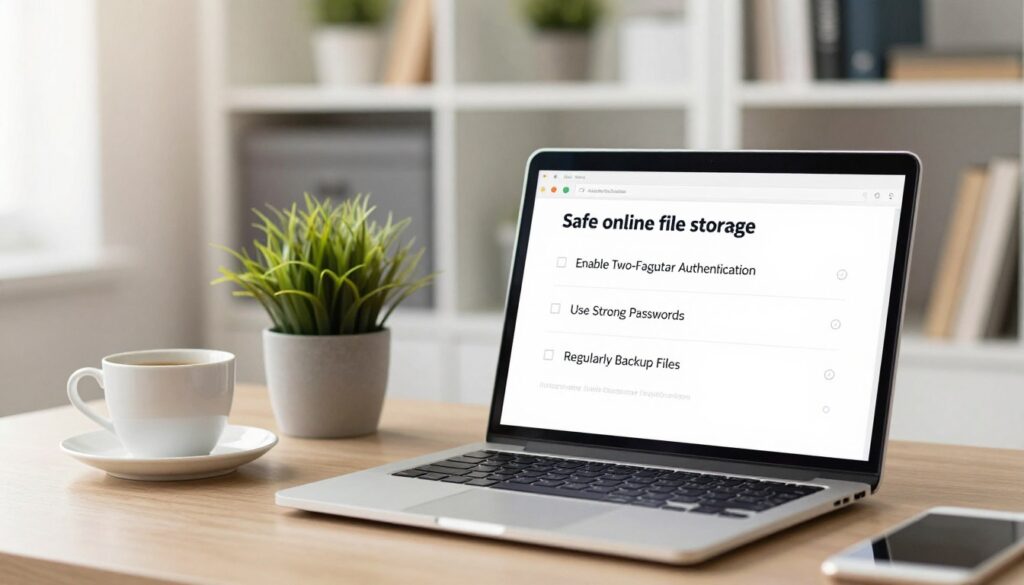
Keeping files safe online isn’t just luck. It’s about following a routine every time. This checklist makes security easy to follow. Just remember these four steps before uploading to keep your data safe.
Step 1: Classify the File’s Sensitivity Level
First, think about what’s in the file. Not all files need the same protection. Ask yourself a few quick questions.
Is it something anyone can see, like an event flyer? Or is it private but not super important, like a blog post draft? Or is it highly sensitive, like tax documents or financial records?
Knowing what kind of data you have helps you use the right security. You save time on less important files and focus on the ones that really matter.
Step 2: Encrypt if Necessary (and How)
If your file is sensitive, encrypt it before uploading. Using your provider’s encryption is good, but adding your own layer is better.
This is called client-side encryption. You encrypt the file with a password before uploading. Even if there’s a breach, the file stays safe without your key.
For most people, VeraCrypt or 7-Zip with AES-256 encryption are great, free options. Just right-click the file, encrypt it, choose a strong password, and you’re ready to upload.
Step 3: Verify the Destination Folder Permissions
You’ve encrypted your file. Now, make sure you’re uploading it to the right place. Go to the folder in your cloud service where you want to store it.
Check the folder’s sharing settings. Is it set to “Private” or “Only me”? Or is it shared with too many people? Uploading sensitive files to the wrong folder defeats all your security efforts.
Just take a few seconds to check this setting. It ensures your encrypted file goes to a safe, private space.
Step 4: Upload and Confirm Successful Sync
Now you can upload. Drag and drop your file into the verified folder. Don’t close the tab or put your computer to sleep yet.
Wait for the sync confirmation. Most services show a checkmark or a “Sync complete” message. Open the file on another device or the service’s web app to check it’s there and safe.
This final step confirms your file is stored safely online. It’s only accessible to you or your intended collaborators.
| Checklist Step | Key Question to Ask | Critical Action | Tool/Resource |
|---|---|---|---|
| 1. Classify Sensitivity | “Would this cause harm if exposed?” | Categorize as Public, Private, or Sensitive. | Your own judgment |
| 2. Encrypt if Necessary | “Is this file sensitive?” | Use client-side encryption before upload. | VeraCrypt, 7-Zip (AES-256) |
| 3. Verify Folder Permissions | “Who else can access this folder?” | Check sharing settings for “Private/Only me.” | Your cloud service’s sharing menu |
| 4. Upload & Confirm Sync | “Is the file fully uploaded and accessible?” | Wait for sync confirmation and test access. | Cloud service sync icon/web app |
Following this checklist is the best way to learn how to store files online safely. It turns a complex task into a simple, four-step routine. This builds a security habit that becomes second nature.
Managing Sharing and Collaboration Without Compromising Security
Sharing files is key for teamwork, but each link is a risk. Cloud collaboration is easy, but it can be risky if not done right. You want to share data without letting intruders in.
Smart online file storage best practices help you work together safely. You can keep your projects moving while keeping your info safe.
The Dangers of Over-Sharing and Public Links
Sharing too much is a big risk in the cloud. A public link sent to the wrong person can expose your files to the world. These links can stay active long after they’re needed.
Another mistake is giving edit access when someone only needs to view. This can lead to changes you don’t want. Without the right controls, sharing can turn into a data leak.

Keeping an eye on who accesses your files is key. Many services track who views your files and when. Regular checks help spot unauthorized access.
Best Practices for Secure File Sharing
To share safely, you need a plan. Start with Role-Based Access Control (RBAC). This means giving access only to those who need it for their job. For example, a team member doesn’t need to see financial records.
Always check permissions regularly. Go through your shared folders and links every few months. Remove access for people who no longer need it. This is a vital habit.
For sensitive attachments, consider using encrypted email or a secure messaging app. This adds extra protection for your most critical data.
Setting Expiration Dates and Password Protection on Links
Never send a “forever” link. Most services let you set a link to expire. Use this feature. Set the link to die a week or a month after you send it. This limits exposure if the link is copied or forwarded.
Adding a password to your shared link is another strong move. Even if someone finds the link, they can’t open it without the password. Share the password in a separate message, like a text or a different email. This two-step process stops casual snoops.
Using View-Only Permissions When Possible
Default to view-only. When you share a file, ask yourself: “Does this person need to edit this?” If the answer is no, give them view-only access. This protects the original file from changes and prevents the spread of incorrect versions.
View-only also stops people from downloading the file in some services. This is perfect for sharing final reports or reference materials. It lets others see the information without taking a copy that could be lost or mishandled.
| Sharing Method | Security Level | Best Use Case | Key Risk Mitigated |
|---|---|---|---|
| Public Link (No Restrictions) | Low | Sharing non-sensitive info broadly | None – high risk of over-exposure |
| Password-Protected Link | High | Sending confidential drafts to a client | Unauthorized access from link leakage |
| Link with Expiration Date | Medium-High | Time-sensitive project collaboration | Forgotten links becoming long-term threats |
| View-Only Permission | Medium | Distributing final reports or guidelines | Accidental or malicious file alteration |
The table shows how your choice of sharing tool affects safety. Using these controls is key to modern online file storage best practices. It makes sharing safe and manageable.
Secure sharing isn’t about saying “no.” It’s about saying “yes, but safely.” With expiration dates, passwords, and strict permissions, you can work together without worry. Your data stays safe, no matter who sees it.
Regularly Auditing Your Connected Apps and Account Activity
Think of your cloud storage account like your home. You wouldn’t leave the door unlocked for strangers. Secure online file management means knowing who and what can access your digital space.
Over time, you connect new apps and sign in from different devices. Each connection is a possible entry point. Regular audits help you close unused doors and spot unexpected visitors.
How to Review Third-Party App Access (Google, Dropbox, etc.)
Many apps ask for access to your cloud storage. You might have granted access once and forgotten. Unused connections are a security risk.
Here’s how to find and review them:
- Google Account: Go to your Google Account security page. Look for “Third-party apps with account access” or “Connected apps & sites.” You’ll see a list of apps that can access your Google Drive or Gmail data. Review each one and remove any you don’t recognize or use.
- Dropbox: In your Dropbox settings, find the “Connected apps” section. This shows all applications linked to your account. Unlink anything that’s outdated or unnecessary.
- Microsoft OneDrive: Visit your Microsoft account privacy dashboard. Navigate to “Apps and services” to see which have permissions. You can revoke access here.
The rule is simple: if you don’t actively use it, unlink it. This reduces your “attack surface,” making it harder for hackers to find a way in.

Checking Login History for Unfamiliar Sessions
Your login history is like a security logbook. It shows when, where, and what device accessed your account. Checking it regularly is a core habit for secure online file management.
Enable activity monitoring if your provider offers it. Then, know where to look:
- Google: In your Google Account security page, find “Your devices” or “Recent security activity.” You can see recent sign-ins and locations. Look for logins from cities or countries you haven’t visited.
- Dropbox: Go to the “Security” tab in your settings. You’ll find a list of “Web sessions” and linked devices. Verify each one is yours.
- Apple iCloud: Sign in to appleid.apple.com, go to “Devices,” and review all devices signed into your account.
If you see a session you don’t recognize, immediately sign out of that device and change your password. Most services let you do this with one click from the same security page.
| Platform | Where to Find Connected Apps | Where to Find Login History | Key Action to Take |
|---|---|---|---|
| Google Drive | Google Account > Security > Third-party apps | Google Account > Security > Your devices | Remove unused apps, sign out unfamiliar devices |
| Dropbox | Settings > Connected apps | Settings > Security > Web sessions | Unlink old apps, terminate unknown sessions |
| Microsoft OneDrive | Microsoft account > Privacy > Apps & services | Microsoft account > Security > Recent activity | Revoke permissions, review sign-in logs |
| Apple iCloud | Not typically app-based; manage via device list | appleid.apple.com > Devices | Remove old devices, check for unknown hardware |
Making this audit a quarterly habit takes only a few minutes. It gives you powerful control over your digital footprint. You become the active guardian of your files, not just a passive user. This proactive step is what separates basic storage from truly secure online file management.
Implementing a Robust Backup Strategy: The 3-2-1 Rule
Many people mix up cloud syncing with actual backups. Cloud drives are great for sharing and access, but they’re not backups. To keep your files safe, you need a solid backup plan.
Why Your Cloud Drive is Not a Backup
Your cloud storage is like a magic mirror. Changes on one side mirror on the other. This means deleting a file or getting ransomware can harm your cloud data.
The cloud is for making things easy to find, not for recovery. Cloud providers might keep deleted files for a bit, but it’s not reliable. A real backup is a separate, untouched copy of your data.
Applying the 3-2-1 Rule to Your Digital Life
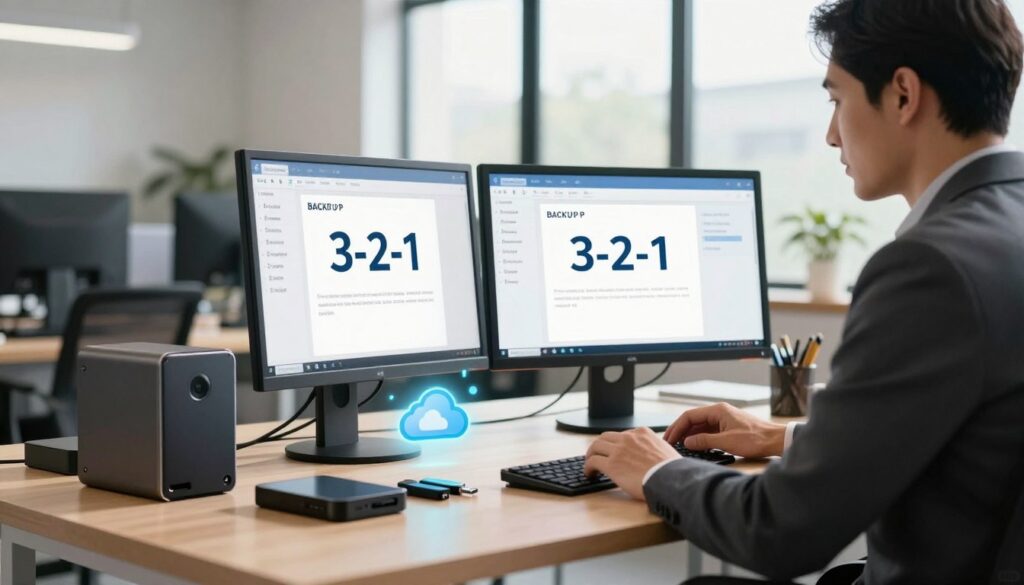
The 3-2-1 rule is a top strategy for keeping your data safe.
Keep 3 total copies of your data, on 2 different types of media, with 1 copy stored offsite.
Start with a copy on your computer. Then, have another on an external hard drive at home. Your third copy should be in a cloud backup service, far away from your other two.
Using different media types helps avoid losing everything at once. Test your backups by restoring a few files. This is key to keeping your data safe.
Example: Combining Backblaze with a Local External Drive
Here’s a simple setup you can start today. Use Backblaze for automatic, offsite backup of your computer. It works quietly in the background, keeping your data safe.
Also, back up to an encrypted external hard drive weekly. Keep this drive in a safe place. This way, you have a quick local backup and a remote backup for big disasters.
This setup follows the 3-2-1 rule perfectly. It makes your digital life more secure and reliable.
Securing Your Devices: The Endpoints of Your Storage
One weak link can ruin all your cloud security efforts. Your laptop, phone, and tablet are the entry points to your online files. If a hacker or thief gets to one, they can get into your cloud accounts, steal data, or take over your login sessions.
So, protecting your devices is key to keeping your data security for cloud storage strong. It’s like building a fortress but forgetting to lock the door.
Keeping Your OS and Antivirus Software Updated
Software updates are not just for new features. They fix security holes that hackers target. An old operating system invites malware in.
Make sure all your devices update automatically. For Windows, go to Settings > Update & Security. On a Mac, use System Preferences > Software Update. This keeps your defenses up.
Your antivirus software also needs updates. It needs current definitions to spot new threats. Use tools like Windows Defender or a third-party suite. Make sure they update and scan regularly.
Here’s a quick comparison of update features for major operating systems:
| Operating System | Automatic Update Setting | Built-in Security Tool | Typical Update Frequency |
|---|---|---|---|
| Windows 10/11 | Settings > Update & Security > Windows Update | Microsoft Defender Antivirus | Monthly (Patch Tuesday) |
| macOS | System Preferences > Software Update | XProtect (Gatekeeper) | As released by Apple |
| iOS / iPadOS | Settings > General > Software Update | System Integrity Protection | As released by Apple |
| Android | Settings > System > System Update | Google Play Protect | Varies by manufacturer |
The Critical Role of Full-Disk Encryption (FileVault, BitLocker)
What if you leave your laptop on a train? Without encryption, anyone can access your files, including cloud-synced ones and passwords.
Full-disk encryption scrambles all data on your device. It only unlocks with your password or PIN. This keeps your files safe, even if the device is lost.
On a Mac, enable FileVault. Go to System Preferences > Security & Privacy > FileVault. Turn it on and store your recovery key safely. The encryption works quietly in the background.
On Windows Pro, Enterprise, or Education editions, use BitLocker. Search for “Manage BitLocker” in the Start menu. Turn it on for your system drive. For Windows Home users, use “Device encryption” if your device supports it.
Turning this on is a powerful step for local file security. It makes your device a secure endpoint, protecting your cloud-stored data.
Understanding Privacy Policies and Data Jurisdiction
Keeping your cloud files safe means more than just tech. You also need to know the laws that protect your data. The privacy policy of your storage provider and where their servers are located are key. Not paying attention to these is like locking your door but leaving the key out.
These policies and server locations tell you who can see your data and when. Taking time to understand them helps you choose better where to store your files.
Reading the Fine Print: What Providers Can Access
When you start using a cloud service, you agree to their rules and privacy policy. This agreement lets the provider access your data for certain things. They need this access to sync your files or scan for malware.
But, the fine print also talks about other times they might see your data. They might look at it to follow court orders or government requests. They could also use metadata—like file size and type—for analytics or ads.
To really get what you’re agreeing to, look for these important parts in a privacy policy:
- Data Usage: How the provider uses your stored content and metadata.
- Third-Party Sharing: Whether they sell or share your data with advertisers or partners.
- Law Enforcement Guidelines: Their process for handling government data requests.
- Your Rights: How you can access, correct, or delete your data from their systems.
A provider serious about privacy will have clear, easy-to-understand policies. They often publish reports on government requests they get.
How Server Location (USA vs. EU) Affects Your Data Privacy
The country where your provider’s servers are located is important. It decides which laws apply to your files. Storing data in the United States versus the European Union makes a big difference for privacy.
In the United States, data protection laws are not as strong. The CLOUD Act lets U.S. authorities get data from American companies, even if the servers are elsewhere. This can affect your files’ privacy.
The European Union’s General Data Protection Regulation (GDPR) is very strict. It applies to any company handling EU residents’ data. GDPR gives you strong rights, like the right to be forgotten and strict consent for data use.
Many global providers let you choose where your data is stored. Choosing an EU server can give your data stronger legal protection, thanks to GDPR. The table below shows the main differences.
| Privacy Factor | United States Jurisdiction | European Union Jurisdiction (GDPR) |
|---|---|---|
| Governing Law | Patchwork of federal and state laws (e.g., CLOUD Act) | Comprehensive GDPR regulation |
| Government Data Access | Authorities can request data with a warrant or subpoena | Strict legal requirements; must often be reviewed by a court |
| User Consent for Data Processing | Often implied by terms of service | Must be explicit, informed, and easy to withdraw |
| Right to Data Deletion | Limited, varies by state | Strong “Right to be Forgotten” |
| Impact on Your Files | Higher chance of access by U.S. authorities | More legal barriers against unauthorized access |
When protecting files in the cloud, pick a provider with strong privacy laws, like GDPR. This adds a legal layer to your tech security. Always check where your provider’s data centers are and what laws they follow.
Advanced Tips: Using Cryptography for Truly Private Sharing
Want to share files with top-notch privacy? Cryptography can help you achieve near-perfect secrecy. Even with a provider’s encryption, standard cloud sharing might not be enough. These advanced methods create a private channel only you and your recipient control.

This method is great for sensitive data like legal documents or financial records. It’s more secure than the encryption offered by your main encrypted storage services. Imagine adding a personal, unbreakable lock to your data before it leaves your device.
Exploring PGP/GPG for Email Attachments
Ever sent a confidential file via email? Regular email is like a postcard—anyone can read it. Pretty Good Privacy (PGP) and GNU Privacy Guard (GPG) solve this problem. They use public and private keys to encrypt your files.
You encrypt a file with your recipient’s public key. Only their private key can unlock it. This is true end-to-end encryption for email attachments. While it has a learning curve, tools like Mailvelope make it easier by integrating with Gmail or Outlook.
For a simpler experience, try encrypted email services like ProtonMail or Tutanota. They offer strong encryption right in their platform. This ensures your attachment stays private from start to finish.
Secure Messaging Apps (Signal) for Small File Transfers
Need to send a small, sensitive file quickly? Your everyday cloud might be too much. Secure messaging apps like Signal are a great alternative. They’re designed for private communication and support file sharing.
Signal uses the same strong encryption for files as it does for messages. The file never exists on a server in a readable form. It goes directly from your phone to your contact’s device. This is perfect for sharing sensitive information like passwords or scanned IDs.
Keep in mind, these apps often have file size limits (e.g., 100MB in Signal). For bigger files, use your primary encrypted storage services first. Then, share the link via Signal for an extra layer of privacy.
Using these cryptographic tools gives you full control. You’re not just relying on a provider’s security—you’re creating your own. It’s the ultimate step in building a private digital workflow.
Staying Updated: Security is an Ongoing Process
Think of securing files on the web like keeping your body healthy. You don’t just eat one salad and stop. It’s about making smart choices every day. The digital world changes fast, with new threats popping up all the time.
Your defenses must keep up. This isn’t about finding a new tool. It’s about having the right mindset. Security is a constant effort, not a one-time fix.
Subscribing to Security News and Provider Updates
Knowing about your data’s safety is key. Stay informed to catch threats early. You don’t need to be an expert. Just find reliable sources that explain things in simple terms.
Start by following trusted blogs or newsletters. They explain new threats clearly and tell you what to do.
- Krebs on Security: In-depth investigative reporting on cybercrime.
- The Hacker News: Breaks down the latest vulnerabilities and breaches.
- Your storage provider’s blog: Companies like Google, Dropbox, and Microsoft publish critical security bulletins and feature updates.
Also, never ignore update notifications on your apps, devices, or cloud storage software. Those patches often fix security holes that hackers are actively trying to exploit. Enabling automatic updates is one of the simplest, most effective ways to stay safe.
Periodically Revisiting and Refreshing Your Security Settings
Your security setup from six months ago might have gaps today. That’s why scheduled check-ups are essential. Set a calendar reminder—perhaps every three or six months—to conduct a quick review of your digital health.
Use this time to audit the key areas we’ve covered. This ongoing vigilance turns good intentions into lasting protection.
Here’s a simple checklist for your security refresh:
- Password Health: Use your password manager’s built-in tools to check for weak, reused, or compromised passwords. Update them.
- Connected Apps: Revisit the third-party apps with access to your cloud storage. Remove any you no longer use or don’t recognize.
- Sharing Links: Review files and folders you’ve shared. Do those links sill need to be active? Revoke access for old projects or collaborators.
- 2FA Methods: Confirm your two-factor authentication methods are current. Ensure your backup codes are stored safely.
These actions are simple but powerful. They ensure your safeguards don’t decay over time. By making this a regular habit, you build a resilient system for securing files on the web over the long term. It’s the difference between being reactive to a breach and being proactively in control.
Conclusion
Securing your files online is a journey, not a single step. You now have a clear map. It combines powerful tools with consistent habits to build a strong defense for your data.
Start with a foundation like encrypted cloud storage from a trusted provider. Add layers like a password manager for unique credentials and two-factor authentication on every account. Follow smart practices like the pre-upload checklist and regular audits of your sharing links. Remember the 3-2-1 backup rule to guard against data loss.
Each layer you add makes a breach far less likely. This proactive approach protects your personal memories, work documents, and sensitive information. It brings true peace of mind knowing your digital life is guarded. For lasting safety, view security as an ongoing part of your routine. The right secure file storage solutions and vigilant habits work together to keep your information safe now and in the future.