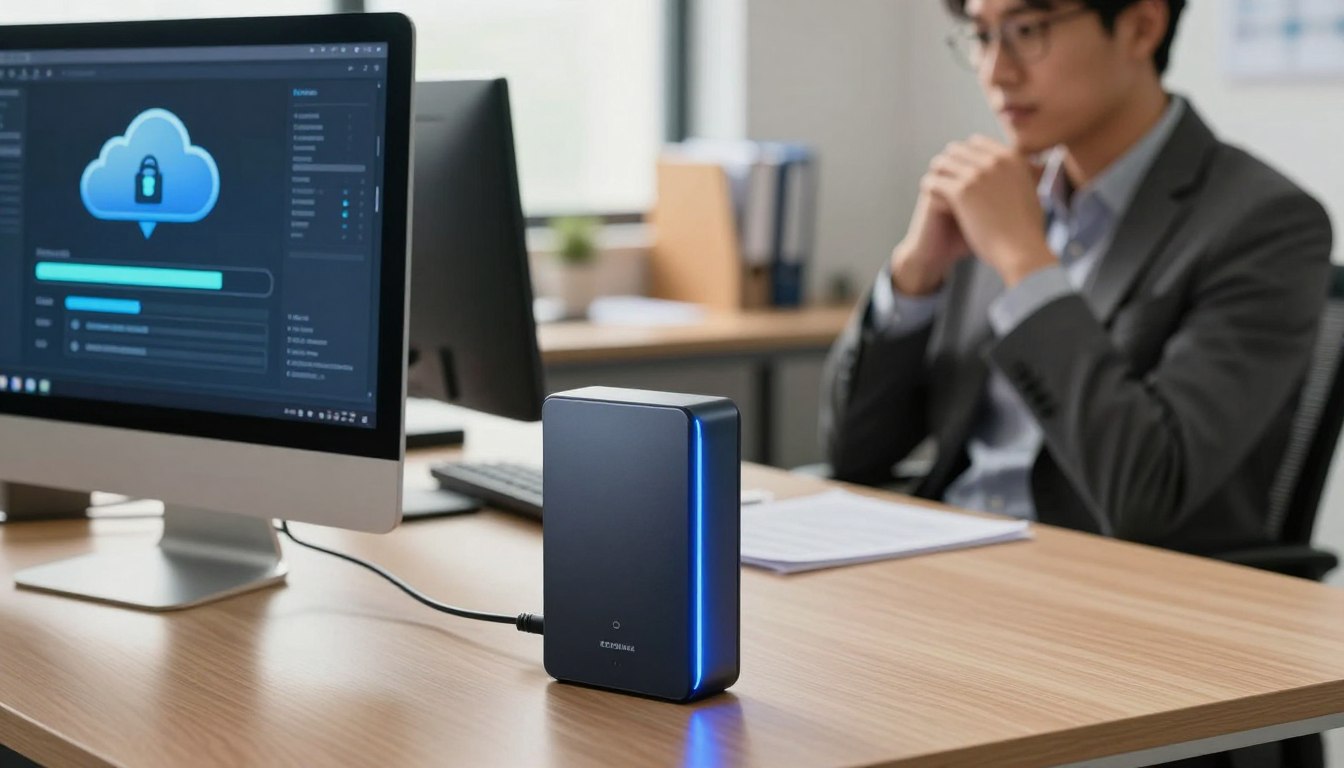
Did you know over 60% of people have lost important digital files at least once? This includes everything from family photos to work documents. It’s a feeling we’ve all experienced.
But there’s a silver lining: keeping your digital life safe is easier than you think. It’s a simple step that can give you a lot of peace of mind.
Backing up your data is all about making copies of your important files. Then, you store these copies in safe, encrypted places. This way, if disaster strikes, you can easily get your files back.
This guide will make this process effortless. We’ll turn a scary task into a simple habit. Let’s get started.
Your Data’s Value and the Invisible Risks It Faces
We often don’t realize the true worth of our data until it’s threatened or gone. Your financial records, work files, and family photos can vanish in an instant. This highlights how our digital info is key to our memories and work.
More Than Megabytes: The Emotional and Financial Toll of Loss
Data loss hurts on two levels. It’s emotional and financial. Losing photos from a wedding or your child’s first steps is more than just pixels. It’s losing pieces of your story.
The financial impact is also huge. A lost work project can mean missing deadlines. Lost client data can break trust. Recreating tax documents or business records is costly and stressful. The real cost is in hours of work, missed chances, and personal stress.

Everyday Threats: From Hardware Failure to Human Error
These disasters aren’t random. They come from specific dangers. Knowing these threats helps you defend against them.
Human error is the top cause of data loss. Mistakes like deleting the wrong folder or spilling coffee on a laptop happen to everyone. They show we’re human.
Hardware failure is another enemy. Hard drives and solid-state drives have limits. A device crashing is almost certain for most storage media.
Then there are malicious threats. These make data security very important. Common cyber threats include:
- Malware & Ransomware: Malicious software can corrupt, encrypt, or steal your files, demanding payment.
- Phishing Attacks: Deceptive emails or messages trick you into revealing passwords or downloading harmful files.
- Social Engineering: Scammers trick you into compromising your own data security.
The goal is to inform, not scare you. Each risk has a solution. A strong data loss prevention strategy protects against all threats. By knowing these dangers, you’re already fighting back.
Demystifying Data Backup and Recovery
Data protection is based on two key ideas: backup and recovery. These concepts are simple but powerful. They help keep your digital life safe. Let’s explore how they work together to protect you.

Backup Explained: Creating Your Fail-Safe Copies
A backup is like an insurance policy for your files. It’s the act of making and storing copies of your important data in a safe place. It’s not just a spare—it’s a fail-safe plan.
When you back up, you take a snapshot of your data at a certain time. This copy is kept separate from your original files. If your originals get lost, damaged, or corrupted, your backup is there to help.
This is a proactive step. You’re acting before disaster strikes. A good backup plan is the first and most important part of data protection.
Recovery Explained: Your Plan B for Digital Emergencies
Backup is your insurance, and recovery is filing the claim. Data recovery is your Plan B for digital emergencies. It’s about using your backups to restore lost or damaged information.
This part is reactive; it kicks in after a disaster. The aim is to get your systems and files working again quickly. A good recovery can turn a big problem into a small one.
Remember, having backups without a clear recovery plan is like having a life raft but no way to inflate it. Both are key. Knowing how to recover ensures your backup efforts pay off when you need them most.
The Foundation of Safety: The 3-2-1 Backup Rule
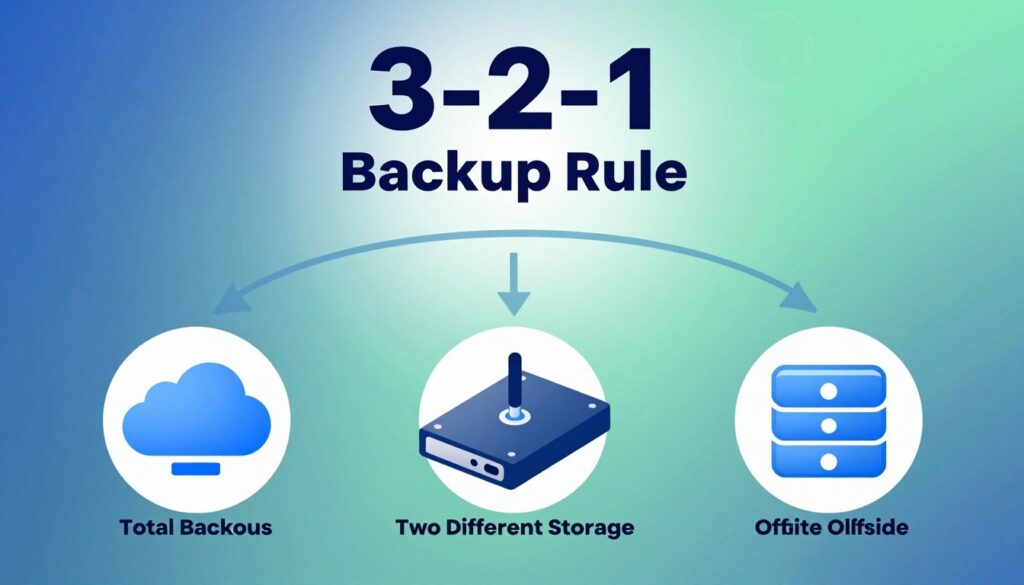
The 3-2-1 backup rule is a top choice for keeping your data safe. It’s simple yet powerful. This rule helps your files stay safe, no matter what.
The rule has three main parts. You need three total copies of your data. These copies should be on two different types of media. And, you must have one copy offsite, away from your main location.
Why This Simple Strategy is a Gold Standard
This rule is loved for its ability to protect against many dangers. A single backup on your computer’s hard drive won’t save you if it fails. The 3-2-1 rule creates strong defenses.
Having three copies guards against a local device failure. Using two different media types—like an external hard drive and a cloud service—protects you from one technology’s flaw. The offsite copy keeps you safe from big disasters like fire or theft.
This rule changes how you think about backups. You’re not just hoping for the best. You’re making sure your data is safe in many ways. This makes the 3-2-1 rule key for all good backup solutions.
Implementing 3-2-1 in Your Own Life
It’s easy to start using this rule. Let’s look at how you can set it up today.
- Your 3 Copies: Your main data (on your laptop), a copy on an external hard drive, and another in a cloud service like Backblaze or iDrive.
- Your 2 Media Types: The physical hard drive (local storage) and the cloud service (online storage) are two different types.
- Your 1 Offsite Backup: The cloud copy is your offsite backup. It’s stored safely in a remote data center.
For families, this could mean photos on a home computer, a copy on a NAS device, and synced to a cloud account. The goal is to make this a regular habit, not a hassle.
By following the 3-2-1 rule, you create a strong safety net. Your backup solutions become thorough, not just easy. You’ll feel more secure knowing your digital life is protected against surprises.
Making Backup Effortless: The Power of Automation
Automation makes data backup easy and reliable. It turns a task you might forget into a solid safety net. This way, you don’t have to remember to do it yourself.
This approach is all about setting it and forgetting it. Your important files are safe without any effort from you. It’s key to a modern, safe digital life.
How Automated Backup Works for You 24/7
An automated backup system runs quietly in the background. It looks for new or changed files based on your schedule. This could be every hour, day, or in real-time.
It works continuously and only saves what’s changed. After the first full backup, it only saves new or updated files. This saves time and space while keeping your data safe.
You get constant, hands-off security. Whether you’re sleeping, working, or on vacation, your data is safe. This 24/7 protection is what makes it so powerful and reliable.

The beauty is in its consistency. Manual backups can be error-prone and forgetful. An automated process never gets distracted or puts off tasks.
Leveraging Built-in Tools: Time Machine and File History
Start with the free tools on your computer. Apple and Microsoft offer great automated backup solutions. They’re easy to use and help everyone get started.
For Mac users, Time Machine is the top choice. It makes hourly, daily, and weekly snapshots of your system. You can go back in time to recover files as they were on any day. Setting it up with an external drive is simple.
Windows users have File History. It saves versions of your documents, pictures, and music. If you delete or overwrite something, you can easily restore a previous version.
Our friendly advice? Try these built-in options first. They’re a great start for automated protection. Once you’re comfortable, look into more advanced software or cloud services.
Starting here makes the journey to effortless data safety easier. You take a powerful first step without spending a dime.
Choosing Your Backup Destination: Local Options
Looking at local storage options is like finding the perfect vault for your digital treasures. These choices keep your backups close, giving you quick access and control. If you prefer simple, hands-on management, start by checking out local backup solutions.
External Hard Drives: Simple, Direct, and Affordable
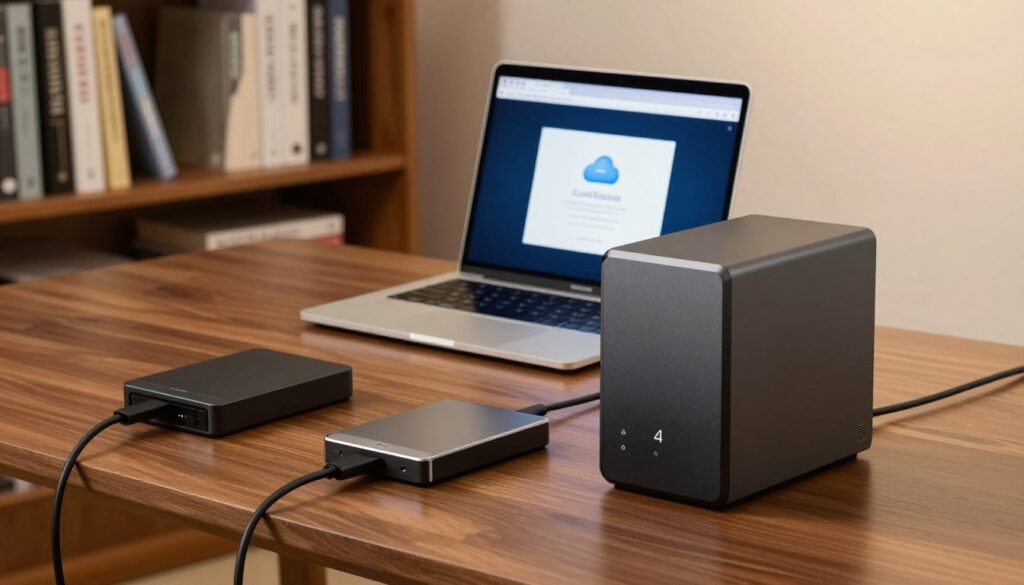
External hard drives are a top choice for many. Just plug them into your computer, and they become a portable storage space. They’re cheap, fast, and don’t need a monthly fee.
But, they come with risks. They can get stolen, damaged, or fail over time. Having only one backup copy is risky.
Selecting the Best Drive for Your Needs
Not all external drives are the same. Your choice depends on your budget and what you need to protect. A 1TB to 2TB drive is a good starting point. For big collections, consider 4TB or more.
Speed matters. USB 3.0 or USB-C is faster than USB 2.0. Also, think about the drive technology:
- Traditional Hard Disk Drives (HDD): They’re cheaper but more sensitive to bumps.
- Solid State Drives (SSD): They’re faster, silent, and durable but pricier.
Consider your future needs. A bigger drive now means more room to grow, making your backup solutions last longer.
Network-Attached Storage (NAS) for Whole-Home Protection
A NAS is like a mini data center for your home. It connects to your Wi-Fi, making a personal cloud server. It’s great for families or those with many devices.
With a NAS, you can back up all your devices to one spot. It’s safer than a single drive because you can use multiple drives for redundancy. This setup is reliable and centralizes your backups.
While it costs more upfront and needs some tech know-how, a NAS is a powerful storage solution. It gives you control over your digital world.
Choosing Your Backup Destination: Cloud Services
Imagine your data safe in a digital fortress, miles away from any physical threat—that’s the promise of cloud backup. While local drives protect you from a single device failure, they can’t shield your files from a house fire, flood, or theft. This is where storing a copy off-site completes the final piece of the 3-2-1 backup puzzle. Cloud services provide that essential geographic separation automatically.
The Benefits of Off-Site, Hands-Off Storage
Using the cloud for backup turns a complex task into a set-and-forget safeguard. The core advantage is location. Your data resides in secure, professionally managed data centers far from your home or office. If a local disaster strikes, your off-site copy remains untouched and ready for recovery.
Accessibility is another major perk. Once your files are in the cloud, you can retrieve them from any device with an internet connection. This is perfect for accessing important documents while traveling or recovering photos after a phone is lost.
Perhaps the biggest benefit is automation. As one source notes, “Cloud backup services are recommended… because all backups are stored offsite, in the cloud, you can easily access them anytime…”. The service handles the technical heavy lifting, from encryption to storage management, giving you true peace of mind.

Evaluating Popular Cloud Backup Services
Not all cloud services are created equal for backup purposes. It’s important to know the difference between file synchronization services and dedicated backup services. Sync services like Google Drive are great for sharing and accessing current files across devices. But they may not keep extensive version history or automatically back up entire system folders.
Dedicated cloud backup services, such as Backblaze or Carbonite, are designed for complete protection. They often run continuously in the background, backing up everything you select, including operating system files and applications. They focus on recovery, not just file access.
Google Drive, OneDrive, and iCloud at a Glance
These three giants are often a user’s first encounter with cloud storage. The table below compares their core features as sync platforms, which can also form a part of a broader backup strategy when used correctly.
| Service | Primary Use | Free Tier Storage | Key Feature for Backup |
|---|---|---|---|
| Google Drive | File Sync & Collaboration | 15 GB (shared with Gmail & Photos) | Deep integration with Google Workspace apps and easy file versioning. |
| Microsoft OneDrive | File Sync & Windows Integration | 5 GB | Seamlessly built into Windows File Explorer; excellent for Office 365 users. |
| Apple iCloud | Apple Ecosystem Sync | 5 GB | Automatic backup of iPhone/iPad photos, contacts, and settings. |
For a robust cloud backup, you might use one of these for important document syncing while also subscribing to a dedicated backup service for your entire computer. This layered approach ensures both convenience and complete disaster recovery capability.
Remember, the best cloud backup solution is one that works automatically and stores your data securely off-site, fulfilling that critical part of the 3-2-1 rule with minimal effort on your part.
Hybrid Backup Solutions: Uniting Local and Cloud
A hybrid backup strategy combines the best of on-site and off-site solutions. It merges the speed of an external drive with the security of a cloud vault. This approach follows the 3-2-1 rule, creating a strong safety net for your digital life.

This layered defense keeps your data safe and easy to recover. It’s like having a fireproof safe at home and a safety deposit box at the bank.
How Hybrid Systems Offer Maximum Resilience
Hybrid backup solutions bring together the strengths of both worlds. Your local backup, like an external hard drive or NAS, offers quick recovery for everyday problems. If you accidentally delete a file or a software update goes wrong, you can restore your data in minutes.
Your cloud backup acts as an off-site guardian. It protects you from physical disasters like fire, flood, or theft that could destroy equipment in your home. This geographical separation is your ultimate insurance policy.
Together, they work automatically. Good hybrid systems can sync your local backups to the cloud seamlessly. This creates redundant copies without extra effort from you. Your local copy handles quick restores, while your cloud copy ensures you always have a version stored far away.
This dual-layer approach is the definition of resilience in data backup and recovery. It addresses both common frustrations and rare catastrophes.
Is a Hybrid Approach Right for You?
You might wonder if adding this extra layer is necessary. For many people, the answer is a resounding yes. A hybrid strategy is ideal if you have irreplaceable files like family photos, important work documents, or financial records.
Consider these points to decide:
- You value both speed and security: You want quick access to recent backups but also need protection from total loss.
- Your data has high emotional or financial value: The cost of a cloud subscription is often trivial compared to the value of what you’re protecting.
- You’re comfortable with mild technical setup: Many modern tools make this process very straightforward.
The slight extra complexity is a small trade-off for the profound increase in safety. For personal users, families, and small businesses seeking robust protection, a hybrid system is frequently the best choice.
It transforms your data backup and recovery plan from a simple precaution into a complete shield. You’re not just copying files; you’re building a system designed to withstand virtually any challenge.
Beyond Simple Backup: Crafting a Disaster Recovery Plan
Think of backups as your spare tire. But a disaster recovery plan is like the whole roadside assistance kit. It’s the difference between having the parts to fix a problem and having a clear, tested procedure to get you back on the road quickly. For businesses, these plans are often required by regulations. But for you at home, it’s about peace of mind and true resilience.
The Difference Between Backup and True Disaster Recovery
Creating backup files is a vital action. It gives you copies of your important data. True disaster recovery, on the other hand, is a complete strategy. It uses those backups to restore your full digital operations after a crisis.
A backup is a static snapshot. Disaster recovery is an active, living process. It answers critical questions: How quickly can you be back up and running? What needs to be restored first? Who is responsible for each step? Without a plan, you might have the data but no clear path to usability.

The table below highlights the key distinctions between simply having backups and having a full disaster recovery strategy.
| Aspect | Backup | Disaster Recovery Plan |
|---|---|---|
| Primary Focus | Creating data copies | Restoring operations and access |
| Key Question | “Do I have a copy of my files?” | “How long until I’m fully functional again?” |
| Core Component | Storage media (drive, cloud) | Written procedures and assigned roles |
| Success Measure | Data integrity of the copy | Recovery Time Objective (RTO) |
| Activity | Automated or manual copying | Testing, updating, and team coordination |
A recovery plan turns your passive backups into an active shield. It’s your blueprint for action when stress is high and time is critical.
Building Your Step-by-Step Recovery Blueprint
Creating a personal disaster recovery blueprint doesn’t need to be complex. It’s about documenting a simple sequence you can follow in an emergency. This makes the entire process manageable and less frightening.
Start by identifying your most critical data. Financial documents, family photos, and work projects often top the list. Knowing what to restore first saves precious time and reduces anxiety.
Your blueprint should include these key elements:
- Priority Restoration List: Rank your data and applications from “immediate” to “can wait.”
- Backup Location Log: Clearly note where each backup is stored (e.g., “External drive in fireproof safe,” “Acme Cloud Service”).
- Access Information: List passwords or keys needed to decrypt backups or log into cloud services.
- Action Steps: Write simple instructions like “1. Retrieve NAS from closet. 2. Connect to home network. 3. Launch backup software and select ‘Restore Entire System.'”
- Contact Points: Note who to call for help, such as your cloud provider’s support or a tech-savvy family member.
Once your blueprint is drafted, test it. Perform a mock recovery of a single important folder. This validates your instructions and familiarizes you with the process. Update your plan every six months or when you add a new device or service.
This personal disaster recovery plan transforms you from someone who hopes their backups work to someone who knows exactly how to recover. It’s the final, critical layer in safeguarding your digital life.
Dedicated Backup Software for Enhanced Control
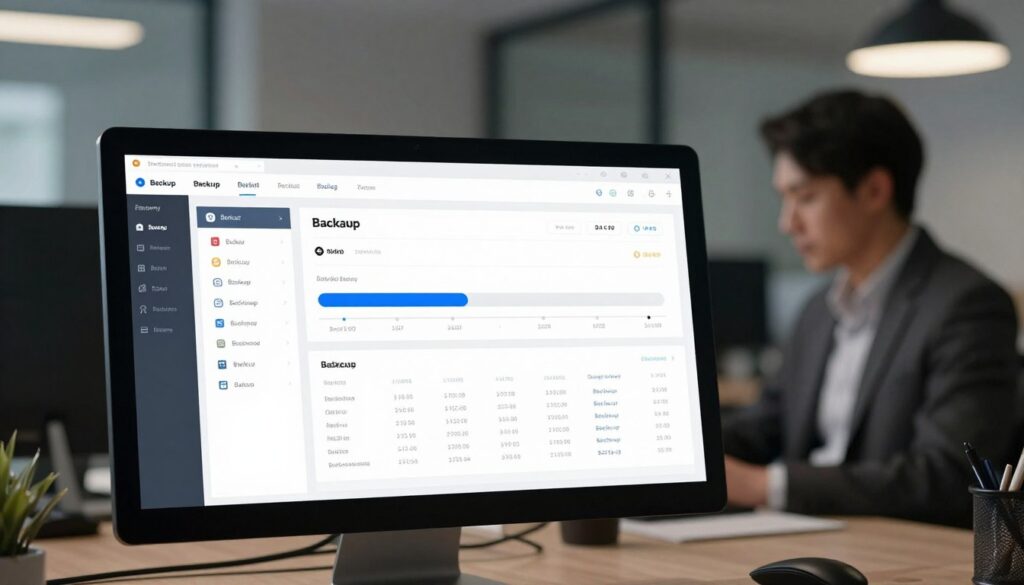
If your computer’s backup tools are too simple, you’re not alone. Backup software offers more control and peace of mind. It has features that go beyond what your computer can do.
When to Consider Third-Party Backup Software
When should you look for backup software beyond what your PC or Mac offers? Built-in tools are great for simple backups. But, dedicated software is needed for more complex needs.
Upgrade if you need to do things like:
- Create a complete, bootable disk image of your system drive.
- Back up specific applications and their settings, not just documents.
- Need a more complex backup schedule than “daily” or “weekly.”
- Manage data for multiple computers from one place.
- Want advanced security, like strong encryption or detailed user access controls.
In these cases, third-party software makes backup a professional-grade task.
Key Features to Look For: Encryption, Compression, and Scheduling
Backup programs vary in quality. Look for these key features when shopping.
Encryption is essential. It scrambles your data, keeping it safe. This is true whether your backup is on a drive at home or in the cloud.
Compression saves space and time. Good software shrinks your files without losing data. This means you can store more and upload faster.
Flexible Scheduling lets you control when backups happen. You can set them to run at any time, on any day, and based on specific events. This ensures backups happen automatically, without you needing to remember.
Other important features include access management for multiple users and audit trails. These logs show what was backed up, when, and by whom. This is key for keeping track of your backups.
Spotlight on Acronis True Image and Macrium Reflect
Let’s look at two top choices: Acronis True Image and Macrium Reflect. They show what dedicated backup software can do.
Acronis True Image is all-in-one. It creates disk images and file backups with top-notch encryption. It also has a feature for cloning a running system without restarting. Its interface makes advanced tasks easy to follow.
Macrium Reflect is known for its reliability and imaging power. It has great scheduling options and compression to save space. IT pros trust it for its consistency and control over backups and recovery.
Exploring these tools and their features will help you find the right one. They make advanced data protection easy to understand and use.
Your Step-by-Step Guide to Setting Up a Backup System
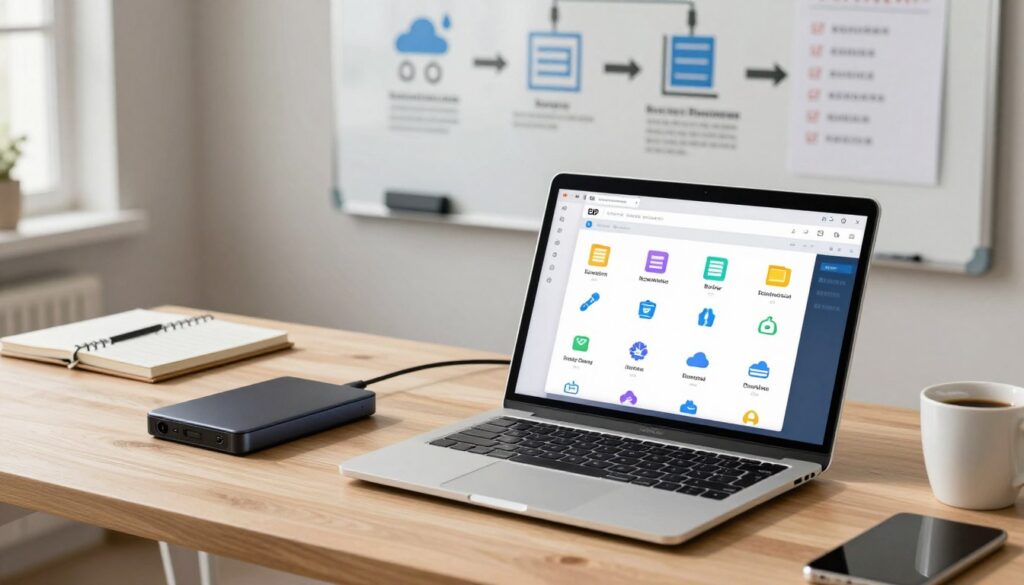
Now it’s time to take action with this guide to protect your data. Setting up a reliable data backup and recovery system is simple with a three-step plan. Let’s make your important files safe.
Step 1: Taking Inventory of What Needs Protection
First, identify what you need to protect. Start by checking your main folders like Documents and Pictures. Think about what would be hard to replace.
Focus on files that are most important to you. Your plan should start with these:
- Personal Documents: Tax returns, legal contracts, resumes, and important scans.
- Digital Memories: Family photos, home videos, and personal creative projects.
- Critical Databases: Financial records, client information, or project files for work.
- System Settings: Back up application settings and system preferences for quick recovery.
This isn’t just about file size. It’s about the emotional and financial toll of losing them. Knowing what’s precious makes every step more effective.
Step 2: Selecting and Configuring Your Tools
With your list ready, choose the right tools. You might use a mix of local and cloud backup.
For most, a good setup is:
- Local Backup: Use an external hard drive with your computer’s tool (like Time Machine for Mac or File History for Windows). This is for quick recovery.
- Cloud Backup: Subscribe to a service like Backblaze or iDrive for critical files. This protects against physical disasters.
Configuring your tools is important. Set up your software to back up the folders you listed. Choose a schedule—daily or weekly—to make backups automatic. This hands-off approach is key to effortless protection.
Step 3: Performing and Verifying Your First Backup
Now, start your first full backup. This might take a few hours, so do it overnight. Don’t skip the verification step. A backup that can’t be restored is useless.
Here’s what to do after your backup:
- Check that your backup job was successful in your software.
- Test the restore function with a non-critical file—a test document or a single photo—and move it to a different spot on your computer.
- Open the restored file to make sure it’s good and not damaged.
This test shows your system works. Make it a habit to test your backups regularly, like every quarter. This regular check is the last step to a reliable data backup and recovery system. Your digital life is now safe.
The Moment of Truth: Executing a Data Recovery
When a file goes missing or a drive fails, your backup plan kicks in. This is when your preparation pays off. The recovery process might seem tough, but with the right mindset and backups, it’s usually simple.
Your aim is to get your data back quickly and with little stress. Stay calm and methodical in your approach.

Staying Calm: Your Pre-Recovery Checklist
Before you start the recovery, take a moment to breathe and check this list. These steps help avoid errors and save time.
- Identify What’s Lost: Be clear. Is it a single file, a folder of photos, or an entire drive? Knowing what’s missing helps you plan.
- Locate the Correct Backup: Find the latest backup with the missing data. If you use versioning, you might need an older version.
- Verify Access to Your Backup Media: Can you connect the external drive? Are you logged into your cloud backup service? Make sure you have the right passwords or connections.
- Check System Health: If you’re recovering to the same device, ensure it’s working. You don’t want to restore data to a failing drive.
This checklist helps you stay focused. For tough cases, data recovery services can help. But for most, your backups are the quickest fix.
Walking Through the Restoration Process
The steps vary by software, but the basic steps are the same. It’s like a guided tour back to your data.
First, open your backup app or cloud service dashboard. Look for the restore or recover function. You’ll need to select the backup point—the date and time of the snapshot you want.
Next, you choose what to restore. You can pick individual files and folders or restore everything. Be careful to avoid overwriting good data with old data.
Then, you select a destination. This is usually the original location, but you can choose a different folder to compare versions. The software then moves the data to the chosen spot.
Most tools show a progress bar and notify you when it’s done. The last step is to verify the restored files by checking if they work correctly.
This entire data recovery process is made easy. The hard work was done during the automated backup. Now, you just enjoy the fruits of your foresight.
Securing Your Backups: Encryption and Access Control
A backup without encryption is like a diary without a lock—anyone who finds it can read your most private information. You’ve worked hard to create copies of your precious files. Now, you need to protect those copies with the same vigilance you protect the originals. This final layer of data security ensures your plan B doesn’t become a new point of failure.

Why Your Backup Files Need Their Own Protection
Think about it. Your backup drive or cloud account holds everything. It contains your family photos, financial documents, and important work files all in one place. This makes it a tempting target for thieves, hackers, and even ransomware.
If someone steals your external hard drive, they instantly have all your data. Some malicious software is designed to seek out and encrypt your backup files, leaving you with nowhere to turn. Protecting your backups isn’t just an extra step; it’s essential for complete data security.
Implementing Strong Encryption for Local and Cloud Backups
The good news is that adding strong protection is easier than you think. Modern tools put powerful encryption within everyone’s reach. The goal is to encrypt your data both “at rest” (when stored) and “in transit” (when being uploaded).
For local backups on external drives or a NAS, use built-in system tools:
- Windows users can use BitLocker to encrypt an entire drive with a password.
- Mac users have FileVault, which seamlessly encrypts any connected storage.
- For cross-platform needs, free software like VeraCrypt creates encrypted vaults on any drive.
For cloud backups, your data security relies on the service’s features and your habits. Always enable these settings in your account:
- Turn on the service’s native encryption option.
- Use a strong, unique password and enable multi-factor authentication (MFA).
- If offered, use “client-side” or “private key” encryption. This means your data is encrypted on your device before it ever goes to the cloud.
Regulations often mandate this level of protection for sensitive data. By following these steps, you create a true airgap of security around your backups. Your files are safe from prying eyes, whether they’re on a shelf or in a server farm across the country.
Making encryption a standard part of your routine is the final, critical step in building a resilient digital life. Your data deserves a safe copy, not just a copy.
Proactive Data Loss Prevention Strategies
Data loss prevention focuses on preventing data loss before it happens. It’s about creating a safe digital space. While backups are important, these strategies aim to avoid loss altogether.
They combine good habits with reliable tools. This creates a strong shield for your information.

Cultivating Safe Digital Habits
Your behavior is the first defense. Simple habits can greatly reduce your risk.
Master Your Passwords: Weak or stolen passwords are a big risk. Use long, unique passwords for all important accounts. A password manager helps by creating and storing complex passwords for you.
Become Phishing-Aware: Many attacks start with fake emails or messages. Be cautious of urgent requests and links from unknown senders. Always check links before clicking.
Manage Files with Care: Accidental deletion is common. Organize files well and use the “Recycle Bin” as a first stop. Think twice before deleting folders or formatting drives.
Technical Safeguards to Complement Your Backups
Good habits need solid technology. These tools work quietly, blocking threats.
Employ Robust Antivirus Protection: A good antivirus suite is essential. It scans for and blocks viruses, ransomware, and spyware. Keep it updated for the latest protection.
Keep Everything Updated: Software updates are key. They fix security holes that hackers target. Enable automatic updates for your system, apps, and router.
Use a Firewall: Your computer’s firewall blocks unauthorized access. Enable your router’s firewall too. This creates a strong barrier against threats.
Avoid Improper Configuration: Many services are secure but can be vulnerable with wrong settings. Review privacy and security options when setting up new services. Disable unused features and check sharing permissions.
By using these habits and tools, you build a strong defense. Your backup is your last resort, but with these strategies, you might never need it.
Selecting the Perfect Backup Strategy for Your Needs
Your backup plan should fit you perfectly. It’s tailored to your digital life, budget, and peace of mind.
This step is about finding the right fit for you. You’ll use all the knowledge you’ve gathered. Let’s find a backup plan that suits you like a glove.
Assessment Guide: Personal User, Family, or Small Business?
Consider your role in the digital world. Your needs change a lot, depending on whether you’re alone or managing a team.
Here are three profiles to help you get started:
- The Solo User: You have one computer and a smartphone. Your important data includes personal documents, photos, and maybe a creative project. Start with a simple, automated backup. Use an external hard drive and your computer’s backup features. Add a cloud service for your most valuable files.
- The Family Hub: Your home has many devices, used by different people. Family photos and videos are your treasures. Centralized protection is key. Use a NAS device for automatic backups. Add a cloud storage plan for off-site safety and easy sharing.
- The Home Office or Small Business: Your data is critical. Client files, financial records, and databases can’t be lost. Use a hybrid approach with a local NAS and a cloud service. For disaster recovery, consider advanced software. As your business grows, you may need enterprise tools like OpenText™ Data Protector.
Balancing Cost, Convenience, and Comprehensiveness
Every backup strategy is a balance of cost, effort, and protection. You rarely get all three at their best.
A free cloud drive is cheap and easy but not enough for full data protection. A complete, automated system is convenient but costs more.
Find your balance. Ask yourself these questions:
- What is the true cost of losing my data? This helps justify spending on better backup solutions.
- How often will I actually remember to do a manual backup? If it’s rare, choose automation.
- What is the absolute minimum set of files I need to function? Start by protecting those, then add more.
The most important thing is to start. A simple, automated backup to a single external drive is a big step. As your needs change, so can your strategy. The goal is ongoing data protection, not perfection from the start.
Conclusion
You’ve reached the end of a vital journey. You now know how to keep your data safe. You have the plan for safety in your hands.
Effortless protection is the goal. An automated backup makes it easy. Your digital life is always secure, giving you peace.
Cloud backup services offer extra security. Local devices are fast and in control. Together, they give you complete peace of mind.
Don’t wait. Your first step is easy. Turn on automated backup or try a cloud service.
This choice is a gift to your future self. Start your data backup plan today.