
Imagine losing all your phone photos, work documents, and personal files at once. For one in three people, losing important data happens every year. This can be due to hard drive failure, theft, or a cyber attack.
Protecting your digital life is now a must. The debate between local and cloud services is over. Today, you can find solutions that offer the best of both worlds. These options are powerful and flexible, keeping your important files safe.
This guide helps you find the right solution. We’ve tested the top services. Now, you can rest easy knowing your files, photos, and work are safe.
Key Takeaways
- Data loss from crashes, theft, or ransomware is a common and costly threat.
- Modern solutions combine local and online protection for maximum security.
- Choosing the right service depends on your specific needs and budget.
- Top-rated options offer a balance of features, price, and ease of use.
- A proper backup strategy provides essential peace of mind.
- This review analyzes key factors to simplify your decision.
Why Your Data Needs Cloud Backup Protection
From spilled coffee to sophisticated ransomware, your data faces dangers at every turn. Your computer isn’t invincible, and neither are the external drives you might trust for backups. Technology can fail without warning, leaving you scrambling to recover what’s lost.
Think about what’s on your devices right now. Family photos, tax documents, work projects, and personal correspondence all live in digital form. A single hardware failure could wipe them out in an instant. Accidents happen too—that morning coffee spill isn’t just bad for your keyboard.
Malware and ransomware attacks continue to threaten both individuals and businesses. These digital threats can lock you out of your own files or silently corrupt them. Physical risks are just as real—theft, fire, or flood could destroy your computer and any local backups in the same location.
This is why relying solely on external hard drives or USB sticks creates a false sense of security. They’re vulnerable to the same physical disasters that threaten your primary device. If your home suffers damage, both your computer and its backup drive could be lost together.
Professional data protection follows what experts call the 3-2-1 Rule. This simple strategy provides real security:
- Three copies of your important data
- Stored on two different types of media
- With one copy kept off-site
Your computer holds the original. An external drive gives you a second copy on different media. But that critical third copy—the off-site backup—is where cloud backup services excel. They automatically store your data in secure data centers far from your physical location.
When evaluating the best cloud backup services, you’re looking for that essential off-site protection. Cloud backup creates a geographical safety net that local solutions simply cannot provide. Your data survives even if your entire local environment is compromised.
The benefits extend beyond catastrophic disasters. Have you ever accidentally deleted an important file or saved over a document you needed? Cloud backup services typically keep multiple versions of your files. You can restore yesterday’s version or recover something deleted weeks ago.
Online backup serves as an essential hedge against acts of malice or nature. Most of us stand to lose significant digital possessions without this protection.
File corruption doesn’t have to be permanent either. Many cloud services maintain historical versions, letting you roll back to a clean copy. This protection works silently in the background, requiring no daily effort on your part.
Choosing among the top cloud backup solutions means selecting more than just storage space. You’re choosing peace of mind, automatic protection, and recovery options when you need them most. Your digital life deserves this fundamental layer of security.
Understanding why cloud backup is non-negotiable helps you evaluate the best cloud backup services with clearer priorities. You’re not just buying online storage—you’re investing in continuity, protection, and the preservation of what matters most to you.
Cloud Backup Review: Top Services Compared
Let’s look beyond the marketing and compare four top cloud backup services. We’ll dive into Backblaze, IDrive, Carbonite, and Acronis Cyber Protect. You’ll see what each offers, their strengths, and where they might not meet your needs.
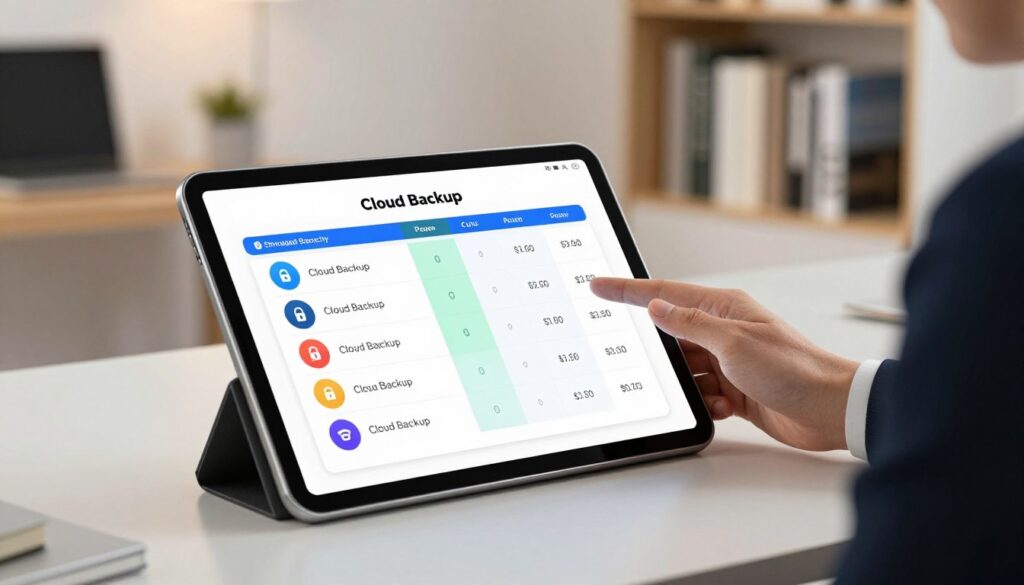
We’ve made each review easy to follow. You’ll get a quick overview, the pros and cons, and key features. This way, you can compare what’s important to you fast.
Backblaze
Overview
Backblaze is great for beginners who want a simple backup solution. It offers unlimited cloud storage for one computer at a low cost. If you want easy protection without hassle, Backblaze is for you.
Pros
- Truly unlimited storage for a single computer
- Strong security with multi-factor authentication (MFA) and private encryption keys
- Fast upload speeds to get your initial backup completed quickly
- Unique “mailed drive” recovery option for restoring large amounts of data
Cons
- Limited to backing up just one computer per account
- File selection process can be confusing for custom backups
- No integration with Windows Explorer or macOS Finder
- Lacks file syncing or sharing capabilities
Key Features
Backblaze’s main feature is its easy, unlimited backup model. It continuously backs up new and changed files. Its “Restore Return Refund” program lets you get a hard drive with your data for a fee that’s refunded when you return the drive.
IDrive
Overview
IDrive is our top pick for most users. It supports an unlimited number of devices under one account. This makes it perfect for families or individuals with many gadgets to protect.
Pros
- Backs up unlimited devices from a single dashboard
- Includes free local backup to an external drive
- Excellent value with frequent discounts on multi-year plans
- Fast performance for both backup and restore operations
- Strong end-to-end encryption for your data
Cons
- Storage is capped (though plans offer generous amounts)
- Linux support is somewhat limited compared to Windows and macOS
- Disk image backup is available only for Windows systems
Key Features
IDrive’s “IDrive Express” service offers quick physical recovery. It also has file syncing and easy sharing links. Backing up to both the cloud and a local drive provides a complete 3-2-1 backup strategy.
Carbonite
Overview
Carbonite offers the simplest, automatic backup experience. It picks files from common places without much setup. If you want a service that makes decisions for you, Carbonite is the way to go.
Pros
- Extremely simple setup with automatic file selection
- Continuous backup that captures every file change
- Video backup available on higher-tier plans
- Mailed hard drive restore option similar to Backblaze
Cons
- Can be more expensive than competitors for comparable storage
- The automatic selection might miss files in unusual locations
- Interface feels less modern than some alternatives
Key Features
Carbonite’s main feature is its hands-off backup approach. Once installed, it automatically finds and protects your important files. Higher-tier plans include automatic video backup and courier recovery service for complete system restoration.
Acronis Cyber Protect
Overview
Acronis Cyber Protect is packed with features for users who want more than backup. It combines cloud backup with advanced security tools, including ransomware protection. This makes it ideal for those seeking a comprehensive cyber protection solution.
Pros
- Comprehensive disk imaging for complete system backups
- Built-in ransomware protection and detection
- Flexible backup options (local, cloud, or hybrid)
- File sync and sharing capabilities
- Cross-platform restore functionality
Cons
- Interface can be overwhelming for beginners
- Cloud sync feature requires two computers for full functionality
- Premium features come at a premium price
Key Features
Acronis stands out with its active ransomware protection that monitors for suspicious file encryption attempts. Its disk imaging creates exact replicas of your entire system for bare-metal recovery. The service also offers Microsoft 365 backup and blockchain-based file notarization for legal verification.
This comparison shows how these top secure cloud backup providers cater to different needs. Whether you prioritize simplicity, value, automation, or comprehensive protection, one of these services likely matches your requirements.
How to Choose the Right Cloud Backup for You
Choosing the right cloud backup is about matching features to your needs. This checklist helps you narrow down your options. It’s a guide to finding the perfect cloud backup for you.

Start by thinking about your budget and how much data you need to back up. Some services offer unlimited storage for one computer, while others have tiered plans with set storage limits.
Consider how much data you need to back up. Does unlimited storage mean for all your devices? For families or users with multiple computers, a per-computer limit can be important.
Look for affordable cloud backup options that offer the storage you need without hidden fees. Some services may have lower monthly prices but charge extra for certain features. Always calculate the total cost for your specific needs.
Security and Encryption
Security is the most important aspect. Your data should be encrypted before it leaves your device. Look for services that use AES-256 encryption, the industry standard.
The biggest difference is who holds the encryption key. With a private encryption key (zero-knowledge encryption), only you can access your data. This offers maximum privacy but means you must remember your password forever.
For extra security, make sure the service offers two-factor authentication (2FA). This requires a second code from your phone to log in, blocking unauthorized access even if your password is compromised.
Ease of Use and Recovery
A good backup is easy to restore. Think about your tech comfort level. Do you want a service that runs silently in the background, or do you prefer to select specific folders for backup?
Key features to look for:
- Continuous Backup: Automatically saves files the moment they change.
- Disk Image Backup: Creates a complete snapshot of your entire drive, including the operating system. This is a lifesaver for recovering from a total system crash.
- Simple Recovery Interface: A clear, web-based or app-based portal where you can browse and download lost files or previous versions.
The best services make restoring a single photo or an entire computer equally straightforward.
Platform Compatibility
Your digital life likely spans multiple devices. Your backup service should too. The essential check is for native apps on all your operating systems.
Most services support Windows and macOS. If you use Linux, your options narrow considerably. Mobile support via Android and iOS apps is crucial for accessing files on the go or backing up photos from your phone.
Ensure the service supports every computer and device you own under a single plan, if possible. This unified approach simplifies management and gives you complete coverage.
To help you visualize these trade-offs, here’s a quick comparison of what to prioritize in each category:
| Decision Factor | What to Look For | Key Question to Ask | Budget Tip |
|---|---|---|---|
| Storage & Price | Unlimited vs. tiered plans; per-computer or per-account pricing. | “Does the ‘unlimited’ plan cover all my devices?” | Annual plans often save 15-20% over monthly billing. |
| Security | AES-256 encryption, private encryption key option, two-factor authentication. | “Am I comfortable managing my own private key for maximum privacy?” | Services with zero-knowledge encryption may cost slightly more but offer superior privacy. |
| Ease of Use | Set-and-forget continuous backup, disk imaging, intuitive restore process. | “How quickly can I recover a deleted folder or a failed hard drive?” | Look for services with free trials to test the recovery process yourself. |
| Compatibility | Native apps for Windows, Mac, Linux, Android, and iOS as needed. | “Does it have dedicated apps for every device I own?” | Bundled mobile backup can replace separate cloud photo services. |
By weighing these four factors against your personal needs, you can move beyond general cloud backup software reviews and identify the affordable cloud backup options that deliver real value and peace of mind for your unique situation.
Conclusion
Your journey through this cloud backup review has shown why data protection is key. We’ve looked at why your files need to be safe from loss.
When comparing top cloud backup services like Backblaze, IDrive, Carbonite, and Acronis Cyber Protect, we see they all have their strengths. The best one for you depends on your specific needs.
Finding the right service means looking at security, performance, and cost. Whether you need unlimited backup, support for many devices, or extra security tools, there’s a service for you.
The choice is yours. Many services offer free trials. Try one out and make that first backup today. Keeping your photos, documents, and memories safe gives you peace of mind.