Did you know over 30% of people have never backed up their important files? This means family photos, work documents, and financial records live on just one device. A single accident could make them vanish forever.
Your digital life is precious. Protecting it doesn’t require a degree in computer science. In fact, setting up a secure copy of your files is now one of the simplest things you can do for peace of mind.
Think of it as your essential digital safety net. This process involves automatically saving copies of your files to a secure, off-site location. If your computer crashes or your phone is lost, you can recover everything with a few clicks.
This guide is designed for anyone starting with cloud backup. We’ll walk you through the entire process in plain English. You’ll see that securing your memories and important information is much easier than you think.
What is Cloud Backup, Anyways? Demystifying the Digital Safety Net
Imagine a digital guardian angel that automatically makes copies of your most important files. It keeps them safe in a fortress far away. That’s what cloud backup is all about. It’s a service that uses the internet to send and store duplicate versions of your files on powerful servers.
This “cloud” isn’t a fluffy white thing in the sky. It’s a network of massive, secure data centers around the world. Your files live there, safe from accidents that can happen to your device.
Before we dive deeper, let’s clear up a common point of confusion. Many people use “cloud backup” and “cloud storage” interchangeably. But they serve different primary purposes. Understanding this distinction is key to any cloud storage beginner guide.
Cloud Backup vs. Cloud Storage: Knowing the Difference
Think of cloud storage as a shared digital workbench. Services like Google Drive, Dropbox, or iCloud are designed for active use. You put files there to access them from multiple devices, collaborate with others, or free up space on your computer. It’s like a handy shelf you use every day.
Cloud backup, on the other hand, is your fireproof safe. Its main job is disaster recovery. It works quietly in the background, automatically creating remote copies of your files. You hope you never need it, but if your laptop is stolen, your hard drive fails, or you accidentally delete a precious file, your backup is there to restore everything.
The table below breaks down the key differences:
| Feature | Cloud Storage | Cloud Backup |
|---|---|---|
| Primary Purpose | File syncing, sharing, and access | Data protection and recovery |
| Automation | Manual uploads or sync of specific folders | Fully automatic, scheduled backups |
| File Management | You actively organize and delete files | Keeps historical versions; deletion often requires manual cleanup |
| Ideal For | Current projects, collaboration | Photos, documents, system files, entire drives |
| Example Services | Google Drive, Dropbox, OneDrive | Backblaze, IDrive, Carbonite |
In short, you use cloud storage for work and sharing. You rely on cloud backup for peace of mind.
How Your Files Travel to and Live in the Cloud
The process of backing up is more straightforward than you might think. Here’s a simple breakdown of what happens from your device to the cloud.
First, you choose which files and folders to protect. Once set up, the backup software takes over. It compresses your data to make it smaller for faster travel and then encrypts it. Encryption scrambles your files into a secret code during transfer. This lock ensures only you (with your password) can unlock and read them.
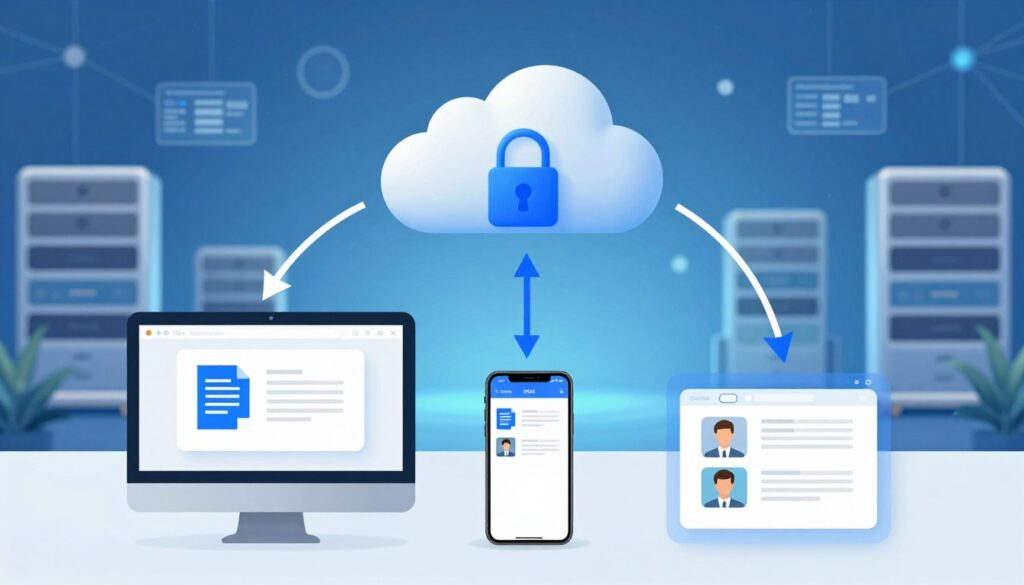
Next, these encrypted data packages travel securely over your internet connection to a provider’s data center. These are not ordinary buildings. They are fortresses with advanced security, backup power, and strict climate control to protect thousands of servers.
Lastly, your data doesn’t just live on one server. For safety, it’s copied across multiple machines in different locations. This redundancy means if one server has an issue, your data is safe on another. This entire journey—select, secure, send, and store—is the core of the basics of cloud backup.
While the technology is complex, the experience for you is beautifully simple. You set it up once, and your digital safety net is always there, working silently in the background.
Why Cloud Backup for Beginners is a Game-Changer
Cloud backup isn’t just about technology. It’s about feeling safe and free. It makes protecting your data easy and automatic. This is a big change for anyone starting out.
With cloud backup, you don’t have to worry about your files. You know they’re always there, safe and sound. This is why easy cloud backup solutions are so valuable for everyone.
Peace of Mind: Your Data Survives Disasters
Disasters like computer crashes, spills, theft, or fires are scary. They can destroy your files. Local backups on drives next to your computer can also get lost.
Cloud backup keeps your data safe in remote data centers. Your files, like photos and music, stay safe even when your devices don’t. This gives you a deep sense of peace.
It’s like having a digital insurance policy that works automatically.
Access Your Files From Any Device, Anywhere
Ever needed a document or photo while out? Cloud backup makes it easy. You can access your files from any device with internet.
This means you’re not stuck with one machine. You can show presentations on your phone or email files from anywhere. It’s that simple.

Say Goodbye to External Hard Drive Hassles
External hard drives are common, but they’re a hassle. They need to be plugged in and files copied manually. They can also get lost or broken.
Worst of all, they can get destroyed in a disaster, along with your computer. Cloud backup solves these problems by working automatically.
The Limitations of Physical Backups
Physical backups have big downsides:
- Susceptibility to On-Site Disasters: Fire, flood, or theft can destroy all your local copies at once.
- Hardware Failure: Drives have moving parts and can fail without warning, taking your backup with them.
- Cost and Clutter: You must buy drives and manage them as your storage needs grow.
- Manual Management: You’re responsible for every backup. If you forget, your backup is outdated.
Cloud services handle all these issues for you. This makes cloud backup a game-changer, perfect for beginners looking for simple protection.
How Cloud Backup Actually Works: The Simple Explanation
Cloud backup is like a digital moving service for your data. It’s not magic; it’s a reliable, automated process. Once set up, it picks your files, saves space, locks them up, and sends them to secure locations. This is key when getting started with cloud storage.
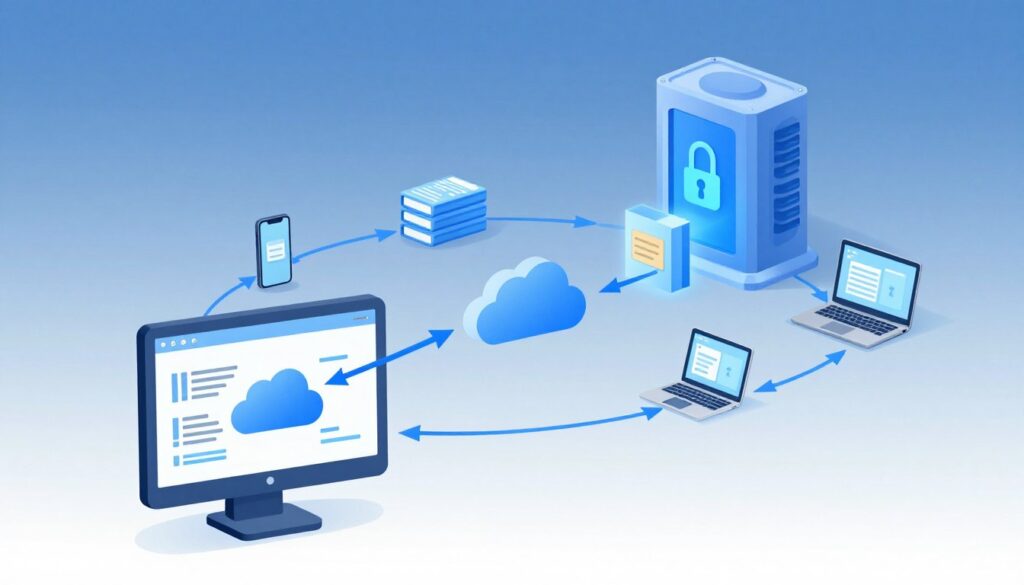
The whole thing is designed for safety and ease. You choose what to protect, and the tech handles the rest. Let’s look at the main parts that make it work.
The Role of Massive Data Centers
Your files don’t just float in the air. They’re stored in massive, secure facilities called data centers. These buildings are filled with powerful servers, running 24/7, often all over the world.
When your data arrives, it’s not just saved in one place. The service makes several copies and spreads them across different locations. This means if one center has a problem, your data stays safe and accessible from another. This global network is why cloud backup is so reliable for anyone getting started with cloud storage.
Encryption: The Lock on Your Digital Box
Security is the top priority. Before your files leave your computer, they’re scrambled using encryption. Imagine putting your photos and documents into a solid steel box and locking it with a key that only you possess.
This happens in two stages:
- Encryption in-transit: Your data is locked while it travels over the internet to the data center, protecting it from digital eavesdroppers.
- Encryption at-rest: Your data remains locked while stored on the servers. The service provider cannot read your files; only you hold the key (your password).
This double layer of security keeps your private memories and work documents completely private.
Full, Incremental, and Mirror Backups Explained
Not every backup copies all your files every time. Services use different methods to be efficient. Understanding these styles is key to getting started with cloud storage confidently.
- Full Backup: This is your initial, complete move. Every single file you select is copied to the cloud. It takes the longest but creates a solid foundation.
- Incremental Backup: After the first full backup, this method only saves the files that have changed or been added. It’s fast, efficient, and saves space.
- Mirror Backup: This keeps an exact, real-time reflection of your selected folders in the cloud. If you delete a file on your computer, it may also be deleted in the cloud backup, so it’s used with specific caution.
Most services for beginners use a combination of full and incremental backups automatically. You get complete protection without slowing down your computer.
Choosing Your First Cloud Backup Service: What to Look For
Choosing a cloud backup service is about finding the right one for you. Look at a few key areas to make a smart choice. Let’s explore what to check.

Storage Space: How Much Do You Really Need?
Think of storage space as your digital safety deposit box. It should be big enough for your important files but not too big. Most beginners are surprised by how little space they need.
Start by looking at what’s on your computer or phone right now. Your important files likely fall into a few categories.
Estimating Your Storage Needs
A practical way to estimate is to do a quick audit. Check the size of your main folders:
- Documents & Work Files: These are usually small. Thousands of text documents, spreadsheets, and PDFs might only need 1-2 GB.
- Photos & Videos: This is the big one. A thousand smartphone photos might use about 3 GB. High-resolution pictures and videos from a modern camera take up much more.
- Music & Movies: If you have a large personal library, this adds up fast. An album is roughly 100 MB; a movie can be 1-2 GB.
Add up the essentials you can’t afford to lose. For many new users, a plan with 100-200 GB is a great starting point that leaves room to grow.
Ease of Use: The Beginner-Friendly Interface
The most powerful service is useless if you can’t figure it out. For your first cloud backup, simplicity is king. You want an app or website that feels intuitive, not like a complicated control panel.
Look for clear labels, a straightforward setup wizard, and one-click backup options. The process of selecting files and starting your first backup should feel guided. A cluttered, technical interface is a sign the service might be better for experts than for someone starting their beginner’s guide to cloud storage.
Security Features You Shouldn’t Compromise On
This is non-negotiable. You’re sending your personal files over the internet, so they must be protected. Always check for two key things: encryption in transit and at rest.
This means your files are scrambled during upload and while sitting on the provider’s servers. Look for services that use strong, industry-standard encryption like AES-256 bit. A provider with a strong reputation for security is a must.
Zero-Knowledge Encryption Explained
For maximum privacy, seek out “zero-knowledge” encryption. Imagine mailing a locked safe. With zero-knowledge, only you have the key. The mail carrier (the cloud company) can transport the safe, but they can never open it or see what’s inside.
This means not even the service provider can access your files. It’s the gold standard for personal privacy and is highly recommended if you’re backing up sensitive documents.
Cost: Free Plans, Tiers, and Value
Cost models can be confusing. Many services offer a free tier, which is perfect for trying things out. These usually offer 5-15 GB of space. Pay-as-you-go or monthly/annual subscriptions kick in when you need more.
Consider scalability. Does the provider offer a clear path to upgrade your storage as your needs grow? Look for transparent pricing without hidden fees. Often, paying annually is cheaper than month-to-month billing.
For cloud backup for new users, a service with a generous free trial or a very affordable entry-level paid plan offers the best value to start.
Top Beginner-Friendly Services at a Glance
Here’s a quick look at some of the most popular and user-friendly options to consider for your first cloud backup.
Google Drive: Seamless for Google Users
If you use Gmail, Google Photos, or Docs, Drive is already part of your world. It integrates perfectly, making backup feel automatic. File sharing and collaboration are its superpowers. The 15 GB free tier is shared across Gmail and Photos.
Dropbox: The Classic and Simple Choice
Dropbox practically invented the simple file-sync folder. Its interface is clean and incredibly easy to understand. It works flawlessly across Windows, Mac, iOS, and Android. It’s a fantastic “it just works” option for cloud backup for beginners.
Microsoft OneDrive: Built for Windows and Office
For anyone living in the Windows ecosystem, OneDrive is deeply built-in. Saving files from Word, Excel, or PowerPoint directly to your OneDrive is effortless. If you have a Microsoft 365 subscription, you get a full 1 TB of storage included.
iCloud: The Apple Ecosystem Standard
Apple users, this is your home base. iCloud automatically backs up your iPhone and iPad photos, contacts, and settings. On a Mac, it keeps your Desktop and Documents folders synced. The experience is seamless if all your devices are Apple.
IDrive: A Dedicated Backup Powerhouse
While the others excel at sync and sharing, IDrive is built from the ground up for backup. It offers features like backing up multiple computers and even an external drive to one account. It provides strong security and often more storage for your money, making it a great choice if backup is your sole, focused goal.
Your ideal pick depends on which digital world you live in and whether you prioritize seamless integration or dedicated backup features. Any of these five is a strong starting point for your data safety journey.
Preparing Your Files for Their First Backup
Getting your digital life ready for its first backup is like packing for a trip. You want to bring the essentials and leave the clutter behind. A little prep work now makes the entire process faster and your backed-up data much easier to manage later.

Think of this step as setting the foundation. You wouldn’t back up a messy room exactly as it is. Instead, you’d tidy up first. Following a few simple cloud backup tips for preparation saves you time and storage space from day one.
Digital Decluttering: What to Backup and What to Skip
Not every file on your computer deserves a spot in your cloud backup. The goal is to protect what’s irreplaceable. Start by asking yourself, “Would I be upset if I lost this forever?”
Your personal documents, family photos, and creative projects are top priority. System files, temporary downloads, and programs you can reinstall are usually safe to skip. This process is called evaluating data criticality.
Use this table as a quick guide to help you decide:
| Backup This (High Priority) | Consider Skipping (Lower Priority) | Reasoning |
|---|---|---|
| Personal Documents (tax files, resumes, letters) | Operating System & Program Files | These can be reinstalled from original sources. |
| Family Photos & Home Videos | Temporary Internet Files & Caches | They are disposable and often recreated automatically. |
| Important Emails & Contacts | Large Media Libraries (streaming music/movies) | You likely access these through a service, not local files. |
| School or Work Projects | Old Software Installer (.exe, .dmg) Files | You can download the latest version again if needed. |
This selective approach is a core part of simple cloud backup tips. It prevents you from wasting precious storage on files you don’t need. Focus on what truly matters to you.
Organizing Your Folders for Backup Success
Once you know what to save, where are those files? Scattered documents across your desktop and downloads folder make backup selection a nightmare. A clean folder structure is your best friend.
Start by creating a few main folders in a logical place, like your user directory. Common examples include:
- Documents: For all text files, PDFs, and spreadsheets.
- Photos: Organized by year or event.
- Projects: For work, school, or hobby files.
- Important: A catch-all for things like scanned IDs or warranties.
Move your high-priority files into these folders. This does two great things for you. First, when you set up your backup, you can simply select these few main folders instead of hunting for hundreds of individual files.
Second, if you ever need to restore data, everything will come back in a clean, organized state. You won’t have to sort through a digital jumble.
A well-organized file system is the unsung hero of efficient backups and smooth restores.
Spending twenty minutes on this organization now is a powerful simple cloud backup tip. It turns a complex task into a one-click process for years to come. Your future self will thank you when everything is easy to find and protect.
Creating Your Account and Installing the App
It’s time to start securing your files. This step is about getting the tools on your devices. The process is easy and guided.
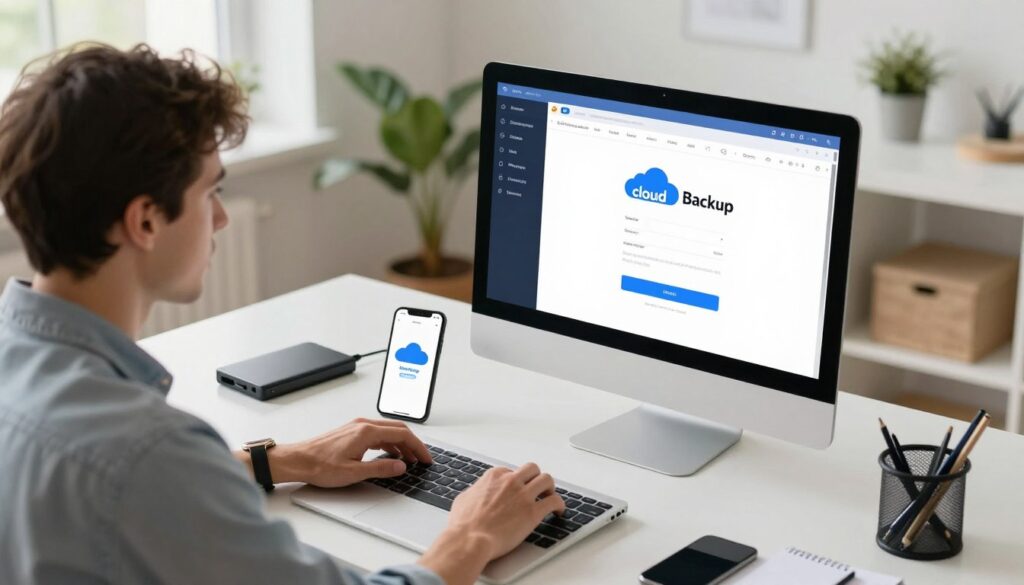
Signing Up: A Walkthrough of the Process
Your journey starts on the provider’s website. Look for a button that says “Start Free Trial,” “Sign Up,” or “Get Started.” Clicking it will open a simple sign-up form.
Most services only need your email address and a password. Some might ask for your name. Then, you choose a subscription plan. Many offer a free tier or trial, great for starting with cloud backup.
Here’s a quick look at how signing up differs slightly across popular services:
| Service | Where to Sign Up | Key Info Needed |
|---|---|---|
| Google One | one.google.com | Your existing Google/Gmail account. |
| iCloud+ | Settings app on Apple devices. | Apple ID and payment method for plans above free tier. |
| Backblaze | backblaze.com | Email, password, and payment method for free trial. |
| Dropbox Backup | dropbox.com | Email, password, and optional name. |
After entering your details, verify your email address if prompted. This step is key to protect your account.
Downloading and Installing the Desktop/Mobile App
While you can manage backups from a web browser, the dedicated app is the heart of the experience. It runs quietly in the background and handles automation.
Always download the app directly from your provider’s official website or your device’s trusted app store. This ensures you get the legitimate, secure software.
The download file is usually small. Running the installer is a standard next, next, finish process. On a computer, you might be asked if you want to add a desktop shortcut. On a phone, you’ll tap “Install” from the app store.
Your First Login and Initial Setup
Open the newly installed app. You’ll log in using the same email and password you just created. This links the app on your device to your cloud account.
Upon first login, a setup wizard will likely greet you. This friendly guide walks you through the essential choices.
It may ask for permissions to access your Documents, Photos, or Desktop folders. Granting these is necessary for the backup to work. The wizard might also suggest a default backup schedule or ask which folders you want to protect first.
This initial setup is meant to be simple. You can always change these settings later. The goal here is just to get everything connected and ready for your first backup.
The Easy Steps: Your First Cloud Backup in Action
Are you ready to start? Let’s go through the easy steps of your first cloud backup. This is when your files get their digital safety net. The process is simple, making it easy to follow.

Following these steps will make sure your important files are safe. Think of it as moving your most valuable digital items to a super-safe, remote vault.
Step 1: Selecting the Files and Folders to Protect
Open your backup app. You’ll see your computer’s main folders like “Documents,” “Pictures,” and “Desktop.” This is your control panel.
Check the boxes next to the folders you want to protect. Start with your most important data. If you have a “Family Photos” folder, select it. Your “Tax Documents” folder? Select that too.
The key advantage here is precision. You don’t have to back up everything. You choose exactly what matters. Most apps let you drill down into subfolders for even more control. This is a core part of easy cloud backup solutions—putting you in the driver’s seat from the start.
Step 2: Configuring Your Backup Settings
Before you run the backup, take a minute to configure how it operates. Look for a “Settings,” “Options,” or “Preferences” menu, often marked by a gear icon.
Here, you’ll find important choices that automate your safety. The most critical setting is deciding when your backups happen.
Setting Backup Frequency and Schedule
You can usually choose between manual backups and scheduled backups. For true peace of mind, setting a schedule is one of the best simple cloud backup tips.
Look for options like “Daily,” “Weekly,” or “Continuous.” A daily backup scheduled for a time when you’re not using your computer (like 2:00 AM) is a great set-and-forget strategy.
| Schedule Type | Best For | Consideration |
|---|---|---|
| Daily | Most users; balances freshness and performance. | Ensure your computer is on at the scheduled time. |
| Weekly | Users with files that don’t change often. | You risk losing up to a week’s work if a problem occurs. |
| Continuous/Real-Time | Power users with critical, frequently changing files. | Uses more system resources but offers maximum protection. |
Other settings might include network usage throttling (to not slow down your internet) and whether to keep backups when you delete a file locally. For now, the default settings are often perfectly fine.
Step 3: Initiating Your First Backup
Now for the satisfying part. Find the prominent button that says “Backup Now,” “Start Backup,” or “Run.” Give it a click.
A progress bar or status window will appear. You’ll see file names flying by as they are prepared, encrypted, and sent to the cloud. The first backup is always the longest because it’s uploading every single file you selected.
Don’t worry if it takes hours. You can continue using your computer normally. This initial effort is what builds your foundation. Subsequent backups will be much faster, only uploading what’s new or changed.
Step 4: Verifying the Backup Completed Successfully
How do you know it worked? Don’t just assume. Once the progress bar hits 100%, the app will show a confirmation. Look for a green checkmark, a “Backup Completed Successfully” message, or a “Last Backup” timestamp with today’s date and time.
Go a step further. Many services have a “Backup History” or “View Backups” section. Click there. You should see a list of your backed-up files, confirming they arrived safely in the cloud.
This verification step closes the loop. It transforms anxiety into assurance. You have now successfully used one of the most reliable easy cloud backup solutions to protect your digital life. Celebrate this milestone—your data is now safer than it was an hour ago!
With these four steps complete, you’ve moved from theory to practice. Your files have a new home in the cloud, and you’ve taken a powerful step toward digital resilience. Remember these simple cloud backup tips; they are the foundation of a stress-free data safety routine.
Setting It and Forgetting It: Automating Your Backups
Imagine a digital safety net that works silently in the background, without you lifting a finger. That’s the magic of automation. Once you move from manual saves to automated backups, you eliminate the biggest risk: human forgetfulness. This step is where cloud backup for beginners truly becomes a “set it and forget it” solution, giving you permanent peace of mind.

How to Schedule Automatic Backups
Setting up a schedule is simple. Almost every backup service has a scheduler built into its desktop or mobile app. Your goal is to pick a time when your computer is on but you’re not using it heavily, like late at night.
Here’s a typical process:
- Open your backup application and look for “Settings” or “Backup Schedule.”
- Choose a frequency. Daily is a great starting point for most people.
- Select a specific time (e.g., 2:00 AM).
- Confirm the settings and save. The app will now handle the rest.
This automation means your files are protected even if you forget. For a beginner, scheduling is the easiest way to build a reliable backup habit. It turns a complex task into a simple, behind-the-scenes routine.
The “Continuous” or “Real-Time” Backup Option
Some services offer an even more advanced form of automation: continuous backup. Also called real-time sync, this feature saves a file the moment you make a change. It’s perfect for critical work documents, budgets, or projects you update constantly.
Continuous backup acts like a digital guardian angel, catching every save and edit instantly.
While scheduled backups are like a nightly security patrol, continuous backup is a 24/7 surveillance system. It uses minimal system resources and ensures your latest version is always safe. This option is a game-changer for preventing data loss between scheduled runs.
To help you decide which method suits your needs, here’s a clear comparison:
| Feature | Scheduled Backup | Continuous Backup |
|---|---|---|
| How It Works | Runs backups at pre-set times (e.g., daily at 2 AM) | Instantly backs up files the moment they are changed |
| Best Use Case | General file protection, large media libraries | Critical work documents, frequently updated projects |
| Network Impact | Higher bandwidth use during the backup window | Low, steady bandwidth use throughout the day |
| Setup & Control | Very easy; set it once and forget it | Easy to enable, but may offer granular folder selection |
| Ideal For Beginners | Excellent starting point | Great for specific, important folders |
Choosing between scheduled and continuous often comes down to your files. You might use scheduled for everything and enable continuous just for your “Documents” folder. Exploring these options is a key part of mastering cloud backup for beginners.
Automation is your ticket to effortless data safety. By setting a schedule or enabling continuous protection, you build a system that protects you without requiring constant attention. Your files stay safe, and you gain true digital freedom.
Managing Your Cloud Storage Space
After your first backup, it’s time to manage your cloud storage. It’s like keeping your car in top shape. Regular checks prevent problems and keep everything running smoothly.

Cloud providers give you a set amount of space. Using it wisely is key. This means watching your usage, cleaning out old files, and knowing when to upgrade.
Monitoring Your Storage Usage
Checking your cloud storage is as important as checking your car’s fuel gauge. Most services show how full your storage is on your dashboard or app settings.
This meter is usually a simple bar or pie chart. It shows how much of your plan you’re using. Make it a habit to check this meter every month. This helps you see when you’re running low and avoid surprises.
Regular checks are essential for managing your cloud storage well. It keeps you in control of your digital space.
Cleaning Up Old or Unnecessary Files from the Cloud
Cloud storage isn’t a place to throw away files. It’s a place to keep important ones. Cleaning it up regularly frees space and can save money in the long run.
Here are some ways to declutter your cloud:
- Remove old versions: Many services keep multiple versions of files. You can often delete older drafts you no longer need.
- Delete clear duplicates: Did you upload the same photo twice? Find and remove the extra copy.
- Archive locally: For files you must keep but rarely access, consider moving them to an external hard drive and removing them from the cloud.
This process empowers you. It turns your cloud into an organized library. This is a key skill when getting started with cloud storage.
Upgrading Your Storage Plan When Needed
Sometimes, you need more space. The good news is that upgrading is easy. Cloud services are designed to grow with you, meaning you can increase your storage with just a few clicks.
If your storage is always full, check your account’s billing or plan section. You’ll see options for more storage for a small fee. Before upgrading, think about your needs. Are you backing up big devices or working with large files?
While it’s easy to scale up, be aware of the costs. Choose a plan that matches your real needs. Knowing when and how to upgrade is the final step in confidently getting started with cloud storage.
Keeping Your Backed-Up Data Secure and Private
Your cloud backup holds your digital life, so protecting it is key. Your service uses strong encryption, but your habits are the final lock. This guide for cloud backup for new users focuses on simple actions you control.
Think of it as a partnership. The provider guards the data center. You guard the keys to your account. Let’s make those keys unbreakable.
Creating a Strong, Unique Password
Your password is the first line of defense. A weak one is like leaving your house key under the mat. Hackers often use lists of common passwords from other breached sites. If you reuse passwords, a leak from a social media site could unlock your secure cloud backup.
Here’s how to build a fortress:
- Length is strength: Aim for at least 12 characters.
- Mix it up: Use uppercase, lowercase, numbers, and symbols.
- Avoid the obvious: Skip personal info like birthdays or pet names.
- Be unique: Never use the same password for your backup account elsewhere.
Consider using a passphrase—a string of random words that’s easy for you to remember but hard for others to guess. For example, “PurpleTiger$DancesOn2Radio!” is far stronger than “Password123”.
“The most common security failure isn’t a software bug; it’s a weak password. Treat your backup account password like your most important secret.”
To visualize the difference, here’s a quick comparison:
| Password Characteristic | Weak Example | Strong Example | Why It Matters |
|---|---|---|---|
| Length | 8 characters (summer23) | 16+ characters (Mountain#Sunset2024!) | Longer passwords take exponentially more time to crack. |
| Complexity | All lowercase letters | Mix of cases, numbers, symbols | Increases the number of possible combinations. |
| Uniqueness | Used on multiple sites | Used only for this backup account | Contains damage if another site is breached. |
| Predictability | Contains dictionary words | Uses a random passphrase | Resists “dictionary attack” hacking methods. |
Enabling Two-Factor Authentication (2FA)
Two-factor authentication adds a second layer of security. Even if someone steals your password, they can’t get in without a second code from your phone. It’s the most effective step for cloud backup for new users to prevent account hijacking.
You provide “something you know” (your password) and “something you have” (your phone). Most services offer 2FA via an authenticator app or SMS text. An app like Google Authenticator or Authy is more secure than SMS.
A Simple Guide to Setting Up 2FA
Setting up 2FA usually takes just a few minutes. Here’s a typical process using an authenticator app:
- Go to your cloud backup service’s security or account settings.
- Look for “Two-Factor Authentication,” “2FA,” or “Security.”
- Select the option to set up an authenticator app. The website will show a QR code.
- Open your authenticator app (e.g., Google Authenticator) on your phone.
- Tap the “+” icon and scan the QR code with your phone’s camera.
- The app will generate a 6-digit code that changes every 30 seconds.
- Enter that current code on the website to verify and complete setup.
From now on, when you log in, you’ll enter your password and then the code from your app. Save the backup codes your service provides in a safe place in case you lose your phone.
Understanding Your Service’s Privacy Policy
Take a few minutes to understand how your provider handles your data. The privacy policy tells you what they do with your information. You don’t need to read every legal word, but skim for key points.
Look for sections on:
- Data Usage: Do they analyze your files for advertising? A good backup service should not.
- Third-Party Sharing: Who else might get your data? It should be limited to essential partners.
- Legal Compliance: Under what circumstances (like a court order) would they hand over data?
- Your Rights: Can you request data deletion? How do you export your data?
This knowledge builds informed trust. A transparent policy means your provider values your data privacy as much as you do. For anyone starting with cloud backup for new users, this is the final piece of the security puzzle.
By mastering these three areas—your password, 2FA, and the privacy policy—you move from being a passive user to an active guardian of your digital world.
The “Oh No!” Moment: How to Restore Your Files
Accidentally deleting a file or photo? Your cloud backup is like a digital time machine. This is when your backup plan really helps. Restoring files is easy and quick, turning panic into a solution.
You don’t need to be tech-savvy. A few simple cloud backup tips make recovery easy. Your beginner’s guide to cloud storage journey gets practical here.

Restoring a Single Lost File or Photo
Lost your resume or a favorite photo? Don’t panic.
Open your backup app or log into the service’s website. Go to the “Backups” or “My Files” section. You’ll see your computer’s folder structure.
Look for your file in the cloud backup list. Choose it and find the “Restore” or “Download” button.
Click it. Your file will return to its spot or download to a folder. This usually takes less than a minute.
Recovering an Entire Folder After Accidental Deletion
Deleted a whole folder by mistake? It’s easy to fix. Find the folder in your backup interface.
Restoring it is simple:
- Select the folder from your backup archive.
- Choose “Restore.”
- Decide where to put it back.
- Confirm the action.
The service will restore the folder and its files. This is more than basic cloud storage.
Using Version History to Go Back in Time
Version history is magic. It saves file versions as you change them.
Imagine editing a report and deleting a key paragraph. With version history, you can go back.
Find the file in your backup app. Look for “Versions,” “History,” or similar. You’ll see a list of saved versions with dates.
Preview an older version to see its content. Choose “Restore this version” when you find the right one. Your file will go back to that earlier state.
This feature protects you from unwanted changes. It’s key to a strong beginner’s guide to cloud storage strategy.
Learning these simple cloud backup tips for restoration gives you control. Your data is always safe, no matter what.
Common Beginner Hiccups and How to Fix Them
Even with the best cloud backup for beginners, you might face some issues. But don’t worry, they’re easy to fix. Every beginner goes through similar problems. This guide will help you solve them fast, so you can enjoy a secure digital life again.

Backup is Taking Forever: Speed Tips
Your first backup is usually the slowest. It’s because you’re uploading everything for the first time. Big photo libraries or video collections can take days on a slow network. Here are some tips to speed it up.
First, check your internet connection. A wired Ethernet cable is faster and more stable than Wi-Fi. If you must use Wi-Fi, try moving closer to your router.
Next, consider timing. Schedule your initial backup for overnight or during work hours when you’re not using the internet. Most backup apps let you set these schedules easily.
You can also prioritize what gets backed up first. Start with your most critical documents instead of your entire media library. Some services let you slow down the backup without stopping it, keeping your internet free for other tasks.
“The initial backup is an investment in time. Once it’s done, subsequent updates are quick and seamless.”
For a clear action plan, refer to this table:
| Hiccup | Likely Cause | Quick Solution |
|---|---|---|
| Extremely slow first backup | Uploading all data on a slow network | Use Ethernet; schedule backup for off-peak hours |
| Backup stalls or stops | Unstable connection; too many files at once | Pause and resume; limit concurrent file transfers in settings |
| Upload speed seems too slow | Other devices using bandwidth | Pause streaming/gaming; set bandwidth limits in app |
“Out of Storage” Errors and Solutions
Seeing an “Out of Storage” alert can be frustrating. This usually means your allocated cloud space is full. It often happens after months of automatic backups, as files accumulate.
Your first step is to review and clean up your cloud storage. Log into your service’s web portal and look for old file versions, duplicates, or items you no longer need. Many services have a “manage storage” tool to help.
If cleaning isn’t enough, you have two main paths:
- Upgrade your plan: Most services offer straightforward upgrades with more storage. This is a good long-term solution if you have growing data needs.
- Adjust your backup settings: Reconfigure your backup to exclude large, non-essential files like system files or downloaded movies you can easily replace.
Proactively monitoring your storage usage every few months prevents this error from surprising you.
What to Do If You Forget Your Password
Forgetting your password is a common human error. The important thing to know is that your data is safe. All reputable services have a secure account recovery process.
Look for the “Forgot Password” link on the login screen. Clicking it will prompt you to enter the email address associated with your account. The service will then send a password reset link to that email.
Follow the link, which is typically time-sensitive, and create a new, strong password. This process usually takes just a few minutes.
To avoid this in the future, consider using a trusted password manager. Also, ensure you have a recovery email or phone number updated in your account settings. Enabling two-factor authentication adds an extra layer of security, so even if a password is compromised, your account stays protected.
Remember, the recovery process is designed for this exact scenario. It’s a standard part of using any online service, including your cloud backup for beginners platform.
Cloud Backup Costs Decoded: Free vs. Paid Plans
Understanding cloud backup pricing is easy. You just need to know what’s free and what’s worth paying for. The basics of cloud backup are very affordable, often starting at zero dollars. Let’s look at subscription plans, free offers, and how to get the best value for your digital safety.
Making the Most of Free Storage Tiers
Nearly every major service offers a free plan. These plans usually give you 2GB to 15GB of storage. This is a great way to start.
To make the most of a free tier, be selective. Choose what you can’t replace. Use file versioning to track changes instead of saving multiple copies. Free plans are a great way to learn the basics of cloud backup before spending money.
The most cost-efficient backup is the one you actually use consistently.
Use your free cloud backup with your computer’s local backup for a zero-cost strategy. This gives you a solid foundation in easy cloud backup solutions.
When It’s Worth Upgrading to a Paid Plan
Upgrading is a good idea when you hit limits. If you’re always deleting files or can’t back up your whole photo library, it’s time. Paid plans offer more than just storage. They include automatic backup for multiple devices, longer file version history, and priority support.
Another sign is when your digital life grows. Backing up a new laptop, a growing family photo collection, or important business files makes a backup necessary. For just a few dollars a month, you get peace of mind and convenience that’s worth more than the cost.
These paid tiers are the next step in easy cloud backup solutions. They remove storage anxiety and automate your protection.
Annual vs. Monthly Billing: Which is Better?
Most services offer two payment options: a flexible monthly subscription or a discounted annual plan paid upfront. Your choice depends on your budget and how sure you are about the service.
Monthly billing is like a trial on steroids. It offers maximum flexibility. If the service doesn’t meet your needs, you can cancel next month with no long-term commitment. This is ideal when you’re exploring the basics of cloud backup.
Annual billing usually saves you 15-20% compared to paying month-to-month. It’s the better financial deal if you’re confident in the service and know your storage needs are stable. Think of it as locking in a lower rate for a service you already trust.
Consider starting with a monthly plan. After a few months of reliable service, switch to an annual plan to save money. This smart approach balances flexibility with long-term value in your journey with easy cloud backup solutions.
Conclusion
You’ve made a big step in keeping your digital life safe. Learning about cloud backup for beginners has shown its importance for safety and keeping things going.
You picked a trustworthy service, sorted out your files, and set up automatic protection. This means you have a safe copy of your important photos, documents, and memories somewhere else.
Starting with cloud storage might have seemed hard at first. But now, it’s easy and works quietly in the background. Your data is safe from damage, theft, or being lost by accident.
You’ve built a strong digital safety net. This gives you peace of mind, knowing your work and memories are safe. It helps reduce worry in our connected world.
Keep an eye on your storage space and check your security settings often. Your careful approach to data care will help you for many years.