Did you know that nearly 60% of people have lost important files at some point in their lives? This alarming statistic highlights the critical need for reliable data protection. In today’s digital age, losing precious files, photos, and documents can feel devastating. Fortunately, there’s a solution that offers peace of mind: automatic cloud backup.
Imagine a system that works quietly in the background, ensuring your files are safe without you having to lift a finger. With threats like hardware failure and ransomware lurking around every corner, having a dependable backup plan is essential. It’s not just about convenience; it’s about security and protection for your valuable data.
This guide will help you navigate the world of cloud backup. You’ll learn how it operates, explore top services like Acronis True Image and Backblaze, and discover hardware options that enhance your security. By the end, you’ll be ready to choose the right solution tailored to your needs.
Key Takeaways
- Backing up your data is essential to prevent loss from crashes or deletions.
- Automatic systems ensure your files are protected without manual effort.
- Data faces threats from various sources, making reliable storage crucial.
- Cloud services allow access to your files from anywhere with an internet connection.
- This guide simplifies your choice of backup solutions and hardware options.
Understanding Automatic Cloud Backup for PC
Have you ever lost important data? You’re not alone; many have faced this frustrating challenge. Automatic cloud backup is a powerful solution designed to protect your valuable files. But what does it really mean?
What Is Automatic Cloud Backup?
Automatic cloud backup refers to the process of creating copies of your files, applications, and systems. These copies are stored securely on a remote network, accessible via the internet. This means your data is safe, even if something happens to your physical computer.
It’s important to note that cloud storage and cloud backup are not the same. While cloud storage services like Google Drive and Dropbox focus on sharing and syncing files, cloud backup services prioritize protecting your entire system. This includes applications, settings, and operating system files, ensuring you can recover everything in case of a disaster.
How Does It Work to Keep Your Data Safe?
When you set up automatic cloud backup, the software works like a tireless digital assistant. It regularly copies your important files to a secure online location without you needing to remember to do it yourself. The process starts by scanning your selected files and folders for any changes. Then, it uploads only the new or modified data to the cloud, saving bandwidth and keeping your backup current.
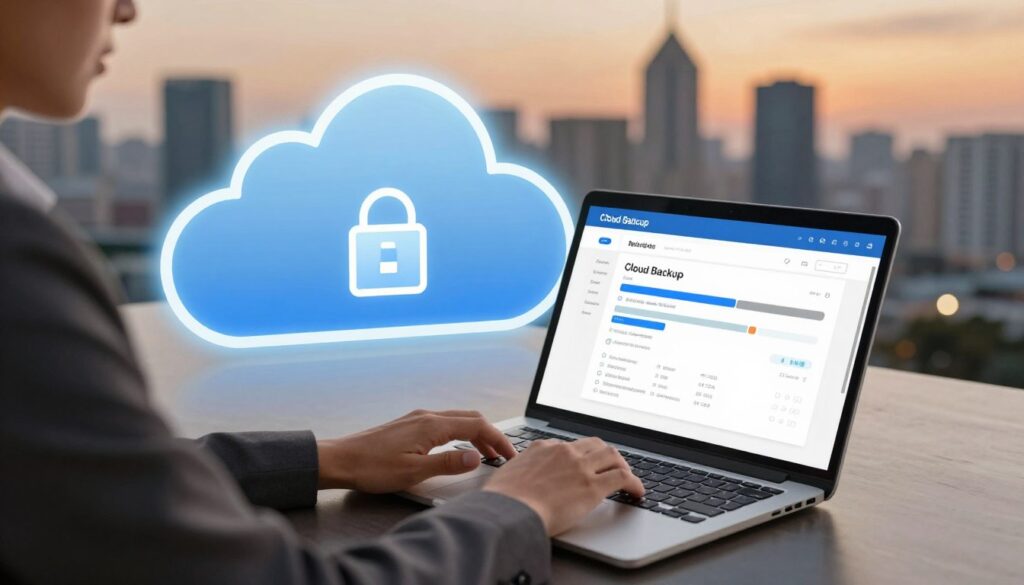
Moreover, your data is encrypted before it leaves your computer. This ensures that it is transmitted securely over the internet and stored in professional data centers monitored 24/7 for security and reliability.
User Intent: Why You Need Automatic Backup for Your PC
Many people seek automatic backup solutions because they have experienced data loss firsthand. Perhaps you’ve seen friends or colleagues lose irreplaceable family photos or critical work documents due to a sudden hard drive crash. The emotional impact of losing such important files can be devastating.
Additionally, the growing threat of ransomware, which can lock you out of your own files and demand payment for their return, makes having a clean, offsite backup more crucial than ever. Understanding the difference between cloud storage and cloud backup helps you make an informed choice. Backup services provide features like version history and full system imaging, offering a level of protection that simple sync services cannot match.
Key Benefits of Automatic Cloud Backup Solutions
Imagine losing your cherished photos or important documents in an instant; it’s a nightmare many have faced. Fortunately, investing in automatic data protection offers numerous advantages that can save you from such distressing situations. Let’s explore some key benefits that make these solutions essential.
Seamless Data Protection Against Hardware Failure and Ransomware
Hardware failure can strike without warning. An aging hard drive might start clicking, or a solid-state drive could suddenly become unreadable. In these moments, having an automatic data protection plan means your files survive even when your device does not.
Additionally, ransomware attacks have become increasingly sophisticated. However, solutions equipped with AI-driven threat detection can identify and stop these attacks before they encrypt your files. This proactive approach keeps both your local data and your online backups safe from malicious encryption.
Convenient Access to Your Files Anytime, Anywhere
One of the standout features of these solutions is the ability to access your backed-up files from any device with an internet connection. Imagine pulling up an important document on your phone while traveling or sharing a photo album with family from a coffee shop. You can even retrieve a work presentation from a hotel lobby!
This convenience transforms how you work and live. You are no longer tethered to a single computer, allowing you to move seamlessly between devices, knowing your latest files are always within reach.
Reducing Downtime with Fast Recovery Options
When disaster strikes, fast recovery options significantly reduce downtime. You can restore individual files in seconds or recover your entire system in minutes. Instead of spending days rebuilding from scratch, you can get back to what matters most.
Acronis has been verified as the fastest solution on the market, with recovery times that are twice as fast as the closest competitor. This means less waiting and more doing when you urgently need your data back.
For businesses, reducing downtime translates directly into saved revenue and maintained productivity. For home users, it means quickly returning to cherished memories and important personal projects without prolonged stress and frustration.

Security Features to Look for in Cloud Backup Services
In a world where data breaches are common, understanding security features is crucial. When you choose a service to protect your files, knowing what to look for can make all the difference. Let’s explore some essential security features that ensure your data remains safe and secure.
Military-Grade Encryption: AES-256 and Zero-Knowledge Privacy
Encryption is your first line of defense. With military-grade AES-256 encryption, your data is scrambled into unreadable code. This standard is used by governments and financial institutions worldwide. It protects your files both during transfer and while stored on remote servers.
Zero-knowledge privacy takes security a step further. This means only you hold the encryption keys to your data. Not even the cloud backup provider can access, view, or scan your files. This feature is vital for both personal and business users.
Services like Proton Drive and Internxt offer zero-knowledge encryption by default. Internxt encrypts your data locally before it leaves your device, adding an extra layer of protection against server breaches.
Ransomware Protection and AI-Driven Threat Detection
Ransomware is a growing threat. It can lock you out of your files and demand payment for their return. Therefore, look for services that provide ransomware protection powered by artificial intelligence. These systems can detect suspicious behavior patterns and stop attacks in real time.
Acronis features the industry’s first built-in AI technology that actively detects and defeats ransomware, including zero-day strains. This proactive defense is crucial, as it protects your local files and cloud backups simultaneously.
Compliance and Certifications: SSAE-18, HIPAA, PCI DSS
Compliance certifications like SSAE-18, HIPAA, and PCI DSS show that a cloud backup service has undergone rigorous audits. These certifications ensure strict standards for data handling, physical security, and operational reliability.
When evaluating cloud backup services, these security features and certifications help you identify providers with genuine protection. This way, you can avoid those making empty marketing claims about keeping your data safe.
| Feature | Description |
|---|---|
| AES-256 Encryption | Military-grade encryption standard used to protect data during transfer and storage. |
| Zero-Knowledge Privacy | Only you hold the encryption keys, ensuring no unauthorized access to your files. |
| AI-Driven Ransomware Protection | Detects and stops ransomware attacks in real time to safeguard your data. |
| Compliance Certifications | Ensures adherence to strict standards for data handling and security. |

Pricing Models and Subscription Plans Explained
Understanding the costs associated with data protection is essential for every user. When shopping for cloud storage services, you’ll encounter various pricing structures. These models can influence your decision significantly. Let’s break down the key options available to you.
Fixed Rate vs. Pay-as-You-Go Storage Pricing
There are two primary approaches to pricing: fixed rate and pay-as-you-go. Fixed-rate pricing offers predictable costs. For instance, Backblaze provides unlimited storage for just $99 per year. This means you can back up as much data as you want without worrying about exceeding limits.
On the other hand, pay-as-you-go models charge based on the actual gigabytes of storage you consume. This can be more economical if you only need to back up a modest amount of data. You only pay for what you use, which helps avoid unnecessary expenses.
Understanding Tiered Pricing for Scalability
Tiered pricing structures allow you to start with a smaller storage allocation and scale up as your needs grow. Acronis and IDrive offer plans that start at 250GB and can go up to several terabytes. As you scale, the cost per gigabyte becomes more affordable, making it easier to manage your budget.
Typical Plans for Personal, Family, and Business Use
Personal plans usually cover one to five computers with storage ranging from 250GB to 5TB. This setup is ideal for individuals who want to protect multiple devices under one account. Family plans, like those from pCloud, offer shared storage pools of 2TB or 10TB. This option allows multiple household members to back up their devices without maintaining separate subscriptions.
For businesses, plans include features like unlimited users, server backup capabilities, and centralized management dashboards. IDrive offers business plans starting at 250GB and scaling up to 50TB. Understanding these pricing models helps you avoid overpaying for features you do not need while ensuring you have enough storage and the right feature set for your specific backup requirements.
| Plan Type | Features | Price |
|---|---|---|
| Personal Plan | 1-5 computers, 250GB to 5TB | Varies by provider |
| Family Plan | Shared storage pools (2TB or 10TB) | Lifetime pricing options |
| Business Plan | Unlimited users, server backup, centralized management | Starting at 250GB |
Types of Backups and Which Is Best for You
Choosing the right backup method is essential to safeguard your valuable data. Understanding the different types of backups can help you make an informed decision that fits your needs. The three main types are full, differential, and incremental backups. Each has its advantages and trade-offs.
Full, Differential, and Incremental Backups Explained
A full backup captures everything on your computer, including the operating system, applications, settings, and personal files. It creates a complete snapshot, allowing for straightforward recovery. However, it requires the most time and storage space to complete.
Differential backups save only the files that have changed since your last full backup. This method strikes a balance between speed and completeness. While quicker than a full backup, the size of each differential backup grows larger over time until the next full backup is run.
Incremental backups are the most efficient option. They only copy data that has changed since the most recent backup of any type. This results in the smallest file sizes and fastest backup times, making them ideal for frequent automatic backups.
Most modern services use incremental backups as their default method. This approach conserves bandwidth and storage space while maintaining a complete history of your data changes over time.
Choosing the Right Backup Strategy for Your Needs
When selecting a backup strategy, consider how often your data changes and how quickly you need to recover after a disaster. Additionally, think about how much storage space you are willing to pay for each month.
A combination approach, where you schedule weekly full backups supplemented by daily incremental backups, offers comprehensive protection while efficiently using your storage and bandwidth resources.
Services like Acronis True Image allow you to mix and match backup types. This flexibility lets you create a custom strategy that balances protection, speed, and storage costs according to your unique needs.
| Backup Type | Description | Pros | Cons |
|---|---|---|---|
| Full Backup | Captures everything on your system. | Simple recovery process. | Time-consuming and space-intensive. |
| Differential Backup | Backs up changes since the last full backup. | Faster than full backups. | Size increases until the next full backup. |
| Incremental Backup | Only copies data changed since the last backup. | Smallest file sizes and fastest backups. | Recovery can be slower due to multiple backups. |
Top Automatic Cloud Backup Solutions for Windows PCs
In today’s digital landscape, protecting your data has never been more vital. Choosing the right backup service can make a significant difference in your data security. Below, we explore three top-tier options tailored for Windows users, each offering unique features and benefits.
Acronis True Image: Comprehensive Backup with Advanced Security
Acronis True Image, now part of Acronis Cyber Protect, stands out by combining full-system backup with built-in security features. This software includes continuous data protection, full-system imaging, and rapid recovery options. You can back up everything from individual files to entire disk images.
With Acronis, accessing your cloud backups takes just three clicks. Plus, recovery speeds are verified to be twice as fast as competitors. However, it’s worth noting that this rich feature set requires more system resources. During testing, the software consumed noticeably more CPU and RAM than lighter alternatives, which may affect older Windows devices.
Pricing starts at $49.99 per year for one computer, with plans increasing for more storage.
IDrive: Multi-Device Protection with Flexible Plans
IDrive excels in providing backup solutions for multi-device households and small businesses. A single account can cover multiple Windows computers, smartphones, and tablets, all managed through one centralized dashboard. This flexibility allows you to set granular per-folder backup rules.
You can start with IDrive’s generous 10GB free plan to test the service. Personal plans range from 5TB to 100TB of storage, with significant discounts for first-time subscribers, making it one of the most cost-effective options available.
Backblaze: Unlimited Storage with Simple Flat-Rate Pricing
Backblaze is ideal for users who prefer simplicity. It offers truly unlimited storage for a flat rate of $99 per year, backing up all your data, including external drives. This means you won’t have to worry about hitting storage caps or calculating gigabytes.
However, a notable drawback is that restoring files requires using the web interface to download ZIP archives. This can be slow and cumbersome, especially when you need to recover large amounts of data quickly.
Additional Trusted Cloud Backup Services to Consider
In a world where data security is paramount, choosing the right backup service can make all the difference. While mainstream options offer solid features, several alternative services cater to specific user needs, especially regarding privacy and long-term value. Here are three trusted services that stand out.
pCloud: Hybrid Backup and Cloud Storage with Client-Side Encryption
pCloud offers a unique hybrid approach that blends backup functionality with cloud storage convenience. You can schedule automatic backups of important folders while using the service for everyday file access and sharing. This flexibility makes it an excellent choice for diverse user needs.
One standout feature is its lifetime pricing model. With a one-time payment of $399, you get 2TB of storage forever. This eliminates recurring subscription fees, providing exceptional long-term value for users who plan ahead.
However, it’s important to note that client-side encryption is only applied to files placed in the dedicated Crypto folder. For maximum privacy protection, you need to be intentional about organizing your sensitive files into that specific location.
Proton Drive: Privacy-First Backup with Zero-Knowledge Security
Proton Drive comes from the trusted team behind Proton Mail, applying the same privacy-first philosophy to cloud backup. Zero-knowledge encryption is enabled by default on every file you upload, requiring no extra steps or special folders. This ensures that your files remain private and secure.
If you value having your backup integrated with a broader privacy ecosystem, Proton Drive connects seamlessly with Proton’s encrypted email, calendar, and VPN services. This creates a unified suite of secure tools under one account, enhancing your overall data security.
Proton Drive offers a 5GB free plan, with paid plans starting at 200GB and scaling up to 3TB. Paid plans also offer up to 10 years of version history, providing robust data management options.
Internxt: Privacy-Focused Encrypted Cloud Backup
Internxt operates as a privacy-focused cloud storage service that supports secure backups of key files and folders. Files are encrypted locally before they leave your device, ensuring maximum security. This service even offers post-quantum cryptography on paid plans, future-proofing your data against emerging threats.
While Internxt works best as a secure cloud storage companion alongside a dedicated backup service, its lifetime plans starting at $300 for 1TB make it an attractive option for privacy-conscious users. You can enjoy long-term encrypted storage without ongoing fees.
| Service | Key Features | Pricing |
|---|---|---|
| pCloud | Hybrid backup and storage, client-side encryption, lifetime plan | 2TB for $399 (one-time) |
| Proton Drive | Zero-knowledge encryption, integrated privacy tools | 5GB free, paid plans start at 200GB |
| Internxt | Local encryption, post-quantum cryptography | 1TB starting at $300 (lifetime) |

Hardware Options: Encrypted External Drives for Automatic Backup
In today’s fast-paced world, safeguarding your important documents is a top priority. While many people rely on online solutions, hardware options like external drives can provide a solid alternative or complement to cloud services. These devices offer unique advantages that enhance your data protection strategy.
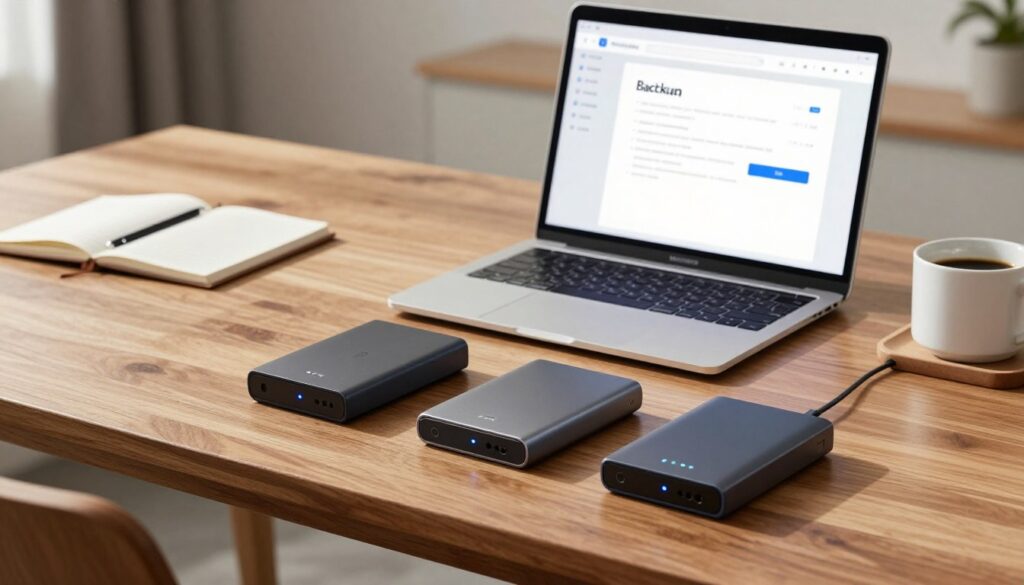
Western Digital My Book and My Passport Ultra Features
Western Digital drives, such as My Book and My Passport Ultra, deliver a straightforward plug-and-play solution. They keep your files protected without the need for ongoing cloud subscriptions. Here are some standout features:
- High-Capacity Local Backup: My Book desktop drives offer significant storage space, ensuring your files are safe the moment you connect them to your Windows computer.
- Portable Convenience: My Passport Ultra drives provide the same automatic backup features in a compact form, making them ideal for users on the go.
- Built-in Encryption: With 256-bit AES encryption, your data is protected directly on the drive, safeguarding it even if the device is lost or stolen.
Benefits of Hardware Encryption and No Subscription Fees
One of the major advantages of using hardware for your data protection is the absence of subscription fees. You make a one-time purchase and own the drive outright, ensuring ongoing protection without additional costs. Additionally, setting a personal password on your Western Digital drive adds an extra layer of security. This means that even if the drive is lost, your files remain inaccessible to unauthorized users.
Compatibility with Windows and macOS Systems
Both My Book and My Passport Ultra drives work seamlessly with Windows and macOS systems. Mac users can take advantage of native Time Machine compatibility, allowing for effortless integration with Apple’s built-in backup software. This compatibility ensures that no matter what devices you use, your files are protected efficiently.
For the most robust protection, consider combining a hardware solution with a cloud service. Following the 3-2-1 backup rule—keeping three copies of your data across two types of media, with one copy stored offsite—can provide comprehensive security for your important files.
How to Automate and Manage Your Cloud Backups Efficiently
Managing your data effectively can prevent loss and ensure peace of mind. Automating your backup process is a smart way to protect your files without constant manual effort. Below, we’ll explore how to set up automatic schedules and manage multiple devices efficiently.
When you start with backup software like Acronis, setting up an automatic schedule is straightforward. You typically choose your preferred time and frequency during the initial setup. Most services offer options for daily, weekly, or continuous backups that run quietly in the background.
Setting Up Automatic Backup Schedules
Setting up an automatic backup schedule is typically as simple as choosing your preferred time and frequency during the initial software setup. Most services offer daily, weekly, or continuous backup options that run quietly in the background.
Continuous backup mode is particularly useful. It monitors your files in real-time and uploads changes within minutes of saving. This is ideal for active projects and frequently updated documents, where losing even a few hours of work would be painful.
For less dynamic data, like photo archives or completed projects, a daily or weekly scheduled backup during off-hours conserves bandwidth and system resources while still keeping your files adequately protected.
Managing Multiple Devices and Backup Versions
Managing multiple devices under a single account is a major advantage of services like IDrive and Acronis. These services let you view backup status, adjust settings, and initiate restores for every computer, phone, and tablet from one centralized dashboard.
Version management is another powerful feature. It keeps multiple historical copies of your files. If you accidentally overwrite an important document or realize you need a version from three weeks ago, you can easily roll back to any previous state.
Acronis stands out by offering unlimited file versions with no expiration date. This means you can recover a file exactly as it existed months or even years ago without worrying about automatic cleanup policies deleting old versions.
Taking a few minutes to configure per-folder backup rules and version retention policies upfront saves you from storage bloat. It also ensures that your most critical data gets backed up more frequently than less important files.
| Feature | Description |
|---|---|
| Automatic Scheduling | Choose daily, weekly, or continuous backups to protect your files effortlessly. |
| Continuous Backup | Real-time monitoring and uploads changes within minutes of saving. |
| Centralized Management | Manage multiple devices from a single account, simplifying oversight. |
| Version Control | Keep multiple copies of files to easily recover from accidental changes. |

Recovery and Restore: Getting Your Files Back Quickly
The moment of truth for any data protection solution is how quickly you can get your files back. In a crisis, the ability to restore your data can mean the difference between a minor inconvenience and a major disaster. Let’s explore how different services handle recovery and what you can expect.
Speed and Ease of Recovery with Different Services
The speed of recovery varies significantly between services. Acronis leads the pack, delivering restore times that are twice as fast as its closest competitor. This can mean the difference between minutes and hours when you are anxiously waiting to get your files back.
Acronis also makes accessing your backups remarkably simple, requiring just three clicks to reach your stored data. This user-friendly approach ensures that even in stressful situations, when your computer has crashed, the recovery process feels intuitive and manageable.
In contrast, Backblaze presents a notable drawback. You cannot restore files directly through the desktop application. Instead, you must use a web browser to select files and download them as ZIP archives. This method becomes painfully slow for large recoveries, making it less efficient when time is of the essence.
Handling Large Data Sets and Full System Restores
IDrive’s full disk image backup capability is a lifesaver after a complete hard drive failure. It captures your entire system, including Windows, applications, and settings, allowing you to restore everything exactly as it was rather than rebuilding from scratch.
However, it can take a long time to download a full backup from the cloud. If you do not have the required bandwidth, downloading large data sets can be difficult and time-consuming.
Some services offer a practical workaround for large restores by shipping you a physical hard drive with your data preloaded. This option eliminates the bandwidth bottleneck and helps you get back up and running much faster than downloading everything.
Finally, testing your recovery process before you actually need it is one of the smartest habits you can develop. This practice confirms that your backups are working correctly and familiarizes you with the restore steps, so you are not learning them for the first time during a crisis.
Choosing the Right Cloud Backup Service for Your Home or Business
Selecting the right service to safeguard your data is a crucial decision for both home and business users. With so many options available, it’s essential to evaluate your specific needs against the features and limitations of different services. Here are some factors to consider when making your choice.
Factors to Consider: Security, Price, Features, and Support
When evaluating cloud backup services, you should weigh four key factors:
- Security: Your top priority should be the strength of security and encryption. Look for services that offer AES-256 encryption, zero-knowledge architecture, and two-factor authentication as minimum requirements.
- Pricing: Consider the total cost, including any storage overage fees. Compare long-term costs rather than just introductory rates. Determine whether the service charges per device or per gigabyte, and check for hidden fees.
- Features: Ensure the specific features match your workflow. For home users, straightforward backup for one to five computers is essential. Business users require advanced capabilities such as server backup and centralized management consoles.
- Support: The quality of customer support varies dramatically between providers. For businesses, responsive support can justify a higher subscription cost, as downtime directly impacts revenue.
Home vs. Business Backup Needs and Solutions
Home users typically need simple and affordable solutions. Services like Backblaze, with its unlimited flat-rate pricing, or IDrive, which offers a generous free tier, are particularly appealing.
On the other hand, business users require more robust solutions. These include compliance reporting and the ability to protect data across multiple endpoints. Services like Acronis Cyber Protect are specifically designed to meet these needs.
Taking the time to assess whether you need home-grade or business-grade protection is crucial. This ensures you avoid overpaying for enterprise features you may never use or under-protecting critical business data with a consumer-grade solution.
| Service Type | Key Features | Target Users |
|---|---|---|
| Home Solutions | Ease of use, affordability, basic backup features | Individuals and families |
| Business Solutions | Advanced features, centralized management, compliance | Small to large businesses |

Tips to Maximize Your Cloud Backup Experience
Data loss can happen to anyone, and being prepared is essential. Following expert-recommended strategies can elevate your data protection efforts. Let’s explore the 3-2-1 backup rule and essential security measures to keep your information safe.
Following the 3-2-1 Backup Rule
The 3-2-1 backup rule is the gold standard of data protection. It means keeping three total copies of your data, stored on two different types of media, with one copy located offsite. This could be in the cloud or another physical location far from your primary computer.
By following this rule, you protect yourself against multiple failure scenarios. Even if your computer crashes and your local external drive fails, your offsite backup remains untouched and ready for recovery.
Combining a cloud backup service with a local hardware backup, like a Western Digital external drive, naturally satisfies the 3-2-1 rule. This setup provides both the speed of local recovery and the disaster protection of offsite storage.
Ensuring Strong Account Security Measures
Strong account security starts with a unique, complex password that you do not reuse across other sites. Even the most secure backup service cannot protect your data if an attacker gains access to your account credentials.
Enabling two-factor authentication adds a critical second layer of defense. This requires a temporary code from your phone or an authenticator app in addition to your password, making it much harder for anyone to break into your account.
Regularly reviewing your account activity, connected devices, and sharing permissions helps you spot unauthorized access early. This allows you to revoke access before any data can be compromised or deleted.
Lastly, be mindful of phishing emails that impersonate your backup provider. These can trick you into handing over your login credentials to attackers who create convincing fake login pages.
Conclusion
Every day, countless individuals face the heart-wrenching reality of losing valuable data. It’s crucial to recognize that taking action now can significantly protect your important files. Choosing the right solution for backup is not just about convenience; it’s about ensuring your data remains safe from unforeseen disasters.
As you consider your options, remember that a reliable tool should run automatically and provide strong security against threats like ransomware. Whether you opt for the simplicity of Backblaze, the flexibility of IDrive, or the advanced features of Acronis, the key is to find what best fits your needs.
Don’t wait for a crisis to act. Start today with a free trial or plan that suits you. Enjoy the peace of mind that comes from knowing your files are secure and recoverable, no matter what happens to your computer.