Did you know the average American household now has over 10 connected devices? Each one—from smartphones to smart speakers—quietly creates a detailed digital footprint of your personal information.
This isn’t just about logins and passwords. It’s the blend of sensitive details like finances and health records with precious, sentimental memories like photos and messages. In today’s connected world, safeguarding this information is a fundamental act of care for everyone under your roof.
Think of it this way: you wouldn’t leave your front door unlocked. Your digital life needs the same mindful attention. The goal isn’t to create fear, but to build confidence. By applying simple principles used by security professionals—like separating private documents from shared albums—you create emotional safety.
This proactive approach turns worry into empowerment. It secures your legacy and gives you peace of mind, knowing you’ve taken thoughtful steps to shield what matters most.
Key Takeaways
- Your home’s many connected devices create a vast digital footprint that needs guarding.
- Protecting household information is a modern act of care, not just a technical task.
- A mix of sensitive details and sentimental memories exists in your digital life.
- Simple, professional principles can be applied at home to manage privacy effectively.
- Proactive digital safety builds confidence and provides emotional peace of mind.
- Securing your digital legacy is a key part of protecting your family’s future.
The Invisible Risks: Why Your Family’s Data Is a Target
The biggest threats to your family’s data often come from everyday things. A forwarded email, a shared photo folder, or even your TV can be risks. These dangers don’t always come from hackers in other countries. Often, they come from simple mistakes or gadgets that aren’t secure enough.
Think about how you share sensitive info. You might email a document scan to a relative or use a cloud drive for family budgets. Or, you might have a group chat for plans. These tools are easy to use but lack important security features.
Once you send a file, you can’t control who sees it or where it goes. There’s no way to track changes or undo mistakes. This means your data could end up in the wrong hands.
This situation can happen because of simple mistakes. A family member might forward an email with private info to someone they think can help. Or, a shared folder link could be open to anyone with the URL. Information can get lost or deleted without a backup. It’s not about being mean; it’s about the unintended consequences of our digital actions.

Another risk area is our homes: Internet of Things (IoT) devices. Your smart TV, voice assistant, and thermostat collect data. They learn your family’s habits, what you like to watch, and your daily routines. This detailed info is very valuable.
As one source points out, IoT devices like Smart TVs are prime targets for hackers. If hacked, this info could be used for blackmail, scams, or even theft. These devices often have weak security, making them easy targets.
Knowing these risks is the first step to secure family data. We’re not trying to scare you. We want to make you aware. When you understand why your info is attractive, you can take the right steps. This turns fear into action, which is key to protecting personal family data.
What Is Family Data Protection?
Family data protection is about giving you control over who sees what in your digital world. It’s about keeping safe all the info that makes your family special. This includes financial records, medical details, personal photos, and school schedules.
This is more than just using strong passwords. True data protection for families involves three main things: the right tools, good security habits, and mindful sharing. It’s like building a safe culture around your digital life.
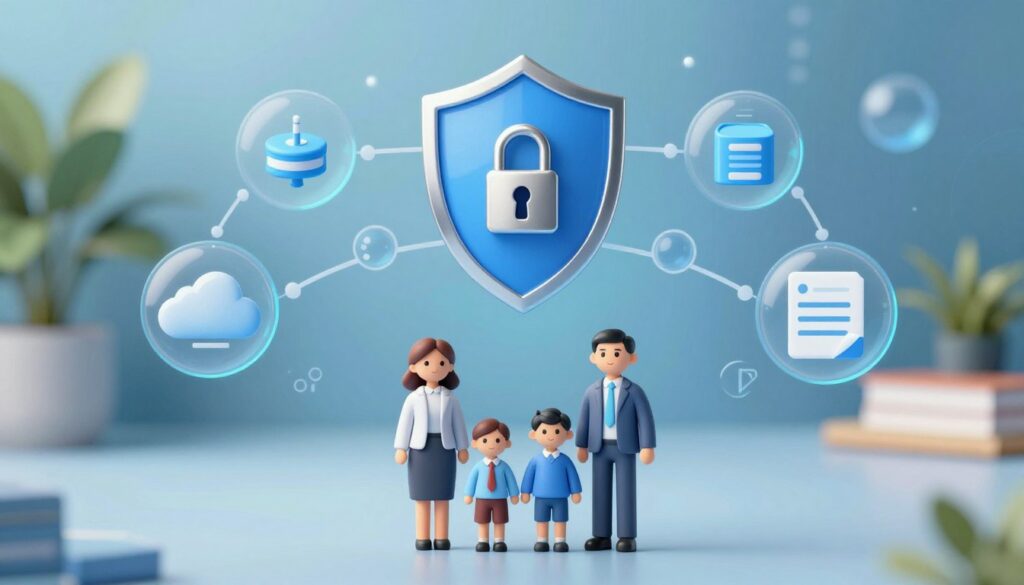
A key idea is “secure family sharing” or “appropriate access.” It’s about giving the right people the right info at the right time. For example, a grandparent sharing family stories needs different info than a healthcare decision-maker.
It’s about making smart choices about who gets what info, when, and how current it is. This keeps your family’s digital world safe and private.
| Family Member Role | Example Information Type | Appropriate Access Level |
|---|---|---|
| Healthcare Proxy | Medical records, insurance details | Full, immediate access |
| Teenage Child | Family photo album, school app login | Limited, supervised access |
| Trusted Babysitter | Home Wi-Fi password, emergency contacts | Temporary, specific access |
| Extended Family | General updates, vacation pictures | Selective, social sharing |
Experts suggest using frameworks like the National Institute of Standards and Technology (NIST) framework. It helps you know what data you have, how to protect it, and who can see it. It turns worry into a clear plan.
The goal is to avoid sharing too much and make sure important info is available to those who need it. This careful approach is essential for ensuring family data confidentiality and keeping your loved ones safe online.
Cultivating a Security-First Mindset at Home
Turning your home into a digital fortress is more than just installing software. It’s about changing how your family views online life. The best family privacy measures come from shared knowledge and habits, not just tools.
This part is about creating that culture. It’s like setting rules for your digital home, just as you do for physical safety. When everyone knows why, doing it becomes easier.
Starting the Conversation: Making Safety a Family Value
Talking about online safety doesn’t have to be scary. Start small and keep it positive. Experts say respectful, open talks reduce fear and strengthen family bonds.
Choose a good time, like dinner or a drive. Talk about shared values. Say, “We lock our doors to keep our home safe. Let’s do the same for our online info.”
For kids, use examples they can understand. Ask about their favorite games or apps. Talk about what info should stay private, like school names or addresses. It’s about building smart habits together, not creating suspicion.
Take it one step at a time. Don’t tackle every threat at once. Start with something simple, like better passwords for a favorite game. This makes family digital security feel doable, not too much.
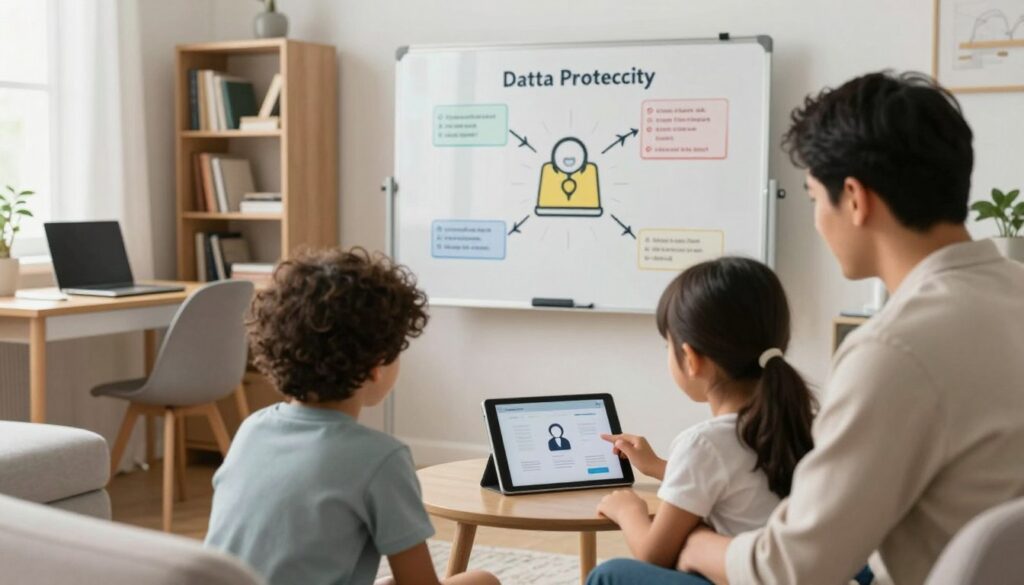
Moving from Fear to Empowered Action
Stories about hackers and data breaches can be scary. The goal is to change that. Move your family from feeling like victims to feeling like protectors.
You are the hero, guiding your loved ones. Focus on the positive actions you can take together. Celebrate small victories! Praise your teen for spotting a phishing email or your partner for using two-factor authentication.
This mindset change turns duty into pride. Your family isn’t just avoiding danger. They are actively protecting what’s most important: their memories, identities, and connections.
Begin with one empowering action this week. It could be a 15-minute “security huddle” or checking social media privacy settings together. These steps build momentum and make family privacy measures a natural part of your routine.
By developing this mindset, you create the essential foundation. The technical steps that follow will be supported by a family that is alert, informed, and ready to participate.
Your Action Plan: Building Impenetrable Digital Locks
Creating digital safety for your family starts with strong passwords and multi-factor authentication. These tools are the first defense layers. Think of them as the strongest locks for your home’s doors and windows.
By following these steps, you move from worry to action. You actively safeguard family information from the moment you log in.
Step 1: Master the Art of the Strong Password
Passwords are the first key to every online account. A weak one is like leaving your front door unlocked. The goal is a passphrase—a sentence only your family would know.
Essential Rules for Creating Uncrackable Passwords
Forget complex strings of random characters you’ll never remember. The Cybersecurity and Infrastructure Security Agency (CISA) recommends a shift in thinking. Follow these friendly rules instead:
- Make it Long: Aim for at least 16 characters. Length beats complexity. “MyCatFluffyLoves2ChaseButterflies!” is far stronger than “Tr0ub4dor&3”.
- Make it Unique: Never reuse the same password across different sites. If one account is compromised, they all are.
- Use a Mix: Combine uppercase, lowercase, numbers, and symbols naturally within your phrase. Like the strong Wi-Fi passwords experts suggest, a good mix creates a tough barrier.
- Avoid the Obvious: Steer clear of personal info like birthdays, pet names, or “password123”.
- Never Share in Plain Text: This is critical. Never email or text a raw password to anyone, even family. If you must share access, use a secure method.
Creating these unique, strong passphrases for dozens of accounts is where the next tool becomes a lifesaver.
How to Use a Password Manager Effectively as a Family
A password manager is a secure digital vault. It generates, stores, and auto-fills your strong passwords. For families, it’s a game-changer for secure family data management.
Adults in the household can share a family plan from services like 1Password, LastPass Families, or Dashlane. This lets you securely share logins for streaming services, utility bills, or travel sites without ever seeing each other’s passwords.
The golden rule: Your master password—the one that unlocks the vault—is for you alone. Do not share it with your spouse or children. This master key should be the strongest passphrase you’ve ever created and memorized.
“Password managers are one of the most effective ways to improve your account security… they enable you to use unique, strong passwords for all your accounts.”
With your passwords fortified, it’s time to add a second, fail-safe lock.
Step 2: Activate Multi-Factor Authentication Everywhere
Multi-factor authentication (MFA) is your safety net. Even if a hacker guesses your password, MFA stops them cold. It’s the single most effective step you can take for safeguarding family information beyond the password.
What MFA Is and Why It’s Your Best Backup
MFA requires a second proof of identity when you log in from a new device. It’s usually:
- Something you know (your password).
- Something you have (a code from your phone via an app like Google Authenticator or a text message).
- Something you are (a fingerprint or face scan).
CISA calls MFA “one of the most important cybersecurity practices.” It adds a critical backup layer, ensuring that secure family data stays protected even if a password is leaked in a data breach.
Setting Up MFA on Common Family Accounts
Turning on MFA is usually quick and found in an account’s “Security” or “Privacy” settings. Here’s where to start for accounts your family uses:
- Google (Gmail, YouTube): Go to your Google Account > Security > 2-Step Verification. Use the Google Prompt on your phone for the easiest, most secure option.
- Apple (iCloud): On your iPhone, go to Settings > [Your Name] > Password & Security. Turn on Two-Factor Authentication.
- Facebook & Instagram: In Settings & Privacy > Settings > Password and Security. Look for “Two-Factor Authentication.” Use an authentication app instead of SMS for better security.
- Major Banks and Email Providers: Almost all offer MFA. Log in and search your security settings for it.
Make it a family activity. Sit down together and enable MFA on one major account per person each week. This builds a powerful, shared habit of protection.
By mastering strong passphrases, adopting a password manager, and activating MFA, you construct an incredibly resilient first line of defense. These are not just tech chores; they are the essential, everyday practices that keep your family’s digital world safe and sound.
Securing the Devices Your Family Uses Every Day
Let’s focus on securing phones, computers, and gadgets your family uses daily. Each device has its own risks, but with the right settings, you can protect them well. This guide will show you how to secure your most used tech.
Smartphones and Tablets: Essential Security Settings
Smartphones and tablets hold our personal info, photos, and location. A locked screen is your first and most important defense. Start here to protect your family’s data on the go.
Enabling Biometrics and Strong Passcodes
Face ID and fingerprint scanners are great for security and ease. Always turn them on. If you use a passcode, make it long and complex. A security expert once said,
“The lock screen is the castle gate for your digital life. Don’t leave it guarded by a toothpick.”
Managing App Permissions and Updates
Check your device’s settings to see which apps can access your data. Be strict. Does a puzzle game really need your location? Turn off permissions for apps that don’t need them. Also, enable automatic app updates for the latest security patches.
Home Computers and Laptops: Beyond Basic Antivirus
While antivirus software is key, it’s just part of a strong family digital security plan for computers. Modern operating systems have tools you should use.
Configuring Firewalls and Operating System Security
Your computer’s firewall controls data flow. Make sure it’s on. For Windows, search for “Windows Security” to check the firewall. On a Mac, go to System Settings > Network > Firewall. Also, enable auto OS updates to fix security holes fast.
Safe Browsing Habits and Extension Use
Teach your family to look for “https://” and the padlock icon before sharing info. Be careful with browser extensions. Only get them from official stores and check their permissions. Some extensions can spy on you.
Smart Home Gadgets: Securing Your Connected Home
From voice assistants to smart toys, these devices are often vulnerable. They’re built for ease, not security, and can be entry points for hackers.
First, change the default password on new gadgets. Use a unique, strong password for each. Regularly update firmware from the manufacturer’s app. Consider putting all smart devices on a guest network from your router. This limits damage if one is hacked.
To help visualize your action plan, here’s a quick-reference table for your core devices:
| Device Category | Top Security Priority | Key Action | Frequency |
|---|---|---|---|
| Smartphones & Tablets | Physical Access Control | Enable biometrics (Face ID, fingerprint) and a strong backup passcode. | Set once, review annually |
| Home Computers | Network & System Integrity | Enable built-in firewall and auto OS updates; use reputable antivirus. | Check monthly |
| Smart Home Gadgets | Account & Network Isolation | Change default passwords; place devices on a separate guest Wi-Fi network. | At setup, then check quarterly |
By applying these settings to all your family’s devices, you create a strong shield. This layered approach is key to effective family digital security. It turns every gadget into a safe tool for your home.
Protecting Your Family’s Most Sensitive Online Accounts
Your family’s digital safety depends on a few key accounts. A breach can lead to identity theft, financial loss, and privacy invasion. This section focuses on the accounts that need your strongest family privacy measures.
Your Email Account: The Master Key to Your Life
Your primary email is like the master key to your digital world. If a hacker gets in, they can reset passwords for your bank, social media, and shopping accounts. They can also access private family messages, photos, and documents you’ve emailed to yourself. This makes your inbox a risky place for sensitive information.
Protecting this account is your top priority for ensuring the confidentiality of your family’s data. Start by never using your main email for public forums or newsletters. Create a separate account for those activities.

Take ten minutes today to fortify your family’s main email provider. Here is a simple guide:
- Gmail: Go to your Google Account settings. Under “Security,” turn on 2-Step Verification. Review “Recent security activity” to check for strange logins. Also, visit “App passwords” to manage access for less secure apps.
- Outlook/Hotmail: Go to account.microsoft.com/security. Enable “Two-step verification.” Set up a recovery phone number and an alternate email address that is different from your main one.
- Apple Mail (iCloud): On your iPhone or Mac, go to Settings > [Your Name] > Password & Security. Turn on Two-Factor Authentication. Make sure your “Trusted Phone Number” is current.
For all services, use a unique, strong password that you don’t use anywhere else. This is a fundamental step for your family’s privacy.
Financial, Medical, and Government Portals
After email, your most sensitive accounts are with banks, doctors, and government agencies like the IRS. These portals hold your Social Security numbers, tax records, health history, and money. A breach here has immediate and severe consequences.
Treat these logins with the highest level of security. They require more than just a good password; they need a proactive defense strategy.
Extra Precautions for High-Value Targets
Apply these extra layers of security to keep confidential family information safe:
First, every one of these accounts must have a dedicated password. Do not reuse passwords from email or other sites. Use a password manager to create and store complex, random passwords for each.
Second, multi-factor authentication (MFA) is not optional here. If your bank or healthcare portal offers it, turn it on immediately. This often means receiving a code via text or an authenticator app when you log in.
Lastly, never access these accounts on public Wi-Fi at a coffee shop or airport without using a Virtual Private Network (VPN). A VPN encrypts your connection, making it much harder for someone to snoop on your activity. These are the non-negotiable measures to protect your family from the most damaging online threats.
By securing these critical accounts, you are directly ensuring family data confidentiality and building a much safer digital life for everyone at home.
Taking Control of Your Social Media Privacy
Managing your social media privacy is not about hiding. It’s about being smart about what you share. These platforms turn your family’s daily life into digital data. A few simple changes can make your profiles safer, protecting your family’s information.
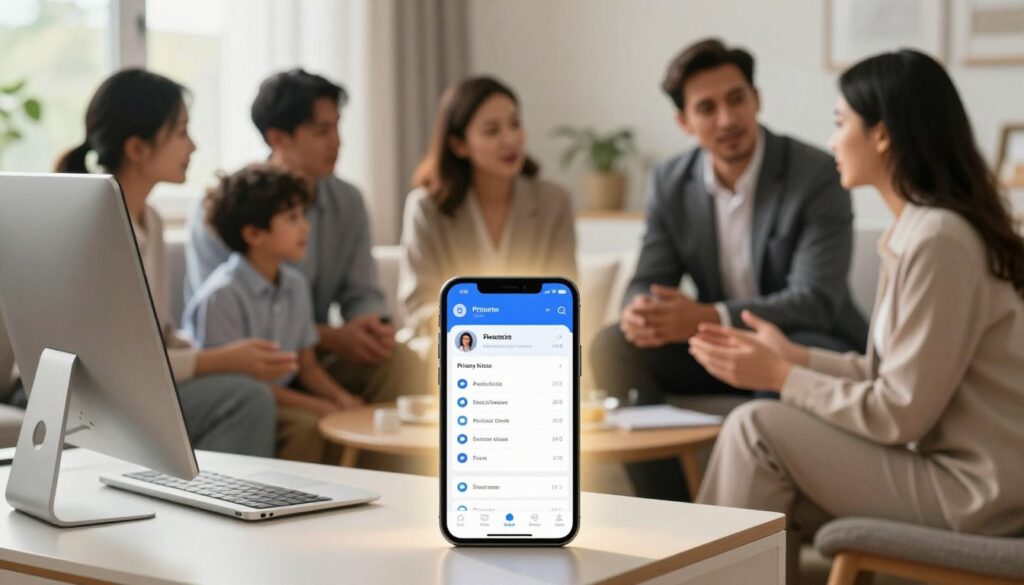
Your privacy settings are like the rules for your online home. They decide who gets to see inside. Without them, strangers might learn your routines and personal details. Taking these steps can give you peace of mind and keep your connections safe.
A Step-by-Step Guide to Locking Down Facebook, Instagram, and TikTok
You don’t need to be a tech expert to secure your accounts. Each major platform has tools to help. Let’s look at the most important ones to activate today. This is a powerful step in safeguarding family information across the apps you use most.
Adjusting Profile, Post, and Tagging Settings
Start by making your profile and past posts more private. Then, control what others can share about you.
- Facebook: Go to Settings & Privacy > Settings > Privacy. Set “Who can see your future posts?” to “Friends”. Use “Limit Past Posts” to apply this to old content. Under “Profile and Tagging”, turn on “Review posts you’re tagged in before the post appears on your profile”.
- Instagram: Tap your profile, then the menu (three lines). Go to Settings > Privacy. Set your account to “Private”. Under “Posts”, manage “Hide Likes and View Counts”. In “Tags and Mentions”, enable “Manual Tag Approval”.
- TikTok: Go to your profile, tap the three lines for Settings and Privacy > Privacy. Set your account to “Private”. Under “Safety”, manage “Who can view your liked videos” and “Comment filters”. Turn “Suggest your account to others” to off.
These steps ensure you approve what’s linked to your name. They are essential family privacy measures for the social web.
Guiding Your Children’s Online Sharing and Footprint
For parents, talking about privacy is as important as setting it. Your child’s digital footprint starts early. Teaching them to protect their accounts and privacy is a modern life skill.
Start with age-appropriate talks. Explain that the internet remembers forever. A photo or comment shared today could be found years later. Use real, gentle examples they understand.
The goal isn’t to scare them off the internet, but to equip them with a filter for their own actions.
Show them how you adjust your own privacy settings. This demonstrates that safeguarding family information is a shared value.
Set clear, simple rules together. For younger kids, all accounts should be private, and parents should be friends/followers. For teens, discuss what is never okay to share: home address, school name, phone number, or financial details. Encourage them to think: “Would I be okay if Grandma saw this? What about a future teacher?”
These ongoing conversations turn privacy into a habit. They build a foundation of smart family privacy measures that will protect your children long into the future.
Fortifying Your Home Wi-Fi Network
Before you worry about individual apps or passwords, you must secure the network they all use. Your home Wi-Fi is the digital foundation for your family’s online life. Every smartphone, laptop, tablet, and smart gadget connects through it. Making this network strong is a critical step in your overall plan for secure family data.

Think of it as building a high-tech fence around your digital home. A weak network lets strangers peek in or even walk right through. A strong one keeps your family’s information safe inside. Let’s make your network impenetrable.
How to Secure Your Router in 10 Minutes
Your router is the physical box that creates your Wi-Fi signal. Manufacturers often set it up for easy installation, not maximum security. You can change that in less time than it takes to watch the news. Follow these steps for quick, powerful protection.
The first task is to log into your router’s settings. You usually do this by typing an address like 192.168.1.1 into a web browser. You’ll need the default username and password, often found on a sticker on the router itself. Once you’re in, you can make these vital changes.
Changing Default Credentials and Enabling WPA3
This is your most important action. Never keep the factory-set admin username and password. Hackers have lists of these defaults. Create a new, strong admin password that you will store safely. This locks the settings panel itself.
Next, find your wireless security settings. Look for the option to change your Wi-Fi network’s name, called the SSID. Avoid using your family name or address. Pick something unique that doesn’t identify you.
Then, create a new Wi-Fi password. Make it a long, random mix of letters, numbers, and symbols. This is the key you give to your family’s devices. Choose the strongest encryption available. WPA3 is the latest and best standard. If your router doesn’t offer WPA3, choose WPA2 (AES). These steps, recommended by cybersecurity guides worldwide, form a universal baseline for safety.
The Benefits of Using a Guest Network and VPN
Once your main network is locked down, you can add extra layers of smart security. Two of the most effective are a guest network and a Virtual Private Network (VPN). They work in different ways to give you more control and privacy.
A guest network is a separate Wi-Fi signal your router can create. You give this password to visitors. Their devices connect to the internet but are isolated from your family’s computers, printers, and smart home gadgets. This prevents accidental access to your files and adds a buffer against any malware on a guest’s device.
| Feature | Main Family Network | Guest Network |
|---|---|---|
| Primary Use | For trusted family devices and smart home systems. | For visitors, friends, and any less-trusted devices. |
| Access to Family Devices | Full access to shared printers, NAS drives, and other home devices. | Isolated; can only access the internet, not other home network devices. |
| Security Impact | Protected by your strongest password and WPA3 encryption. | Contains possible threats away from your core family data. |
| Best For | Daily use, sensitive activities (banking, work), and data protection for families. | Playdates, parties, and service personnel needing internet access. |
A VPN, or Virtual Private Network, is like a secure tunnel for your internet traffic. It encrypts everything you send and receive, even on an already secure network. At home, this adds another layer of privacy. Its real power shines on public Wi-Fi at cafes, airports, or hotels.
Public networks are often poorly secured. Using a VPN on them encrypts your data, making it extremely difficult for anyone else on that network to spy on your activity. This is a key habit for data protection for families when you’re traveling or out and about.
By securing your router, setting up a guest network, and using a VPN wisely, you build a powerful digital fortress. This foundation makes every other step in your family’s online safety plan more effective.
Training Your Family to Spot Scams and Phishing Attempts
Even the best passwords and secure routers can’t stop a single click on a fake link. The key to protecting your family’s data is education. When everyone knows how to spot digital tricks, you create a strong defense.

This isn’t about scaring your family. It’s about giving them the power to protect themselves. Let’s make learning fun and effective for everyone.
Red Flags in Emails, Texts, and Phone Calls
Scammers use tricks to get information from you. Teach your family to watch out for these signs:
- A Sense of Extreme Urgency: Messages that say you’ll lose something if you don’t act fast are trying to scare you.
- Mismatched or Strange Sender Details: If an email looks off, like a Netflix message from Gmail, it’s a warning sign. Always check links before clicking.
- Generic Greetings and Poor Grammar: Real companies usually use your name. Be cautious of “Dear Customer” and spelling mistakes.
- Suspicious Links or Attachments: Never open unexpected attachments or click on links to “verify” your account. Go straight to the company’s website instead.
- Too-Good-To-Be-True Offers: Free gifts, unexpected money, or inheritance from unknown relatives are usually scams.
Real-World Examples to Review Together
Learning by doing is the best way. Have a “Scam Spotter” night with your family. Look at real examples online or create your own fake email.
Go through it together, asking what seems off. Talk about the sender, the urgent tone, and where the link might lead. This hands-on approach makes the dangers clear.
Teaching your family about scams is the best security move. A smart family is a safe one.
Games and Lessons to Teach Kids Digital Skepticism
For kids, make learning a game. The goal is to be curious and skeptical, not scared. Use resources like Internet Safety for Kids (IS4K) for age-appropriate materials.
Play “Spot the Fake.” Create two messages—one real, one fake—and have them guess which is the scam. Discuss why they chose it.
Role-play online “stranger danger.” Teach them not to share personal info online. Make a rule: if something seems too good to be true, they must check with a parent first.
These activities turn warnings into real skills. They make family digital security a team effort, where everyone helps protect your data.
Implementing Your Ongoing Family Data Protection Strategy
Keeping your family safe online is not just a one-time task. It’s a continuous effort that grows with your family. By creating habits and systems, you make ensuring family data confidentiality a part of your daily life. This turns hard work into easy habits and worry into confidence.
A good strategy has three main parts: a clear agreement, regular reviews, and a reliable safety net. Let’s start building yours.
Creating a Simple Family Digital Security Charter
Think of this as a one-page promise your family makes to each other. It outlines your core digital rules in simple language everyone understands. Writing it down creates a central source of truth, so you’re not relying on memory or outdated copies.
Gather everyone and decide on your non-negotiable rules. Here are some powerful starters:
- “We all use the family password manager for every account.”
- “We ask for permission before posting photos or videos of other family members online.”
- “We only download apps from the official Apple App Store or Google Play Store.”
- “We tell a parent immediately if we see a strange message or pop-up.”
Post your charter on the fridge or frame it near the family computer. This visible commitment is a powerful step in safeguarding family information together.
Scheduling Quarterly “Security Check-Up” Meetings
Set a recurring date every three months for a 20-minute family tech huddle. These brief meetings prevent small vulnerabilities from becoming big problems. They also provide a perfect time to discuss new apps or online experiences your kids are having.
Use a simple checklist to guide your review:
- Update all software and operating systems on phones, computers, and tablets.
- Review social media privacy settings and friend lists.
- Check for any unknown devices connected to your home Wi-Fi.
- Change passwords for any accounts that feel outdated.
Major life changes, like a new phone or a teenager getting their first job, are automatic triggers for an extra review. This creates a “review trail” and keeps your protections current.
Setting Up Automatic Cloud Backups for Peace of Mind
This is your ultimate safety net. Irreplaceable family photos, important documents, and precious videos should live in more than one place. Automatic cloud backups work silently in the background, ensuring your memories are safe even if a device is lost, stolen, or fails.
Services like iCloud, Google Drive, or Dropbox can be set to back up your phone’s camera roll and key folders automatically. For computers, consider a dedicated service like Backblaze or Carbonite. The goal is set-it-and-forget-it security.
Once configured, these backups provide profound peace of mind. You’re not just safeguarding family information; you’re preserving your family’s story.
| Strategy | Primary Goal | Your Next Step |
|---|---|---|
| Digital Security Charter | Aligns everyone on the same rules, creating a shared culture of safety. | Hold a 30-minute family meeting to draft your one-page agreement. |
| Quarterly Check-Ups | Catches issues early and adapts your defenses to new technology. | Put the first 20-minute meeting on the family calendar for next quarter. |
| Automatic Cloud Backups | Guarantees your most precious digital items are never truly lost. | Enable auto-backup on one family member’s phone or computer today. |
Together, these three actions form a complete cycle for ensuring family data confidentiality over the long term. It’s a strategy that protects, adapts, and endures.
Conclusion
You’ve moved from understanding invisible risks to building real defenses. This journey turns worry into confident action. Your dedication to family data protection shows your ongoing care.
The best systems for secure family data make sharing feel calm and safe. They protect privacy while keeping your connections strong. You control what information is shared and when. This balance lets your family enjoy the digital world without fear.
Remember, your role as the first line of defense is vital. Simple habits like strong passwords, regular check-ups, and open conversations create a lasting shield. Your family digital charter turns rules into shared values.
Start strengthening your digital safety today. Each step you take builds a more resilient home. You empower your loved ones to explore, learn, and connect with true confidence and peace of mind.