Did you know a ransomware attack strikes a new victim every 14 seconds? In our digital age, your precious files, photos, and documents are more vulnerable than ever.
Hardware fails, mistakes happen, and malware spreads. That’s why creating a reliable safety net for your information is no longer optional—it’s essential.
Drawing from expert analysis by sources like PCMag and TechRadar, this friendly guide cuts through the noise. We’ll explore how modern online services offer a powerful shield, far surpassing the limits of a single external hard drive.
Our goal is simple: to empower you with clear knowledge. You’ll be equipped to choose a solution that keeps your digital life secure and accessible, no matter what comes your way.
Key Takeaways
- Data loss from hardware crashes, ransomware, or simple human error is a constant and real threat.
- Cloud-based storage provides a more robust and reliable safety net compared to local drives alone.
- Top-rated services like IDrive, Backblaze, and Carbonite are consistently highlighted by expert reviews.
- Your important files remain secure and can be retrieved from anywhere with an internet connection.
- Selecting the right service empowers you to proactively protect your entire digital life.
- Understanding key features helps you make an informed and confident decision.
The Data Vulnerability Reality Check
Data vulnerability is a constant threat for anyone using digital devices. Your photos, tax documents, and work projects are at risk. Understanding this is the first step to protecting yourself.
Hard drives can fail without warning. A study by Backblaze shows annual failure rates are a concern. Human errors, like deleting a folder or spilling liquid on a laptop, are common causes of data loss.
Ransomware can encrypt your files in minutes, holding them hostage. Losing a device means your data is gone. Natural disasters can destroy both your computer and backups. These are real threats, not just stories.
Understanding the cloud backup benefits is key. A local backup is good, but it’s vulnerable to the same threats as your computer. Cloud backup services offer off-site protection. Your data is safely copied to remote servers, away from local risks.

The benefits of cloud backup are significant. It’s automated, so you’re always protected without effort. It provides geographic security with data centers that are fortified. Lastly, it enables quick restoration of your files from any internet-connected device.
To see how these services protect you, consider how they handle everyday dangers:
| Cause of Data Loss | Likelihood | Typical Impact | How Cloud Backup Helps |
|---|---|---|---|
| Hardware Failure | High | Complete loss of all data on the device. | Provides a complete, recent copy stored off-site for full restore. |
| Ransomware/Malware | Medium-High | Files encrypted or corrupted; system unusable. | Allows you to “roll back” and restore clean, uninfected file versions. |
| Accidental Deletion | Very High | Loss of important individual files or folders. | Easy search and restore of previous file versions from any point in time. |
| Theft or Physical Damage | Medium | Loss of both device and any connected local backups. | Your data remains secure and accessible online from a new device. |
Knowing these facts makes the choice clear. A reliable cloud backup service is your best defense. It turns a disaster into a minor problem. The peace of mind from knowing your digital life is secure is priceless.
Cloud Backup vs. Cloud Storage: Knowing the Difference
Your photos are on iCloud, and your documents are in Dropbox—so are you backed up? Not necessarily. This mix-up can leave your data exposed. Let’s clear the air once and for all.
Cloud storage and cloud backup solve different problems. Knowing which one you need is key to digital safety.
Cloud storage is like your digital filing cabinet. Services like Google Drive, Dropbox, and Apple iCloud Drive are for syncing and sharing. You put a file in a folder on your laptop, and it shows up on your phone and tablet.
Its main goal is easy access and collaboration. It’s great for documents you’re working on. Think of it as an online version of your computer’s hard drive.
But, if you delete a file from your computer, it often gets deleted from the cloud too. It’s a mirror, not a time capsule.
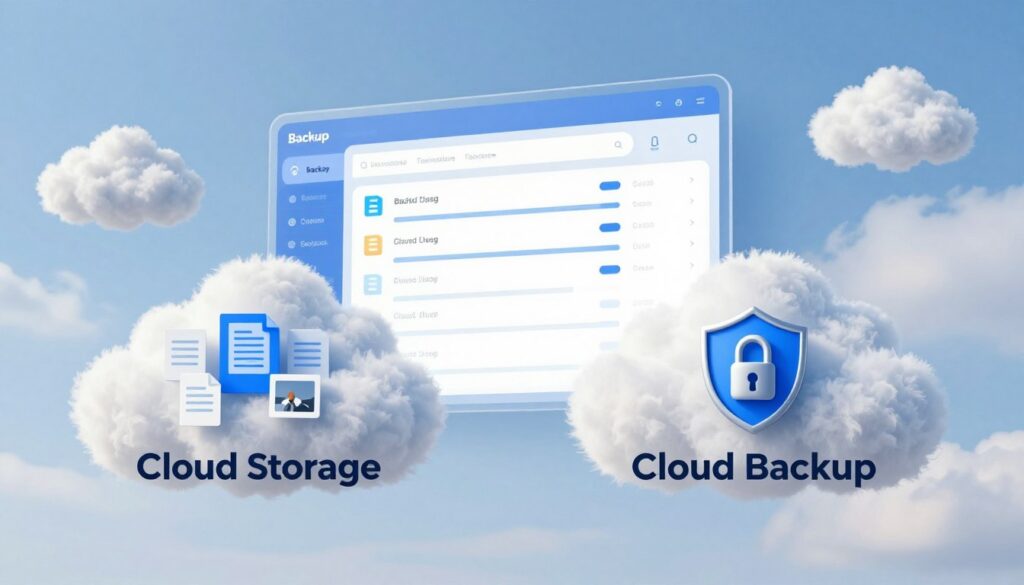
Cloud backup is your digital safety net. Services like IDrive, Backblaze, and Acronis focus on recovery. They quietly copy your files to a secure, off-site vault.
The backup is encrypted and versioned. If your laptop is stolen or hit by ransomware, you can restore everything to a previous state. It’s like insurance for your digital life.
Cloud storage syncs your files for access across devices. Cloud backup archives them for recovery from disaster. They are complementary tools, not substitutes.
The table below breaks down the core differences at a glance:
| Feature | Cloud Storage | Cloud Backup |
|---|---|---|
| Primary Purpose | File sync & sharing across devices | Disaster recovery & data archiving |
| File Management | Manual or selective folder sync | Automatic, continuous protection of all files |
| Security Focus | Access controls & link sharing | End-to-end encryption & version history |
| Ideal For | Collaborating on projects, accessing files on-the-go | Protecting against hardware failure, theft, or malware |
| Pricing Model | Often per-user or per-GB for sync space | Often per-device with unlimited or large capacity |
Services like Sync.com blur the line. They offer strong encryption common in backup services within a storage-like interface. Yet, their main mission is secure file sync, not full-system recovery.
So, which do you need? For most people, the answer is both. Use cloud storage for your active work. Use a dedicated cloud storage backup service for your entire digital footprint.
You wouldn’t use a filing cabinet as a fireproof safe. Don’t make the same mistake with your data. Understanding this distinction is the first step in building a robust data protection strategy.
The Checklist for Your Ideal Cloud Backup
Let’s simplify finding the right cloud backup service. We’ve used expert reviews from PCMag and TechRadar to create a checklist. It focuses on five key areas, like a scorecard for you.
Each point on this list is a key question to ask before you decide. It makes comparing services easy and straightforward.
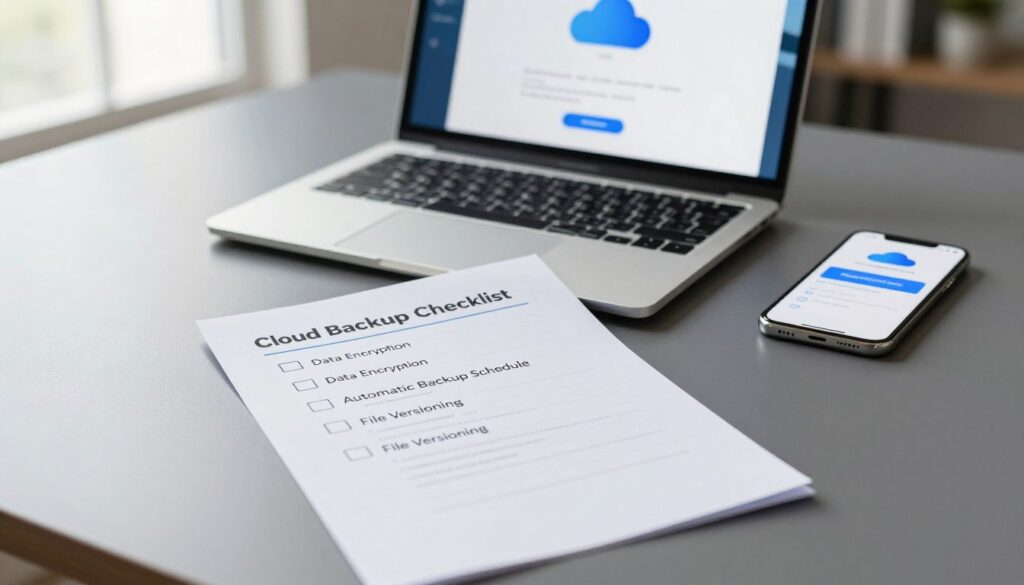
- Security: How is your data protected?
- Value: What do you get for your money?
- Simplicity: How easy is it to set up and forget?
- Performance: How fast are backups and restores?
- Compatibility: Does it work with all your devices?
1. Security: Encryption and Compliance
Security is your first priority. Look for a service that uses 256-bit AES encryption for your data. They should also offer a private encryption key, so even they can’t access your files.
Compliance standards are also important. Services that follow SOC 2 or GDPR show they take data handling seriously. This is critical if you’re backing up business data.
As TechRadar points out, true security is about the whole system’s integrity, not just encryption.
2. Value: Storage Limits and Pricing
Plans vary a lot. Some services offer unlimited storage for one computer, while others charge per terabyte. Choose a plan that fits your needs.
For a media-heavy laptop, unlimited storage is great. But for specific folders on multiple devices, a per-terabyte plan might be better. Always check the pricing model.
Look for the fine print. Are there fees for restoring data? What happens if you cancel? Knowing the full cost is essential for value.
3. Simplicity: Setup and Daily Use
The best tool is easy to use. A simple setup gets you protected quickly. Look for a clean, intuitive dashboard.
Daily use should be automatic. Continuous backup without manual triggers is ideal. You shouldn’t have to remember to start backups every week.
Good customer support is part of simplicity. You should get clear answers fast. This ease of mind adds to the service’s value.
4. Performance: Backup and Restore Speed
Speed tests are important. A slow initial backup can take days, which is frustrating. Look for services with bandwidth throttling controls.
Restore speed is critical. In emergencies, you need your files back fast. Some providers offer courier delivery for large restores, which is a big plus.
Performance can vary by location and internet. Independent reviews often share their speed test results, giving you a realistic idea.
5. Compatibility: Devices and Operating Systems
Your digital life spans multiple devices. Your backup service should protect your Windows PC, Mac, iPhone, and Android devices seamlessly. Make sure they have dedicated apps for all your operating systems.
True compatibility also means backing up external drives and NAS. For power users, this feature is a key differentiator.
Before choosing a provider, do a quick audit. Count all devices and data types you need to protect. Your service must cover them all without workarounds.
This five-point checklist makes choosing a service easy. You can now compare services objectively, knowing what matters for your data’s safety and peace of mind.
Side-by-Side: Top Cloud Backup Services Compared
Let’s cut through the marketing noise and lay out the facts in a clear, side-by-side cloud backup comparison. Seeing the top services lined up helps you spot the differences that truly matter for your needs.
We’ve compiled data from trusted sources like TechRadar and PCMag to create this snapshot. It focuses on four leading names: IDrive, Backblaze, Carbonite, and Acronis.
This table compares their core offers. Look for the balance of cost, capacity, and special features.
| Service | Starting Price (Personal) | Key Storage Offer | Standout Feature | Best For |
|---|---|---|---|---|
| Backblaze | $7/month | Unlimited (one computer) | Extreme simplicity | Individuals with one very full computer |
| IDrive | $79.50/year (5TB) | Multi-device, multi-OS | Incredible value & flexibility | Families or users with many devices |
| Carbonite | $4.92/month (Basic) | Unlimited (varies by plan) | Easy, set-and-forget operation | Beginners who want hands-off backup |
| Acronis Cyber Protect | $49.99/year (Essential) | Local + cloud options | Integrated anti-malware & security | Security-focused users worried about ransomware |
The table reveals clear trade-offs. Backblaze wins on pure, unlimited simplicity for a single machine. IDrive offers tremendous storage for the price across all your gadgets.
Carbonite is the classic choice for effortless, automated protection. Acronis stands apart by blending backup with active cybersecurity tools.
The best cloud backup service isn’t the one with the most features—it’s the one you’ll actually use consistently to protect what matters.
This head-to-head view gives you a powerful starting point. Now, let’s zoom in on each service in the following sections. You’ll get the full details to see which champion fits your digital life.
Cloud Backup Review: Backblaze Deep Dive
Backblaze is known for its simple promise: unlimited backup for one computer without hassle. It stands out in a crowded market by focusing on ease of use. Let’s explore if its straightforward approach meets your needs.
Overview: The Unlimited, No-Fuss Backup
Backblaze is a specialized tool. It doesn’t aim to be everything. Its main goal is to back up your computer to the cloud quietly and continuously. Just install the app, and it takes care of the rest. This focus is a big plus for many users.
Pros: Why You Might Love Backblaze
If you dislike dealing with storage limits and settings, Backblaze is great.
Truly Unlimited Backup for One Computer
Backblaze’s main feature is unlimited backup for one device. It doesn’t matter if you have 500 GB or 5 TB of data. The price stays the same. This means you never have to worry about running out of space.
Extremely Simple “Set It and Forget It” Operation
The software is easy to use. After setting it up, it runs quietly in the background. It finds new and changed files automatically. This makes it perfect for those who want protection without hassle.
Competitive Flat-Rate Pricing
Backblaze has a simple pricing model. You pay one annual fee for full protection of your computer. There are no surprise charges because there’s no limit. This makes budgeting for your data safety easy.
Cons: What Might Give You Pause
While Backblaze is easy to use, it has some downsides to consider.
Limited File Version History on Lower Plans
The standard plan keeps files and deleted files for 30 days. If you need to restore a file, you must do it within 30 days. For longer protection, you need to pay extra for the Extended Version History add-on.
No Support for Mobile Device Backup
Backblaze only supports computers. You can’t back up photos from your iPhone or files from your Android tablet directly. If you need to back up all your devices, this might not be the best choice.
Key Features & Final Verdict
Backblaze offers some unique tools that can be very helpful in emergencies.
Notable Features: Courier Recovery Drive, Extended Version History
If your hard drive fails and you need your data back fast, Backblaze can help. They offer a Courier Recovery Drive service. It’s a paid option but much faster than downloading large amounts of data. The Extended Version History add-on is also important for those who need to recover files from months or even a year ago.
Best For: Users with a single Windows or Mac computer who want unlimited, hands-off backup.
Backblaze isn’t packed with features, but that’s intentional. It’s a great choice for individuals with one main computer who want easy backup. It’s not the best for families with many devices or those who need deep, long-term versioning included in the base price.
Here’s a quick summary of what Backblaze offers on its main plans:
| Feature | Backblaze Personal Backup (Standard) | With Extended Version History Add-on |
|---|---|---|
| Backup Limit | Unlimited for 1 computer | Unlimited for 1 computer |
| File Version History | 30 days for deleted/older files | 1 year (or forever for an extra fee) |
| Courier Recovery Drive | Available for a fee ($99+) | Available for a fee ($99+) |
| Mobile App Access | View & download files only | View & download files only |
| Ideal User Profile | The casual user who wants simple, set-and-forget backup. | The power user or professional who needs longer file history. |
When comparing cloud backup providers, Backblaze’s focus is clear. It delivers on its promise well, making it a top choice for its specific audience.
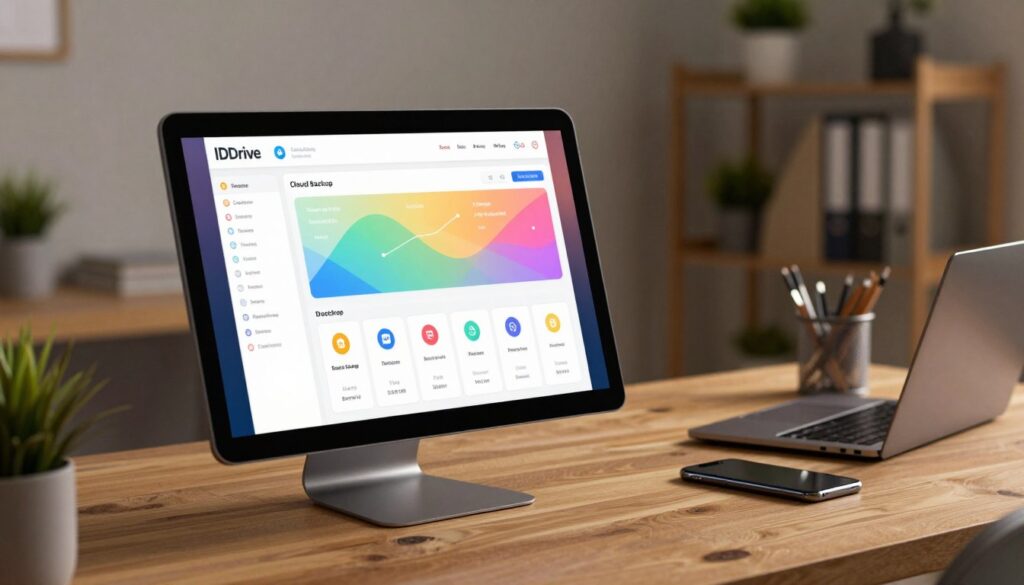
IDrive In-Depth: Features for Days
IDrive goes beyond just backing up files. It’s a full data hub for your digital life. This cloud backup software has so many tools, it’s like a Swiss Army knife for your data. Let’s dive in and see if it’s right for you.
Overview: The Complete Data Hub
IDrive is more than just a backup service. It’s your central hub for data protection. You get backup, sync, file sharing, and archiving all in one. It’s perfect for managing everything from family photos to work documents.
Pros: Why You Might Love IDrive
IDrive offers many benefits, great for those with lots of data.
Backs Up Multiple Computers and Mobile Devices to One Account
IDrive’s best feature is backing up many devices with one account. You can cover your Windows PC, your spouse’s Mac, and all your phones. Manage everything from one web console, no need for separate accounts.
Generous Storage on Affordable Plans
IDrive gives you lots of storage without costing too much. Its personal plans offer a lot of space for backing up many machines. Here’s a quick look at their plans:
| Plan Name | Storage | Device Limit | Approx. Annual Price |
|---|---|---|---|
| IDrive Personal | 5 TB | Unlimited | $79.50 |
| IDrive Personal | 10 TB | Unlimited | $99.50 |
| IDrive Business | 250 GB (per user) | Unlimited (per user) | $99.50 (first user) |
As you can see, you get a lot of space for your money. This makes IDrive a great value for users with lots of photos or videos.
Strong Security with Private Encryption Key Option
Your data is safe with 256-bit AES encryption. You can even use a private encryption key for extra security. This means only you can access your files. It’s essential for anyone with sensitive data.
Cons: What Might Give You Pause
No service is perfect, and IDrive has some downsides.
Interface Can Feel Cluttered Compared to Simpler Services
IDrive’s dashboard is busy with lots of options. If you prefer simple services like Backblaze, IDrive might be overwhelming at first. It takes time to find everything.
Initial Backup Speed Can Vary
The first backup is the biggest challenge. Speed depends on your internet. While later backups are quick, the first one can take days or weeks. Plan ahead.
Key Features & Final Verdict
IDrive has many advanced features that make it stand out.
Notable Features: Snapshots, Sync, True Archiving
IDrive keeps snapshots of your files for easy rollbacks. Its sync folder keeps files updated across devices. It also offers true archiving to save space while keeping files accessible.
Best For: Households or individuals with multiple devices seeking a powerful, all-in-one solution.
If you need a cloud backup software for all your devices, IDrive is a top choice. It offers great value and strong security. Just be prepared for a feature-rich interface that’s worth exploring.
Carbonite Review: Simplicity First
Forget complex settings and endless configurations. Carbonite offers an affordable cloud backup solution built on pure simplicity.
It is designed for people who want protection, not a project. This service acts as a quiet guardian for your files.
Overview: The Approachable Safety Net
Carbonite positions itself as your digital safety net. It focuses on a set-and-forget experience.
The goal is to remove technical barriers. You get reliable data protection without needing to be an expert.
Pros: Why You Might Love Carbonite
Carbonite wins hearts by making backup feel effortless. Its strengths are clear for everyday users.
One of the Most User-Friendly Interfaces Available
The dashboard is clean and intuitive. Setting up a backup takes just a few clicks.
Carbonite guides you with clear prompts. You won’t get lost in advanced menus you’ll never use.

Your precious videos get special treatment. On Carbonite Plus and Prime plans, video files are backed up automatically.
This is a huge plus for families and content creators. You don’t have to manually select every file.
Strong Brand Reputation and Customer Support
Carbonite has been in the game for years. That longevity builds trust.
Their support team is known for being helpful and patient. If you have a question, you can get a clear answer.
Cons: What Might Give You Pause
No service is perfect. It’s smart to know the limitations before you commit.
Slower Restore Process Reported by Some Users
Getting your data back can take time. Some user reviews mention restore speeds that aren’t the fastest.
For a large recovery, you might need patience. This is the trade-off for its simple, continuous backup style.
Unlimited Plans Come with Caveats for Very High-Volume Users
“Unlimited” doesn’t always mean infinite. Carbonite’s fair-use policy may throttle speeds if you back up multiple terabytes.
For the average user, this isn’t an issue. But for someone with dozens of hard drives, it’s a point to consider.
Key Features & Final Verdict
Carbonite packs useful tools under its simple hood. Two features stand out for added peace of mind.
Notable Features: Mirror Image Backup, Courier Restore Service
Mirror Image Backup (on higher plans) can create a full copy of your entire drive. This is great for disaster recovery.
The Courier Restore Service is a lifesaver. If you lose everything, Carbonite can ship a physical hard drive with your data. This bypasses slow downloads.
Here’s a quick look at how Carbonite’s main plans stack up:
| Plan | Best For | Automatic Video Backup | Courier Restore Service |
|---|---|---|---|
| Carbonite Basic | Essential file backup for one computer | No | No |
| Carbonite Plus | Users with external drives and video files | Yes | No |
| Carbonite Prime | Maximum convenience and fastest recovery | Yes | Yes |
Best For: Non-technical users and those who prioritize an effortless, guided backup experience.
Carbonite is the easy button for data safety. If you want strong protection without a manual, this is it.
It’s a top pick for an affordable cloud backup that values simplicity over advanced tweaking. You trade some speed and fine control for remarkable ease of use.
Your data gets a reliable, hands-off guardian. For most people, that’s exactly what they need.
Acronis Cyber Protect: The Security-Centric Choice
Acronis Cyber Protect is more than just a backup service. It fights threats while keeping your files safe. It’s designed for a world where simple file syncing isn’t enough. It’s not just a secure cloud backup vault but a cyber defense hub.
Overview: More Than Just Backup
Think of Acronis Cyber Protect as a digital safety Swiss Army knife. It combines backup with security tools in one dashboard. Your data is shielded from threats as soon as you start backing up.
For those who see data loss and cyber attacks as threats, this service is a game-changer. You manage everything from one place, simplifying your tech security strategy.
Pros: Why You Might Love Acronis
Acronis offers more than just storage. Its proactive approach to protecting your digital world is its strength.
Integrates Active Ransomware Protection and Antivirus
This is its standout feature. Acronis doesn’t just help you recover from ransomware attacks; it stops them. Real-time scans block malicious behavior before it can encrypt your data.
Having antivirus in the backup software closes a major security gap. It ensures backed-up files are clean, preventing infected data from being saved to your cloud vault.
Flexible Backup Options: Full Image, File/Folder, Cloud, Local
You have the freedom to choose the right backup for each need:
- Full Image Backup: Creates a complete snapshot of your entire drive, including the operating system, apps, and settings. Perfect for a full system recovery.
- File & Folder Backup: For backing up specific documents, photos, or projects quickly.
- Hybrid Cloud & Local: You can back up to the Acronis Cloud, a local external drive, or both simultaneously for the 3-2-1 backup rule.
Excellent Performance and Reliability
Backups and restores are consistently fast and reliable. The software uses minimal system resources, so you can work without slowdowns. This reliability is key when you need a restore to work perfectly under pressure.
Cons: What Might Give You Pause
No service is perfect for everyone. The very features that make Acronis powerful can also be drawbacks depending on your situation.
Premium Priced Compared to Pure Backup Services
You pay for the advanced security integration. Acronis Cyber Protect costs more per month than basic services like Backblaze or Carbonite. You need to decide if the extra security tools are worth the higher investment for your needs.
Can Be Overkill for Users Who Only Want Simple File Backup
If all you want is to automatically back up your Documents folder to the cloud, Acronis might feel complicated. The dashboard includes many security settings and options that a casual user may never touch, which can be overwhelming.
For pure, simple backup, other services are more streamlined. Acronis is for those who want their backup to be part of their armor.
Key Features & Final Verdict
Beyond the core backup and security, Acronis includes innovative features that set it apart in the quest for true data integrity.
Notable Features: Blockchain Notarization, Microsoft 365 Backup
Blockchain Notarization provides cryptographic proof that your backup files have not been altered. This is an extra layer of verification, useful for legal or compliance needs.
Its dedicated Microsoft 365 Backup feature secures your Exchange Online, SharePoint, OneDrive, and Teams data directly. This is a must-have for businesses relying on the Microsoft ecosystem.
Best For: Security-conscious users and tech-savvy individuals who want an integrated defense suite, not just backup.
Final Verdict: Acronis Cyber Protect is the undisputed leader for a security-first approach to cloud backup. It’s ideal if you believe strong backup and strong security should be inseparable. You get peace of mind from a single, powerful tool.
How to Choose Your Cloud Backup Partner
With several excellent services reviewed, your final choice depends on what you value most. Let’s match your top priority to the best service.
If Your Top Priority is Low Cost and Simplicity
You want an affordable, set-it-and-forget-it solution. You don’t need advanced security bells and whistles.
Your Match: Carbonite. It offers straightforward, unlimited backup at a very competitive price. The interface is simple, making it easy for anyone to use.
If You Need to Back Up a Family’s Worth of Devices
You have multiple computers, phones, and tablets in your household. You need one plan to cover everything.
Your Match: IDrive. Its single plan covers unlimited devices, making it incredibly cost-effective for families or individuals with many gadgets. The mobile app support is excellent.
If You’re Paranoid About Ransomware and Security
You view backup as a critical part of your cybersecurity strategy. You want active protection, not just a recovery plan.
Your Match: Acronis Cyber Protect. This is the service for you. The integrated ransomware fighting and antivirus provide a level of proactive defense the others don’t match. It’s the most secure cloud backup package available.
If You Just Want It to Work Without Thinking
You desire absolute simplicity and reliability. You want to install it, select your drive, and never worry about configuration or limits again.
Your Match: Backblaze. Its “unlimited backup for one computer” model is the epitome of no-fuss operation. It runs quietly in the background, giving you a very hands-off experience.
By aligning your primary need with the service that excels in that area, you’ll find the perfect secure cloud backup partner to protect your digital life today.
Conclusion
Your data is not safe by accident. It needs a plan. This honest review showed why cloud backup is key to that plan.
We looked at top services to find your perfect match. Backblaze offers unlimited, easy backup. IDrive is great for many devices. Carbonite makes protection simple. Acronis Cyber Protect adds extra security. These are top cloud backup options.
Experts from PCMag and TechRadar tested them. They found these services are valuable. They base their recommendations on real-world tests and user happiness.
The best choice depends on what matters most to you. Do you want the cheapest option, something simple, a family plan, or top security? Any of these services can help keep your data safe.
Acting now means you’ll have peace of mind. Your photos, documents, and memories need a safe place in the cloud. Start protecting your digital world today.